

Locations
A location is an address where you work for a customer: their office, a house, a warehouse, a building site. A customer can have any number of locations. Orders and assets belong to a location. Each location also holds the notes a technician needs on site: How do I get in, where do I park?
Owners, administrators, office staff and dispatchers can view, create, edit and remove locations. The warehouse and technicians do not see the “Locations” page. You find “Locations” in the left-hand menu in the “Master data” group.
Creating a location
Section titled “Creating a location”There are two ways. Both create the same location.
Way 1: On the “Locations” page
- Open “Locations” and click “Add location” at the top right.
- Under “Customer”, choose the customer (“Select customer…”).
- Enter the “Label”, for example “Head office” or “North house”.
- Enter “Street”, “ZIP” and “City”.
- Optional: “Access”, “Parking” and “Notes”.
- Save with “Create”.
Way 2: On the customer page
- Open the customer and then the “Locations” tab.
- Click “Add location”. “City” is prefilled with the customer’s city, “Country” with your company’s country.
- Fill in the fields and save.
| Field | Meaning | Required |
|---|---|---|
| Customer | Which customer the location belongs to. Can only be chosen on the “Locations” page. On the customer page it is already clear. | Yes |
| Label | A short name to find it again, at least 2 characters. If a customer has several locations, a descriptive name helps. | Yes |
| Street | Street and house number. | No |
| ZIP | Postcode. | No |
| City | City. | No |
| Country | A selection list. Your company’s country is preselected (Settings, “Company profile”). It appears in the address and when navigating. | No |
| Access | How the technician gets in: key, code, contact person on site, doorbell. On the customer page with the hint “Access / keys”. | No |
| Parking | Where they can park. | No |
| Notes | Internal notes for your office. On the customer page “Internal notes”. | No |
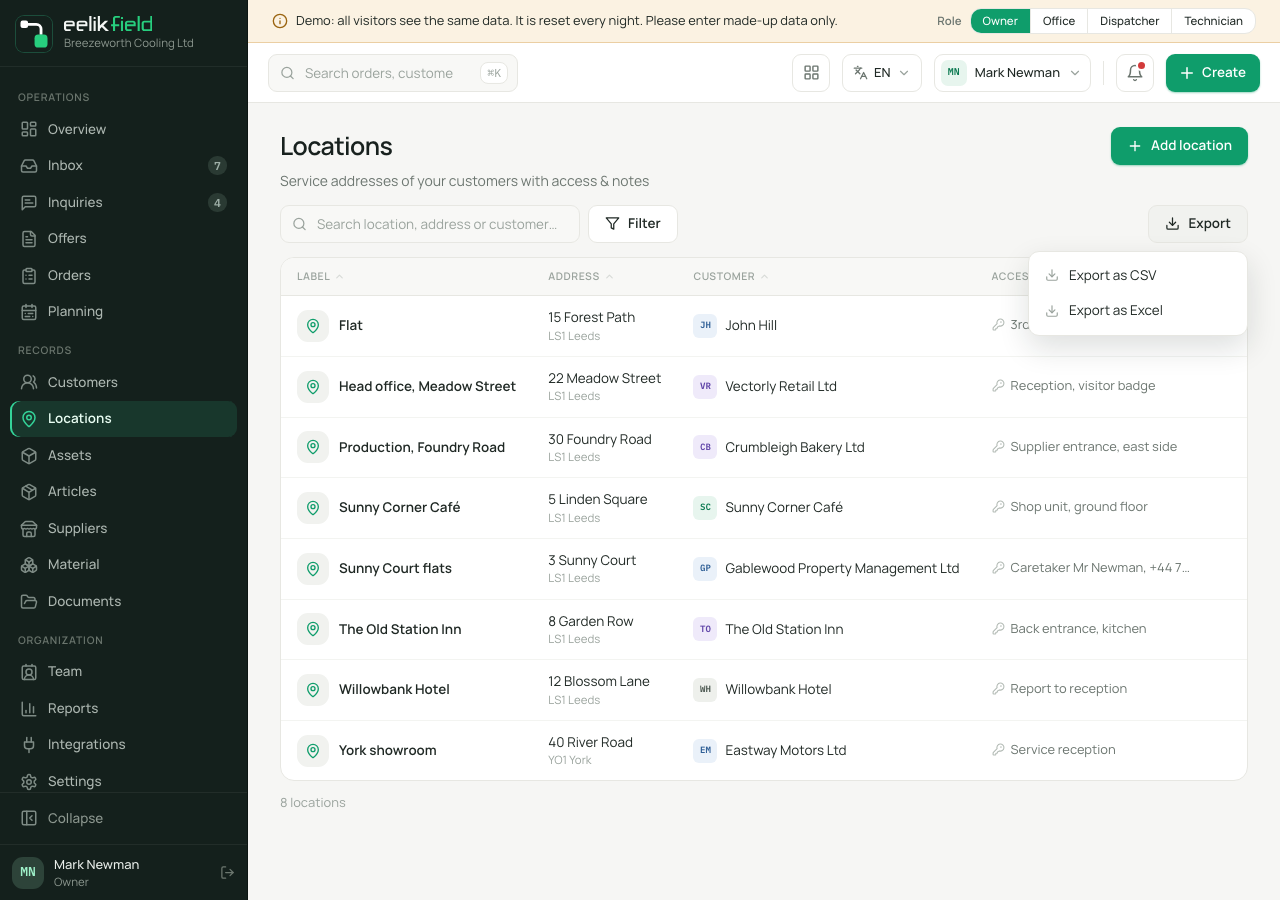
The list of locations
Section titled “The list of locations”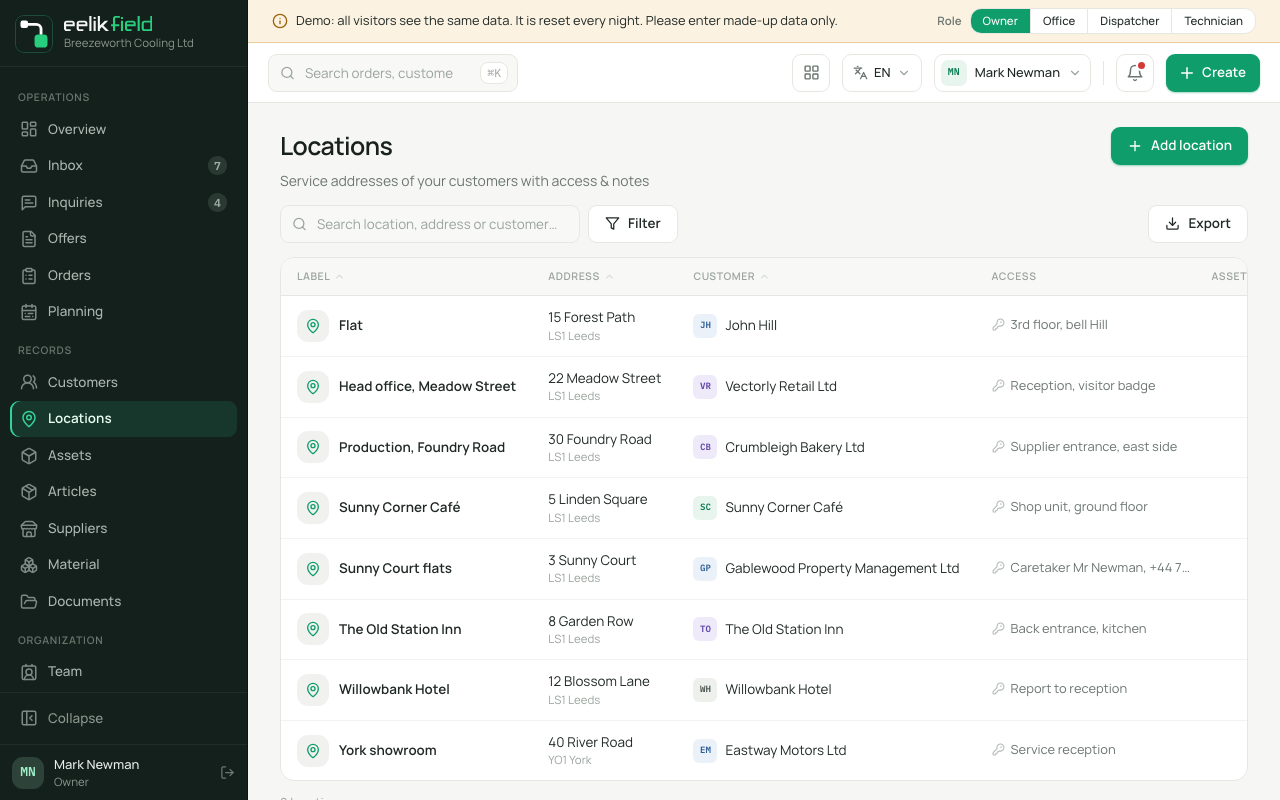
| Column | Content |
|---|---|
| Label | Name of the location. |
| Address | Street, ZIP and city. |
| Customer | The customer the location belongs to. |
| Access | The access note, if there is one. |
| Assets | Number of assets at this location. |
| Orders | Number of open orders at this location. |
- Search: “Search location, address or customer…” searches by label, street, ZIP, city and customer name.
- Filter: The “Customer” filter shows only the locations of one customer.
- Sort: A click on a column heading sorts the list.
- Export: “Export as CSV” or “Export as Excel” downloads the list with label, address, ZIP, city, customer, access, parking, assets and orders.
- Pages: 50 locations per page.
On the phone you see cards instead of the table, with label, address, customer and the number of assets and orders.
The details of a location
Section titled “The details of a location”Click a row to open the side view on the right with everything that belongs to the location:
- Address: Label, street, ZIP, city and country. Below it a placeholder area “Map preview”. No real map is embedded there.
- Assets at the location and Open orders: Numbers.
- Access information and Parking notes: If nothing is entered, it says “No specific access details recorded.” or “No parking notes recorded.”
- Contacts: The customer’s contact persons with main contact marking, call and email buttons.
- Internal notes: Your “Notes”, with the marking “Internal”. If nothing is entered, it says “No internal notes.”
At the bottom are the buttons:
- Pencil (“Edit”) and bin (“Remove”) (see below).
- “Navigate” opens Google Maps with the location’s address in a new tab. On the phone, this starts navigation.
- “Customers” jumps to the customer page.
You see the same information on the customer page in the “Locations” tab and in the “Overview” as “Primary location” (the customer’s first location).
Changing a location
Section titled “Changing a location”If an access code has changed or you made a typing error, change the location:
- Open the location on the “Locations” page (click the row, then the pencil “Edit” at the bottom of the side view) or on the customer page in the “Locations” tab (“Edit” on the card).
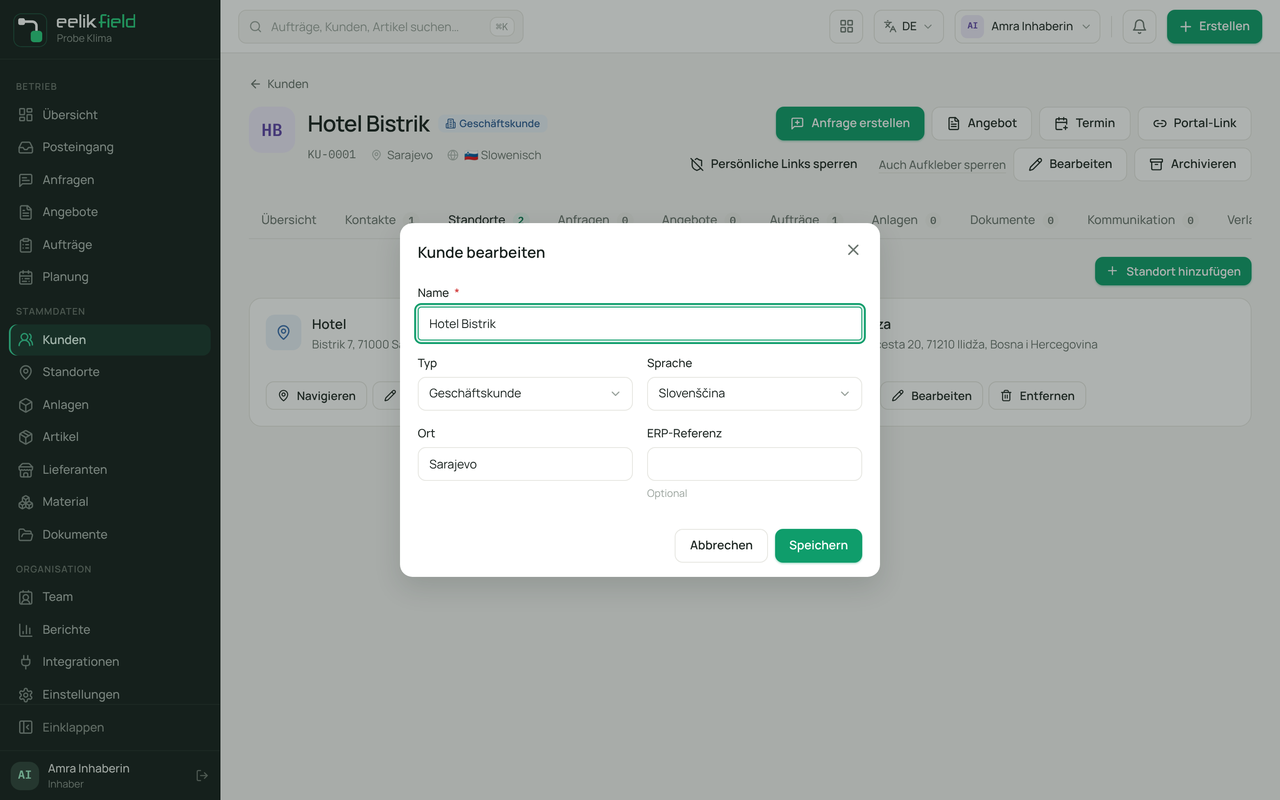
- “Edit location” opens. Label, street, ZIP, city, country, access, parking and notes can be changed. The customer is fixed.
- Click “Save”.
Removing a location
Section titled “Removing a location”With the bin (“Remove”) or the “Remove” button on the card you take a location away. The prompt appears: “Remove this location? It no longer appears with the customer, under Locations or in the selection. Completed orders, offers and inquiries at this location keep showing it.”
Nothing is deleted: the location disappears from the lists and selections but stays visible on orders, offers and inquiries that already name it, also in the app.
Removing is not possible as long as
- an open order is attached to the location: “The location cannot be removed: open orders are still at this location.”
- an asset is still recorded there: “The location cannot be removed: assets are still recorded at this location.” An asset with the status “Removed” does not count.
Complete the orders or assign the assets to another location, then it works. Open offers and inquiries do not hold a location. You cannot bring a removed location back in the interface, create it again if needed.
Owners, administrators, office staff and dispatchers can change and remove.
Locations and regions
Section titled “Locations and regions”A location’s city and the customer’s city are the basis for the “Region” filter on the planning board. The regions of your teams are added there too (Team).
Frequently asked questions
Section titled “Frequently asked questions”Do I need a location for every customer? Not necessarily, but without a location the address, access and parking are missing in the order. Create at least one for every customer you work for.
Where is the phone number on site? With the customer’s contact person (Customers). Locations do not have their own phone number.
Can a location belong to several customers? No. It belongs to exactly one customer. If the same place is to apply for two customers, create it twice.
I created a location incorrectly. Choose “Edit” and correct it. A new location is not necessary.
Why does the new location have a different country than expected? Your company’s country is preselected. Change it in the window, or change the company’s country under “Settings” (Company).
Can I import locations? The import wizard under “Integrations” knows customers and articles. Locations are not included.