

App access
The app on the phone gets its access from the office. In the browser, you create a one-time link or a QR code. The employee taps the link or scans the code, and the app is set up. They do not need to know a password for this, and an employee without an email address can work this way too.
Owners, admins, office staff and dispatchers may send app access, but not for everyone:
| Who the access is for | Who may send and block it |
|---|---|
| Technician, Warehouse | Owner, Admin, Office, Dispatcher |
| Admin, Office, Dispatcher | Owner, Admin |
| Owner | only an owner |
The app is available for the iPhone in the App Store: search for “eelikField” there or use the link https://apps.apple.com/app/eelikfield/id6834371092. For Android, it is available on Google Play: search for “eelikField” there or use the link https://play.google.com/store/apps/details?id=com.eelik.field. The same line appears in the “Add technician” dialog.
How to send app access
Section titled “How to send app access”- Open “Team” in the left menu and click the person’s row. The profile opens on the right.
- In the “App” block, click “Send app access”. The button does not appear for people who are deactivated.
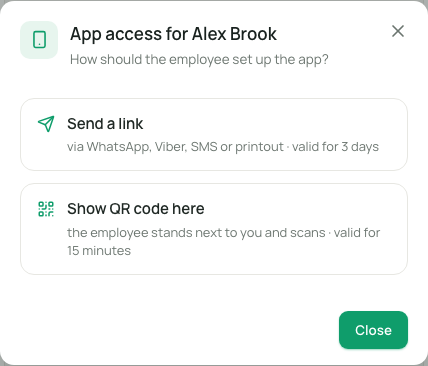
- “App access for
” opens with the question “How should the employee set up the app?”. You have two ways: - “Send a link”: “via WhatsApp, Viber, SMS or printout · valid for 3 days”.
- “Show QR code here”: “the employee stands next to you and scans · valid for 15 minutes”.
- Click one of the two ways. The access is created immediately.
Way 1: Send a link
Section titled “Way 1: Send a link”You see a QR code, above it the validity (“Valid until … · one time only”) and the time left (“2 d 23 h left”). Below it are the buttons:
| Button | What it does |
|---|---|
| “Share” | Opens the share menu of your device, for example WhatsApp. The button appears only where the browser supports sharing, mostly on the phone. |
| “Copy message” | Copies a ready-made text with the link, which you paste into a messenger. It is written in the employee’s language, otherwise in yours. The text also contains the name of your business and the validity. |
| “Copy link” | Copies only the link. |
| “Print” | Opens a sheet with the QR code, name, validity and three steps (“1 Open the camera · 2 point at the code · 3 tap “Open eelikField”“). There is no plain-text link on the sheet. Throw it away after setup. |
The link is valid for 3 days and can be used only once. It looks like this: https://eelikfield.com/e#<long code>. The code comes after the # character. This part of the address is never sent to a server and does not appear in any link preview either. Send the link only to the person it is meant for. The message therefore contains the sentence “Do not forward.”
Way 2: Show QR code here
Section titled “Way 2: Show QR code here”The employee is standing next to you. The QR code appears on your screen, and the time left counts down below it (“14:32 left”). The employee scans it with their phone’s camera and taps “Open eelikField”. This code is valid for only 15 minutes and also only once. The buttons for sharing and printing are not available here.
Withdrawing a link
Section titled “Withdrawing a link”Did you send the wrong link? Click “Withdraw this link” at the bottom left of the window. You see “Link withdrawn. It no longer works.” In the profile too, as long as a link is open, “Link open until …” appears with the same button. When the time has run out, it says “This link has expired. Please create a new one.”
What happens on the phone
Section titled “What happens on the phone”- The employee installs the app. On the iPhone, they search for “eelikField” in the App Store.
- They tap the link or scan the QR code with the phone’s camera. In the app, they can also choose “Scan QR code from the office”, or paste the link under “Or paste the link” and tap “Set up”.
- The app shows “Welcome” and is set up for the business. The details are on the page Set up the app.
If the link was already used or has expired, the employee sees “This link is no longer valid” and should get a new one from the office. Anyone who enters a wrong link too often sees “Too many attempts. Please wait 15 minutes, then tap the link again.” If their access is blocked, it says “Your access is blocked. Please contact the office.”
A person’s devices
Section titled “A person’s devices”In the profile, in the “App” block, you see at a glance how things stand:
| Display | Meaning |
|---|---|
| “No app” | No device is set up and no link is open. |
| “Link open until …” | A link is waiting to be used. |
| “Set up: iPhone · 17.11.2026” | A device is set up, with name and date. |
| “2 devices set up” | Several devices are set up. |
| “Blocked” | The person is deactivated. |
Below that is the list “Devices”. Each row gives the device name and the system (iOS or Android), “set up …”, “last active …” (or “not used yet”) and how the device was set up: “via link” or “with password”. With no device, it says “No device set up yet.”
Blocking a device
Section titled “Blocking a device”If a phone is lost or someone leaves the business, you block the device:
- In the device’s row, click “Block”.
- Confirm “Block device? The app signs out on its next contact.”
The app is then immediately without access. On its next contact with the server, it signs out. The person can set themselves up again with new app access. Everyone may block their own devices (in their own profile on the Team page). All others may be blocked only by someone who is allowed to manage app access for that role (table above).
A blocked or lost device is no reason to deactivate the person. Deactivate them only if they leave the business (Team).
As an owner, for yourself
Section titled “As an owner, for yourself”If you work alone and also work with the app yourself, you set up the app for yourself. The way is the same: you send the access to yourself:
- Open “Team” and click your own row.
- In the “App” block, click “Send app access”.
- Choose “Show QR code here” if your phone is next to the computer: scan the code with the camera and tap “Open eelikField”. Or choose “Send a link”, copy the link and send it to yourself, for example by WhatsApp, then tap it on the phone.
- The app is set up. For you to see orders in the app, you must be schedulable: switch on “Also works in the field” in your profile (Team).
As an owner, you can also sign in to the app without app access: tap “Or sign in with email” in the app and enter the same email address and password as in the browser. If you have several businesses, the app asks “Choose workspace:”.
Without an email address
Section titled “Without an email address”If an employee has no email address (“App only, no web login”), app access is the only way into the app. They cannot sign in in the browser. The notes on adding or correcting the email address are on the page Team.
When app access ends
Section titled “When app access ends”- Blocked by you (see “Blocking a device”).
- Password changed or reset: all of the person’s devices sign out. They sign in with email and the new password or get new app access. Open links become invalid.
- Role raised (Technician or Warehouse becomes an office role, or someone becomes Owner): the devices are signed out. The person then sets the app up again.
- Person deactivated: all devices are blocked immediately.
- 90 days of inactivity: if a device is not used for 90 days, the sign-in expires. As long as it is used, it stays signed in.
Limits
Section titled “Limits”- You can create at most 30 links per hour yourself (at most 200 for the whole business). Otherwise, you see “Too many links in a short time. Please try again later.”
- The link cannot be shown again. You can only create a new one.
- A link belongs to one person and can be used only once. There is no bulk setup for several phones.
Frequently asked questions
Section titled “Frequently asked questions”The employee says the link does not work. It was either already used, has expired (3 days or 15 minutes respectively), or was replaced by a new link. Send new access.
Can I use one link for several employees? No. Every link belongs to exactly one person and applies to one device. For a second phone of the same person, send a new link.
Does the employee have to know a password? Not with a link or QR code. They need a password only if they sign in to the app with email.
What is the difference between “via link” and “with password” in the device list? It only says how the device was set up: with app access or by signing in with email and password.