

Overview
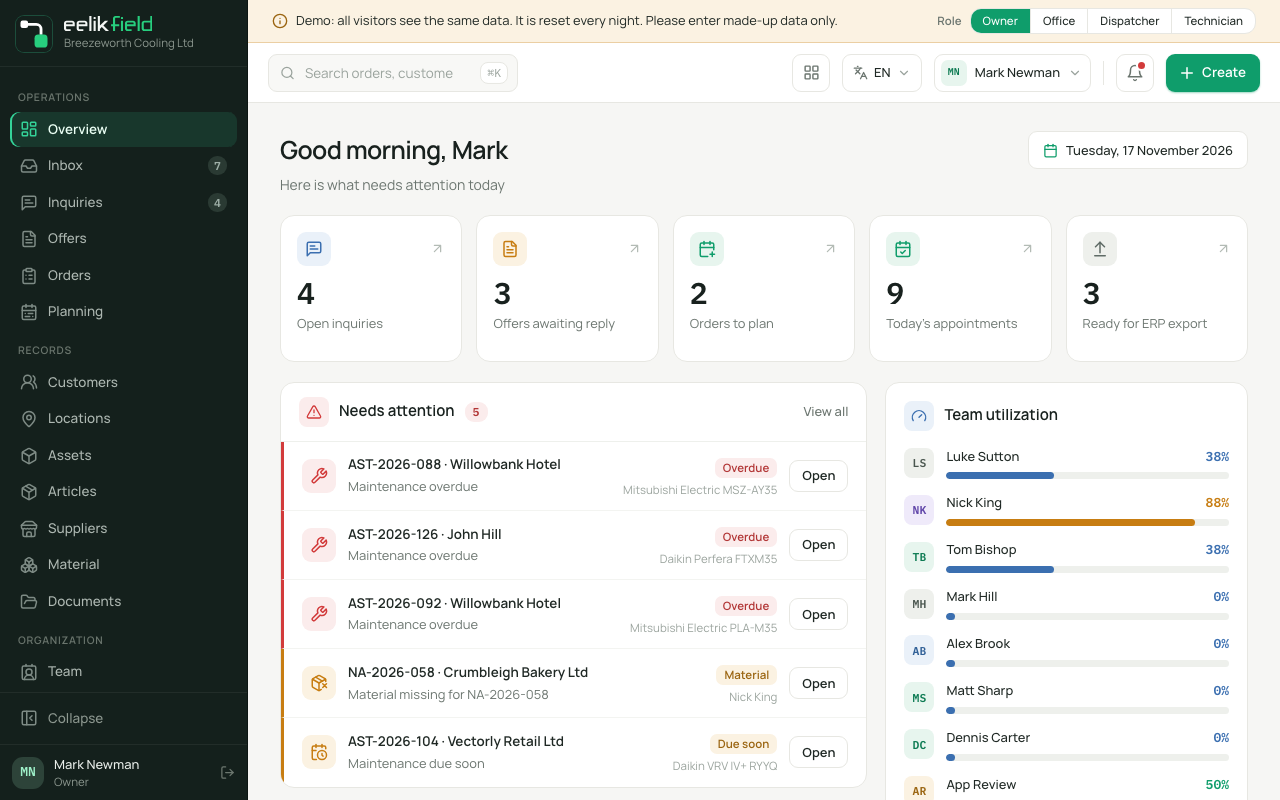
The “Overview” is the page that appears after signing in. It answers at a glance: What do I have to do today? It changes nothing. It shows things and takes you with one click to where you act. At the top is the greeting (“Good morning”, “Good afternoon” or “Good evening”, depending on the time) with your first name and the sentence “Here is what needs attention today”. On the right is today’s date.
The card “Getting started”
Section titled “The card “Getting started””In a new company, the card “Getting started” is at the top: “Five short steps and you are up and running. The list ticks itself.” The steps are “Invite your team”, “Add a customer”, “Add or import articles”, “Create your first order” and setting up the app. Each step has a button that leads to the matching page (“Go to team”, “Go to customers”, “Go to articles”, “New order”). A step is ticked as soon as the data is there. With “Hide” you hide the card. The link “Quick guide: office and technician app” leads to the help.
In the public demos, the card does not exist. In the browser, a one-off note “Install as app” can also appear.
The key figures
Section titled “The key figures”Five tiles are at the top. A click leads to the matching list, already with the matching view:
| Tile | What it counts | Where the click leads |
|---|---|---|
| “Open inquiries” | Inquiries with the status “New” or “Qualifying” | “Inquiries” in the view “Open inquiries” |
| “Offers awaiting reply” | Offers that have been sent and that the customer has not yet decided on (status “Sent” or “Query”, plus older offers with “Opened”) | “Offers” in the view “Awaiting” |
| “Orders to plan” | Orders that still need an appointment | “Planning” |
| “Today’s appointments” | Appointments of today | “Planning” |
| “Ready for ERP export” | Orders that are ready for export to accounting | “Orders” in the view “Ready for ERP” |
The number on the tile and the number in the list follow the same rule, so they match. The warehouse role does not see the two tiles for inquiries and offers, and its tiles lead to the orders.
“Needs attention”
Section titled ““Needs attention””This card names up to five things you should look at, in this order:
| Tag | Meaning |
|---|---|
| “Delayed” | “Appointment overdue, awaiting completion”: An appointment is in the past, and the order is still open. |
| “Material” | “Material missing for” and the order number. |
| “Message” | “Customer question: no reply yet”. A customer message that you have not read yet. |
| “Overdue” | “Maintenance overdue”: For a device, the maintenance has been due. |
| “Due soon” | “Maintenance due soon”: The maintenance falls due in the next 30 days or so. |
Each row has a button “Open” and leads directly to the item. With “View all” at the top right you open the order list.
“Today’s schedule”
Section titled ““Today’s schedule””All appointments of today, sorted by time. Each row shows time and duration, customer, address, the type (installation, service, repair, inspection), the scheduled person and the status “Planned” or “In progress”. A click opens the order. “View all” leads to the planning board.
“Team utilization”
Section titled ““Team utilization””For each person who can be scheduled, a bar with the utilization in percent. The colour of the bar shows the situation: from 88 percent it stands out as a warning (the person is fully booked), under 50 percent it has its own colour (little to do), and with an absence it is grey.
“Order status”
Section titled ““Order status””A bar and a list show how your orders are spread across the statuses (“Unplanned”, “Planned”, “In progress”, “Completed” and so on, also “Cancelled”), with the number per status. Above it is the total number of orders.
“Recent activity”
Section titled ““Recent activity””The five latest events in the company, for example “Order A-100 created” or a new status, with how long ago it was (“5 min ago”, “2h ago”, “1 day ago”). The warehouse role only sees what does not concern the customer area.
Good to know
Section titled “Good to know”- The overview is for a quick start. For evaluations over periods, there is Reports.
- The numbers are always the current state when the page loads. Reload the page to see fresh numbers.
Frequently asked questions
Section titled “Frequently asked questions”Why does “Needs attention” show nothing? Then there is nothing overdue. That is a good sign.
The card “Getting started” is gone. It hides when you choose “Hide”, and it does not exist in the public demos.
What does “Ready for ERP export” mean for me? These are completed orders that are ready for accounting (see Exporting data). If you do not use an accounting connection, you can ignore the tile.