Users and roles
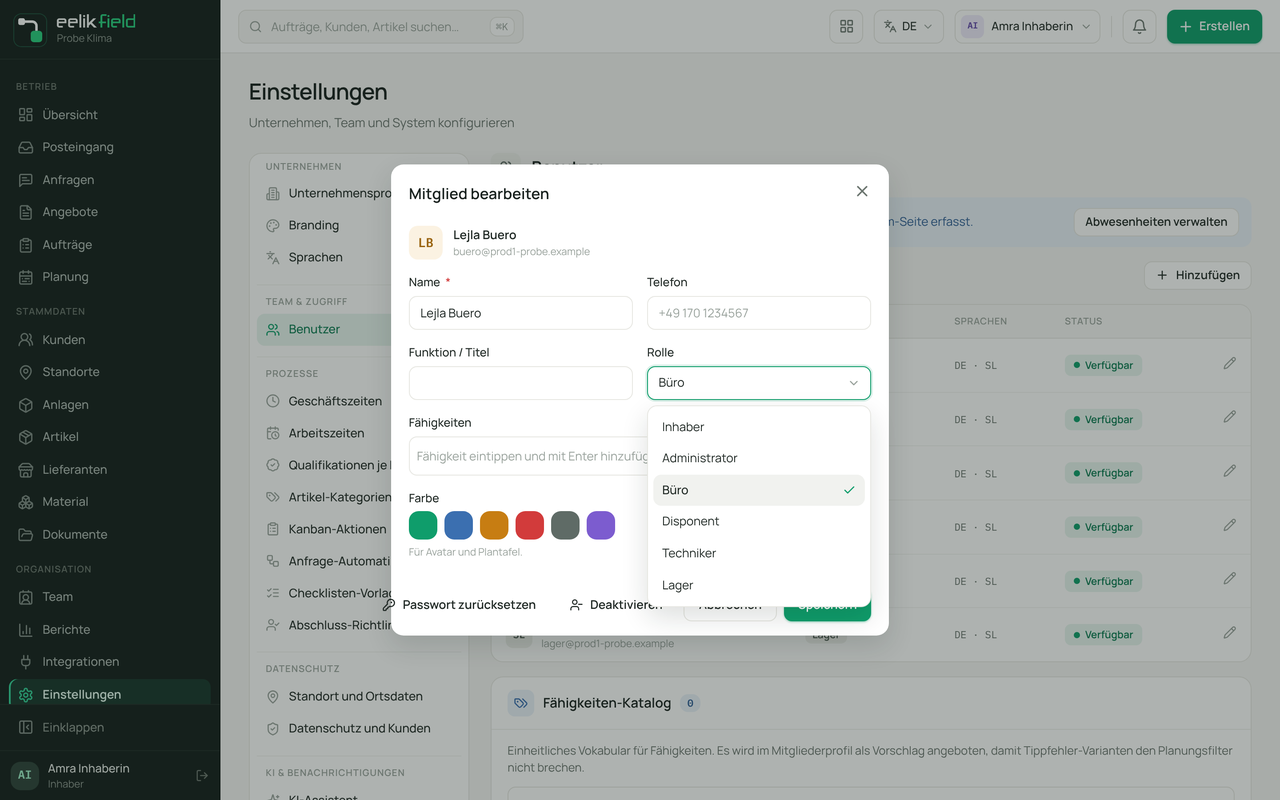
Every person in your workspace has exactly one role. The role determines which menu items they see and what they may do in them. The rights in eelikField are fixed. You cannot create your own roles, and you cannot switch individual rights on or off. You choose the suitable role for each person.
This page is the overview. How you invite people and change their role is explained on the page Team.
The six roles
Section titled “The six roles”| Role | What it is meant for | Where it works |
|---|---|---|
| Owner | The boss. Has all rights, including over the other roles. | Office in the browser, and the app if needed |
| Admin | Administration of the business: team, settings, integrations. Almost all the rights of the owner. | Office in the browser |
| Office | Daily office work: inquiries, offers, orders, planning, customers. No settings. | Office in the browser |
| Dispatcher | Scheduling of visits: orders, appointments, planning board. Otherwise like Office. | Office in the browser |
| Technician | The person on a visit. Sees their appointments and orders. | App on the phone, or alternatively the mobile view in the browser |
| Warehouse | Material and articles. Sees orders read-only. | Office in the browser, restricted |
Office, Dispatcher, Admin and Owner are together called the office roles. Technician and Warehouse are field roles in the sense of app access (see App access).
What each role sees after signing in
Section titled “What each role sees after signing in”- Owner and Admin: the whole left menu: “Overview”, “Inbox”, “Inquiries”, “Offers”, “Orders”, “Planning”, “Customers”, “Locations”, “Assets”, “Articles”, “Suppliers”, “Material”, “Documents”, “Team”, “Reports”, “Integrations” and “Settings”.
- Office and Dispatcher: the same menu, but without “Integrations” and “Settings”.
- Warehouse: only “Overview”, “Inbox”, “Orders”, “Articles”, “Suppliers”, “Material” and “Team”. All other pages are hidden. If someone from the warehouse opens the address of such a page by hand, they land on the “Orders”. “New order” is also blocked, and in the “Create” menu at the top right, the button is missing altogether.
- Technician: they do not get the office menu. If they sign in in the browser, the mobile view “Today” opens. They do their main work in the app.
An owner, admin, office or dispatcher employee who works in the field themselves switches between “Office (desktop)” and “Technician (mobile)” using the “View” icon at the top.
Who may do what?
Section titled “Who may do what?”The table shows the rights by area. “Yes” means: the role may do it. “No” means: the role does not see the button, and eelikField also rejects the action if someone tries it another way.
Orders, planning, inquiries, offers
Section titled “Orders, planning, inquiries, offers”| What | Owner | Admin | Office | Dispatcher | Technician | Warehouse |
|---|---|---|---|---|---|---|
| View orders | Yes | Yes | Yes | Yes | Only their own, in the app | Yes, read only |
| Create orders, assign them, maintain the checklist | Yes | Yes | Yes | Yes | No | No |
| Edit an order (customer, location, subject, planned duration and more) | Yes | Yes | Yes | Yes | No | No |
| Cancel an order (with a reason) | Yes | Yes | Yes | Yes | No | No |
| Complete an order in the office or complete it by force | Yes | Yes | Yes | Yes | No | No |
| Edit their own order in the app (status, times, material, photos, signature, completion) | Yes, if assigned | Yes, if assigned | Yes, if assigned | Yes, if assigned | Yes | No |
| View the planning board, plan, move and unschedule appointments | Yes | Yes | Yes | Yes | No | No |
| Mark an appointment as “Missed”, appoint a team lead | Yes | Yes | Yes | Yes | No | No |
| Log or delete absences | Yes | Yes | Yes | Yes | No | No |
| Create and assign inquiries, change their status | Yes | Yes | Yes | Yes | No | No |
| Create and send offers, convert them to orders | Yes | Yes | Yes | Yes | No | No |
| Choose the required skill on the order | Yes | Yes | Yes | Yes | No | No |
A technician edits only orders in the app that they are scheduled for themselves. Owners, admins, office staff and dispatchers can do this too, but only if they can be scheduled. For that, the switch “Also works in the field” must be on for them (Team). The warehouse can never be scheduled.
Customers, locations, assets, material, articles
Section titled “Customers, locations, assets, material, articles”| What | Owner | Admin | Office | Dispatcher | Technician | Warehouse |
|---|---|---|---|---|---|---|
| View customers, contacts and locations | Yes | Yes | Yes | Yes | No (only through the app orders) | No |
| Create customers, contacts, locations | Yes | Yes | Yes | Yes | No | No |
| Edit and remove contacts and locations, archive and restore customers | Yes | Yes | Yes | Yes | No | No |
| Manage a customer’s portal links and QR PIN | Yes | Yes | Yes | Yes | No | No |
| Create and edit assets | Yes | Yes | Yes | Yes | No | No |
| Service entries, service plan, service reminder | Yes | Yes | Yes | Yes | No | No |
| Create, change, archive and restore articles, image | Yes | Yes | Yes | Yes | No | Yes |
| Change the sales price and tax rate of an article | Yes | Yes | Yes | Yes | No | No |
| Create, change, delete suppliers | Yes | Yes | Yes | Yes | No | Yes |
| Create and edit material requests, set status | Yes | Yes | Yes | Yes | In the app (for the order) | Yes |
| Upload documents | Yes | Yes | Yes | Yes | Yes, on their own order | Yes, internal only (never visible to customers) |
| Delete documents, make them visible to customers | Yes | Yes | Yes | Yes | No | No |
The warehouse creates and maintains articles, but changes neither the sales price nor the tax rate. New articles from the warehouse get the price 0 and the country’s standard tax rate. The two fields are locked for the warehouse.
Messages and reports
Section titled “Messages and reports”| What | Owner | Admin | Office | Dispatcher | Technician | Warehouse |
|---|---|---|---|---|---|---|
| Write internal messages and the order history | Yes | Yes | Yes | Yes | Yes | Yes |
| Write with customers (customer conversations, inquiries) | Yes | Yes | Yes | Yes | Yes | No |
| Hide customer attachments from the portal | Yes | Yes | Yes | Yes | No | No |
| View reports | Yes | Yes | Yes | Yes | No | No |
| What | Owner | Admin | Office | Dispatcher | Technician | Warehouse |
|---|---|---|---|---|---|---|
| View the Team page (people, teams, skills, absences) | Yes | Yes | Yes | Yes | No | Yes |
| Invite a person by email or revoke an invitation | Yes | Yes | Yes | Yes | No | No |
| Invite as Admin | Yes | Yes | No | No | No | No |
| Invite as Owner | Yes | No | No | No | No | No |
| Add a technician without email (“Add technician”) | Yes | Yes | Yes | Yes | No | No |
| Send app access and block devices for Technician and Warehouse | Yes | Yes | Yes | Yes | No | No |
| Send app access and block devices for Office, Dispatcher, Admin | Yes | Yes | No | No | No | No |
| Send app access and block devices for an Owner | Yes | No | No | No | No | No |
| See and block their own devices in the list (in their own profile on the Team page) | Yes | Yes | Yes | Yes | No, has no Team page | Yes |
| Change a person’s role, name, phone, function, skills, colour | Yes | Yes | No | No | No | No |
| Deactivate or reactivate a person | Yes | Yes | No | No | No | No |
| Set the switch “Also works in the field” | Yes | Yes | No | No | No | No |
| Change a person’s individual working hours | Yes | Yes | No | No | No | No |
| Create, edit, delete teams, assign people | Yes | Yes | No | No | No | No |
| Reset a person’s password | Yes | Yes | No | No | No | No |
By “teams”, the groups on the Team page are meant here, for example “HVAC North”. More on this on the page Team.
Settings, privacy, integrations, AI
Section titled “Settings, privacy, integrations, AI”| What | Owner | Admin | Office | Dispatcher | Technician | Warehouse |
|---|---|---|---|---|---|---|
| Open and change settings (company with address and payment terms in offers, logo, working hours, number ranges, checklist templates, skills per category, article categories) | Yes | Yes | No | No | No | No |
| Privacy switches and privacy address | Yes | Yes | No | No | No | No |
| Open integrations, import customers and articles | Yes | Yes | No | No | No | No |
| Export customers, orders and articles to the accounting program (e-računi) | Yes | Yes | Yes | No | No | No |
| Resolve open exports (“Booked” or “Not booked”) | Yes | Yes | No | No | No | No |
| Set up, test and remove the AI provider and key | Yes | Yes | No | No | No | No |
| View and accept the AI suggestions of the planning | Yes | Yes | Yes | Yes | No | No |
| Change your own name, phone and password (“My account”) | Yes | Yes | Yes | Yes | Yes | Yes |
The special features of the owner
Section titled “The special features of the owner”The owner is the only role that manages other owners. This protects against a detour by which two admins could make each other owners.
- Only an owner appoints, demotes, deactivates or reactivates an owner. For an owner, an admin sees the role read-only and the note “Only an owner can appoint, demote, deactivate or reactivate an owner.”
- Only an owner invites someone as an owner.
- Only an owner manages an owner’s app access, because app access is the account itself.
- The last active owner can be neither deactivated nor demoted: “The last active owner cannot be deactivated or demoted.” First appoint a second owner if you yourself are to get a different role.
- Nobody raises their own role. So an admin cannot make themselves an owner. Lowering your own role is allowed.
- You cannot deactivate yourself: “You cannot deactivate yourself.”
The role overview in the “Roles” tab
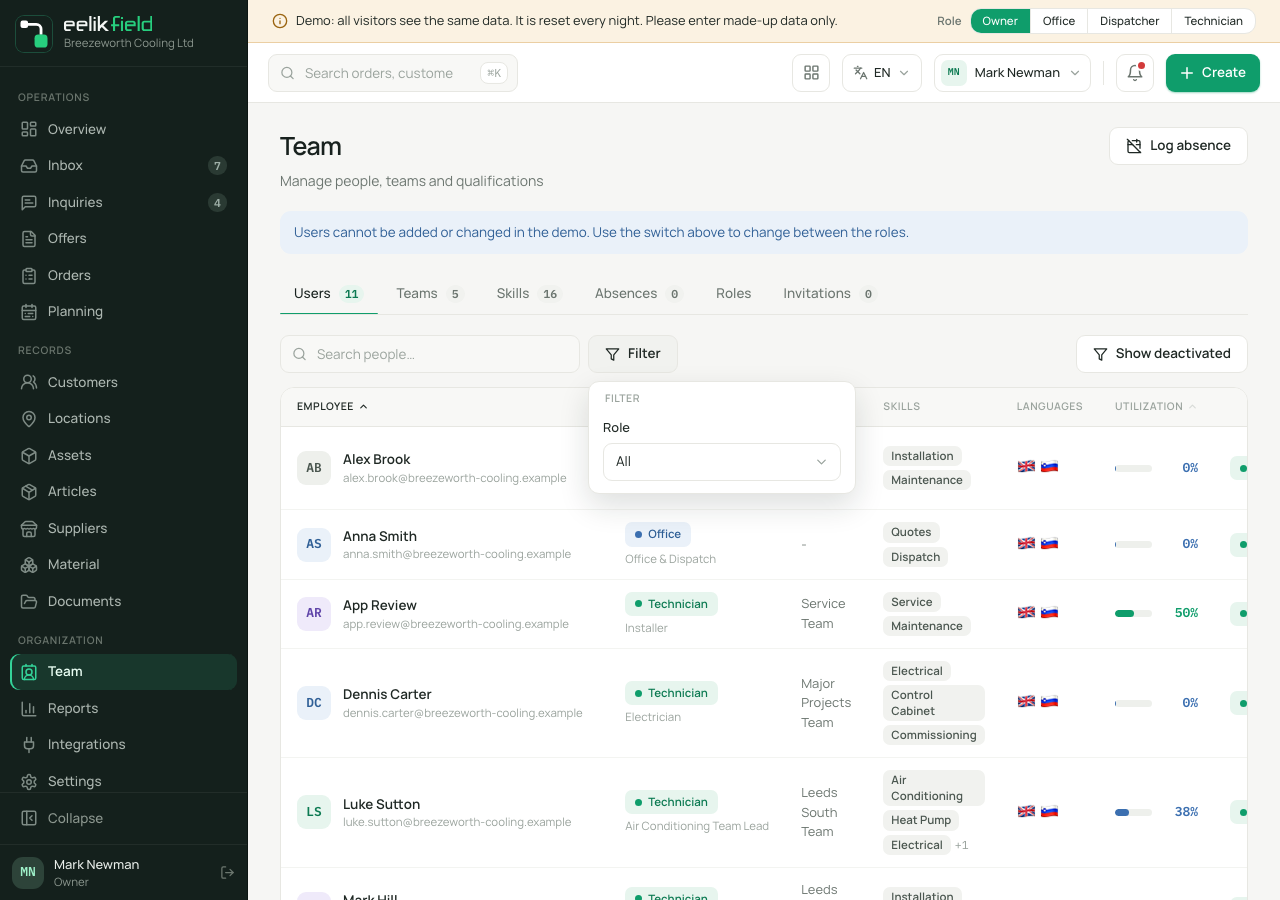
Section titled “The role overview in the “Roles” tab”On the “Team” page, there is the “Roles” tab with the “Permissions” table. It shows ten major functions for all six roles (Owner, Admin, Office, Dispatcher, Technician, Warehouse). A tick means: the role may do it. In each person’s profile, the same list also appears as “Permissions”, for their role.
| Function | Owner | Admin | Office | Dispatcher | Technician | Warehouse |
|---|---|---|---|---|---|---|
| Create and edit orders | Yes | Yes | Yes | Yes | No | No |
| Complete assigned orders in the app | Yes | Yes | Yes | Yes | Yes | Yes |
| Offers & pricing | Yes | Yes | Yes | Yes | No | No |
| Planning | Yes | Yes | Yes | Yes | No | No |
| Articles & material | Yes | Yes | Yes | Yes | No | Yes |
| Reports | Yes | Yes | Yes | Yes | No | No |
| ERP export | Yes | Yes | Yes | No | No | No |
| Invite members | Yes | Yes | Yes | Yes | No | No |
| Manage roles and teams | Yes | Yes | No | No | No | No |
| Settings | Yes | Yes | No | No | No | No |
The table is read from the same rights that eelikField checks for every action. It therefore cannot differ from reality. The right “Complete assigned orders in the app” applies to every role as soon as it is scheduled for an order. The tab only displays, it changes nothing.
Choosing a role
Section titled “Choosing a role”- You alone in the business: you are the owner. That is enough. With the switch “Also works in the field”, you schedule yourself.
- An office worker who writes and plans orders: Office. Office and Dispatcher differ hardly at all in eelikField: both see “Offers” and “Reports”, create inquiries, offers, orders and appointments, and plan. Only Office, not the dispatcher, may export to the accounting program.
- An employee who works only on visits: Technician. They do not need an email address if they use only the app.
- A second manager with all rights except over owners: Admin.
- Someone who manages material: Warehouse. The warehouse sees orders read-only, maintains articles, suppliers and material requests, and sees neither customers nor reports. It sees the sales prices of articles but does not change them.
As for the “Warehouse” role: it cannot be assigned through the invitation. You add a member with the Warehouse role through “Add technician” and choose “Warehouse” there. You turn an existing person into Warehouse in the “Edit member” dialog. More on this on the page Team.
When a role is changed
Section titled “When a role is changed”If a person moves from a field role (Technician, Warehouse) to an office role, or someone is appointed owner, eelikField says beforehand: “The person’s devices will be signed out. The person then sets up the app again.” The reason: a device always carries the person’s current role. Without the sign-out, a simple technician device could unnoticed become an office device. The office then sends new app access (App access).
For a role with higher rights, eelikField also asks about the email address if the office entered that address and not the person themselves: “The office entered this address, not the person themselves. Does it really belong to the person?” Anyone with access to this mailbox can set a password and then gets the new role. Only the person who assigns the role can confirm this.
Frequently asked questions
Section titled “Frequently asked questions”Can I create my own role with special rights? No. There are the six fixed roles.
Does a technician have to have an email address? No. You can add a technician with just a name. They then sign in only with the app. They cannot sign in in the browser (Team).
May a dispatcher write offers? Yes. In the “Roles” tab, they have a tick for “Offers & pricing” and “Reports”. Only the “ERP export” is not allowed.
Who may change settings? Only owners and admins.
Which roles can I assign in the “Edit member” dialog? All six: Owner (only an owner assigns it), Admin, Office, Dispatcher, Technician and Warehouse. When inviting through “Invite user” on the Team page, in contrast, the options are Technician, Office and Dispatcher, for owners and admins also Admin, and only for owners “Owner”. “Warehouse” is not available when inviting.