

Exporting data
Your data belongs to you. You can download lists and key figures as a file at any time and hand a completed order over to the accounting software e-računi. This page shows both ways and says clearly what eelikField does not do: it does not write invoices.
Downloading lists as a file
Section titled “Downloading lists as a file”Almost every list has an “Export” button above the table. This applies to “Orders”, “Inquiries”, “Customers”, “Locations”, “Assets”, “Articles”, “Suppliers” and “Material”. In “Offers”, the button is also called “Export”.
- Set up the list the way you need it: view, filter and search.
- Click “Export”.
- Choose “Export as CSV” or “Export as Excel”.
- The file is downloaded.
Important:
- The file contains all the rows that your setting produces, not only the rows on the visible page. The file name begins with the name of the list, for example “auftraege”.
- If the list is empty, the button is grey.
- A CSV file separates the columns with a semicolon and is saved in UTF-8. Excel opens it correctly with umlauts.
- The Excel file is a simple spreadsheet file that Excel opens directly. Numbers appear there as numbers.
- In the list “Inquiries” there is also the bar for selected rows. Tick individual inquiries and click “Export” there to download only those.
Which columns are included depends on the list. In the order list they are “Number”, “Customer”, “Title”, “City”, “Type”, “Status”, “Material”, “Next date”, “Team”, “Value”, the currency and “ERP”.
Downloading key figures
Section titled “Downloading key figures”Each of the six cards on the page “Reports” has an “Export” button. It downloads the figures of that card as a CSV file, for example “bericht-umsatz-angebote” or “bericht-wartungen-faellig” (see Reports).
The “Export center” under Integrations
Section titled “The “Export center” under Integrations”Under “Integrations”, in the area “Data tools”, there is the tile “Export center”. Its description says what it does: “Downloads the list of connections on this page as a CSV file (status, imported and exported records). Offers, inquiries, documents and reports are exported from their own lists.” The button “Open” therefore downloads only an overview of the connections as a CSV file: for each connection the status and the number of imported and exported records. This file does not contain orders or invoices. For your orders and master data, use the lists above.
For importing there is the “Import wizard” (customers and articles from CSV). It is described with the master data (see Customers).
The page “Integrations”
Section titled “The page “Integrations””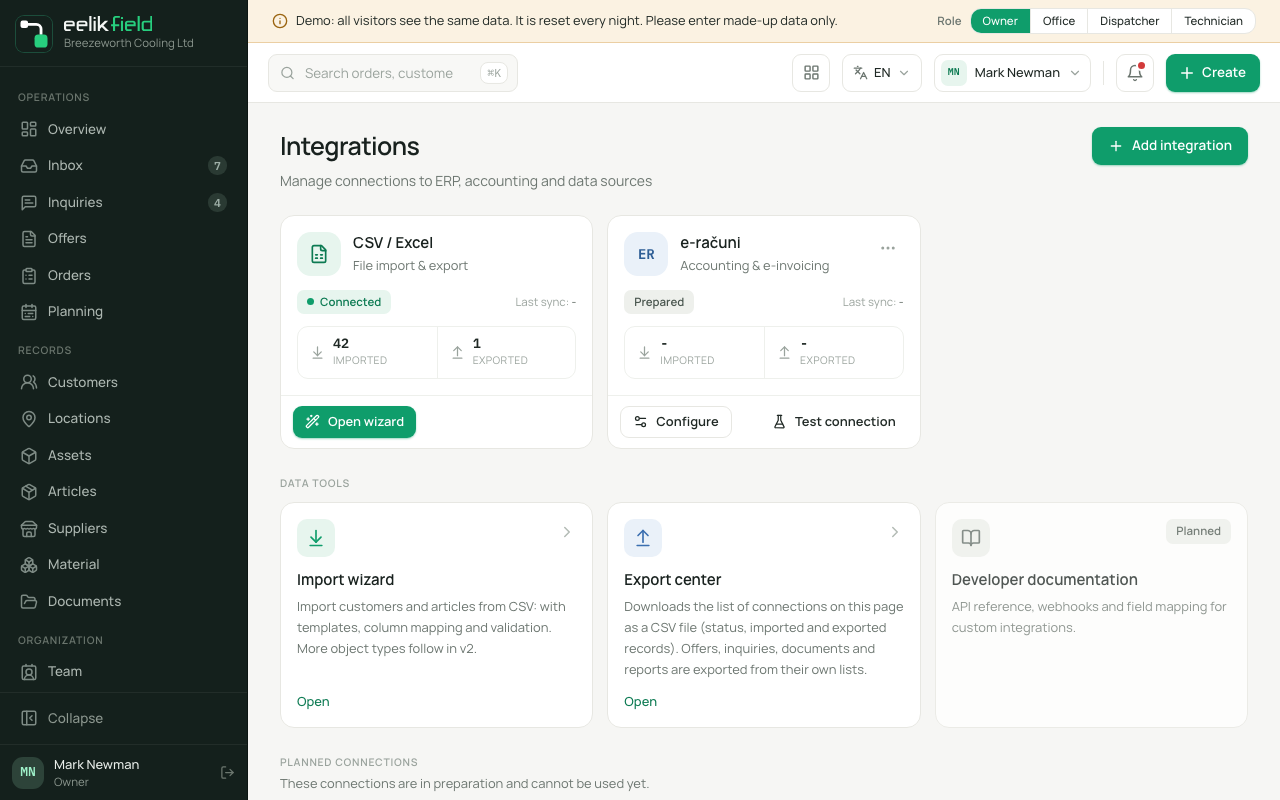
The page separates what works today from what is planned.
| Tile | Description on the tile | Status |
|---|---|---|
| “CSV / Excel” | File import & export | usable: The button “Open wizard” starts the import wizard. |
| “e-računi” | Accounting & e-invoicing | usable: “Configure”, “Test connection” and “Logs” (see below). |
| “Import wizard” | Customers and articles from CSV | usable |
| “Export center” | List of connections as CSV | usable (see above) |
| “ERPNext”, “PANTHEON”, “Minimax”, “SAOP”, “REST API”, “SFTP”, “Webhooks” | for example “Open-source ERP”, “Custom interface”, “Event notifications” | “Planned”: cannot be clicked |
| “Developer documentation” | “Planned”: cannot be clicked |
The planned connections are in the area “Planned connections” with the badge “Planned”. It says there: “These connections are in preparation and cannot be used yet.” They can be neither set up nor tested. The menu “Add integration” offers only e-računi.
Handing orders over to e-računi
Section titled “Handing orders over to e-računi”e-računi is accounting software for invoices. eelikField can create a completed order there as an invoice draft. You check, complete and send the invoice itself in e-računi.
Connecting once
Section titled “Connecting once”Only Owners and Administrators can do this.
- Open “Integrations” and the tile “e-računi”.
- Click “Configure”. “Connect e-računi” opens.
- Enter: “API username”, “API secret key (secretKey)”, “Organization token” and “API endpoint (URL)”. You get these details from e-računi. The endpoint must begin with https and belong to e-računi.
- Click “Save”. The access data is stored encrypted and is never shown.
- Click “Test connection”. Success reads: “Connection successful: endpoint reachable and authenticated.”
Later you change the data by entering it again. “Disconnect” ends the connection.
Handing over an order
Section titled “Handing over an order”- Complete the order. Before that, the order says: “Export to e-računi only after the order is completed.”
- Open the order. At the “ERP status” there is the button “Export to e-računi”.
- Click it. After “Exporting…” you see: “Order exported to e-računi as a draft.”
- The “ERP status” of the order is “Exported”, with the invoice number below it.
These rules apply:
- The roles Owner, Administrator and Office may export. Otherwise you see: “Not allowed to export.”
- An order is exported only once. A second attempt gives “Already exported to e-računi.” This way no duplicate invoice is created.
- Cancelled orders are not exported. Conversely, an order whose invoice is already in e-računi can no longer be cancelled.
- The export only applies to orders in euros: “Export is only possible for documents in euros.”
- If e-računi is not connected: “e-računi is not connected: set it up under Integrations first.”
“Export to ERP” and “Ready for ERP”
Section titled ““Export to ERP” and “Ready for ERP””Every completed order automatically appears in the order list under “Ready for ERP” and on the overview in the tile “Ready for ERP export”. In the card “Completion” of a completed order there is also “Export to ERP”. This explicitly releases the order: the “ERP status” then says “Ready”, and in the order list the column “ERP” shows “Ready”. Nothing is transferred with the release. It is a marker for your work. The roles Owner, Administrator, Office and Dispatcher see the button.
If the export stays unclear
Section titled “If the export stays unclear”If the transfer breaks off in the middle of sending, the invoice may already have been created in e-računi. The order then shows “Export status unclear” with a note that the Owner or Administrator checks this in e-računi and resolves it here. eelikField never transfers such an order again by itself, so that no second invoice is created.
This is how you resolve it (Owners and Administrators only):
- Look in e-računi to see whether the invoice was created for this order.
- On the order, click “Resolve export…”.
- Choose:
- “Booked”: The invoice is in e-računi. Enter the “Document number from e-računi (required)”. The order counts as exported and is not transferred again.
- “Not booked”: There is no invoice in e-računi. The order can be transferred normally again. If the transfer has only just broken off, wait a few minutes and look again. If e-računi still creates the invoice after all, the next export creates a second invoice.
- Click “Confirm”.
What does not exist
Section titled “What does not exist”- No invoices in eelikField. There is no function “write invoice”, no invoice numbers, no payment tracking and no reminders. You create invoices in your accounting software, if you wish from the draft in e-računi.
- No further accounting connections. Under “Planned connections” you find ERPNext, PANTHEON, Minimax, SAOP, “REST API”, SFTP and Webhooks, plus the “Developer documentation”. They carry the badge “Planned” and have no function yet. Only e-računi is ready to use. The tile “CSV / Excel” stands for the import.
- No export of times or work reports as a collective file. You download the work report of an order as a PDF (see Work report). You see the times of an order in the tab “Time entries”.
Frequently asked questions
Section titled “Frequently asked questions”My Excel file shows everything in one column. The CSV file separates with a semicolon. In Excel, choose the semicolon as the separator when opening, or use “Export as Excel”.
Can I change a date of the list in the export? No. The file shows what the list shows.
Do I have to use e-računi? No. If you use other accounting software, download the order list as a file and carry on there.