

Messages
All messages come together in the “Inbox”: conversations in the team, conversations about an order, messages from technicians in the app and inquiries from customers in the customer portal. Team and customers are kept cleanly apart. What you write in the team, the customer never sees.
You open the inbox in the menu on the left via “Inbox”. The bell at the top right also leads there. A red dot on the bell shows that there is something unread.
Layout
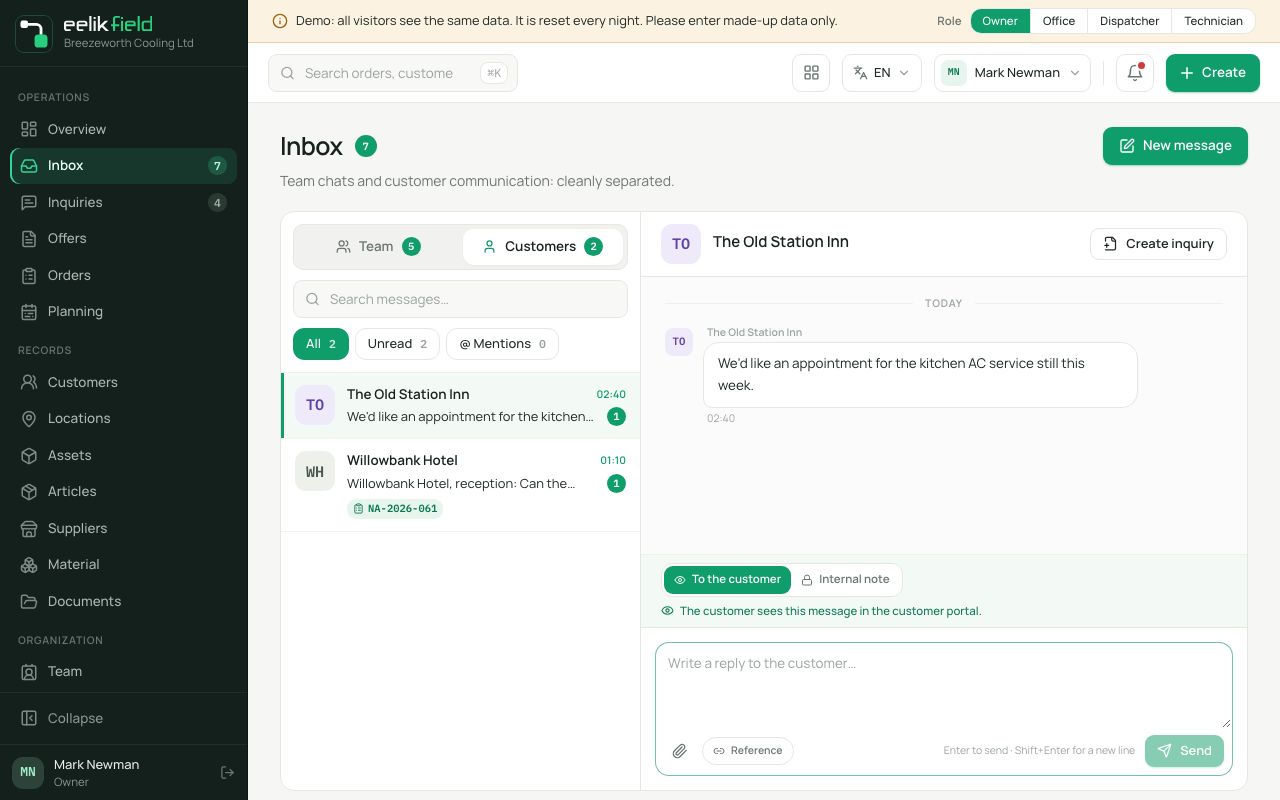
Section titled “Layout”At the top there are two tabs, each with the number of unread conversations:
- “Team”: Conversations in the business. The list is divided into three groups:
- “Direct messages”: conversations between two colleagues,
- “Orders & inquiries”: one conversation per order or inquiry. The messages that technicians write in the app with “Office” also land here,
- “System”: messages from eelikField. You cannot reply there: “System notification: replying is not possible here.”
- “Customers”: One conversation per customer. Here you find inquiries and replies from the customer portal and your replies to the customer.
Above the list:
- Search “Search messages…”: Searches in title, sender, preview and order number.
- Filter: “All”, “Unread” and “@ Mentions” (messages in which you were named).
- “New message”: Starts a new conversation.
On the left you choose a conversation, and on the right is the history. Below it you write. You send with Enter, and you start a new line with Shift and Enter (“Enter to send · Shift+Enter for a new line”). If there is nothing yet, you see “No team messages yet” or “No customer messages yet”.
Read and unread
Section titled “Read and unread”A conversation only counts as read when you click it or reply in it. The fact that it is selected automatically when you open the page does not count. A new customer inquiry therefore stays unread until someone has really opened it. Conversations are counted, not single messages. You see the same number on the sidebar, on the tabs and on the bell.
Writing a new message
Section titled “Writing a new message”- Click “New message”.
- Under “Recipient”, choose whether it is a “Team member” or a “Customer”.
- Search for the person or the customer (“Search team member…” or “Search customer by name or number…”).
- If you wish, choose an order under “Order as reference (optional)”. It then appears as a link on the message.
- Under “Message”, write the text. With @ you mention team members.
- Click “Send”.
Below the field it says who sees the message: “Internal message: not visible to customers.” or “The customer sees this message in their portal.”
Mentioning with @
Section titled “Mentioning with @”Type @ and a name to name someone from the team. The person gets the notification “You were mentioned” and finds the message in the filter “@ Mentions”. In conversations with files to a colleague (see below), leave out the mention.
The conversation about an order
Section titled “The conversation about an order”For every order there is a conversation that only the team sees. It is in the inbox under “Team”, “Orders & inquiries” and in the order itself in the tab “Communication”. It is the same conversation in two places.
In the tab “Communication” of the order, you choose before writing who the message is meant for:
- “Customer-visible”: The message goes to the customer and appears in the customer portal.
- “Team note (not visible to customer)”: The message stays in the business. The technicians see it in their app.
The field there is called “Quick reply to customer…”. Enter sends here too.
The technician writes in the app under “Office”. The message arrives in the order conversation, and you get the notification “New message” with the order number. Problems that the technician sends with “Report problem” arrive as the notification “Problem reported” (see Reporting a problem).
With “Open order”, “Open offer” or “Open inquiry” you jump from a conversation to the item it refers to.
The conversation with the customer
Section titled “The conversation with the customer”In the tab “Customers” there is one conversation per customer. At the input field you choose where your text goes (“Recipient of this message”):
| Choice | Effect |
|---|---|
| “To the customer” | The customer sees the message in the customer portal: “The customer sees this message in the customer portal.” This is the default choice. |
| “Internal note” | A note in the conversation that only the office sees: “Internal only: the customer does not see this note.” |
The customer writes back in the customer portal. Their message appears here as unread. You set a link to an order with “Reference”. Behind the field “Search order by number, customer or title…” is the search. With “Remove reference” you detach it again. If the search finds nothing, you see “No orders found.”
Making an inquiry from a message
Section titled “Making an inquiry from a message”If a customer writes something that is an inquiry, click “Create inquiry”. The dialog “Create inquiry from message” asks for “Customer”, “Title”, “Description”, “Category”, “Priority” and “Source”. Title and customer are required (“Please provide a customer and a title.”). After that the inquiry is under “Inquiries” (see Inquiries).
Attachments
Section titled “Attachments”In many conversations you can send files along.
- Under the input field, click “Attach file”, or drag the files onto the area “Drop files here”.
- The file uploads. The progress is shown next to it (“Uploading … 40 %”). With “Remove” you take a file away again.
- Send the message. Before that, wait until all files are up: “Please wait until all files are uploaded.”
These limits apply: “Photos (JPG, PNG) and PDF, up to 15 MB each, at most 5 per message.” Other file types are rejected. Photos in messages are also always cleaned of location data and other recording data.
Where a conversation does not allow attachments, it says: “Attachments are not possible in this conversation.” Technicians can also attach photos and PDFs in the app (see Messages in the app).
Files to the customer
Section titled “Files to the customer”If you send files to the customer, eelikField asks first so that nothing goes out by mistake:
- Choose “To the customer” and attach the files.
- Click “Send”. “Send to customer Name?” appears with the sentence: “The customer will then see these files in the customer portal. This cannot be undone.”
- Under “Message with it”, write an accompanying text if you wish.
- Confirm with “Yes, send to the customer”. With “Cancel” you cancel.
Taking over photos from the order conversation
Section titled “Taking over photos from the order conversation”If a technician sends a photo into the order conversation, you can take it over as a photo of the order with “Add to job”. It appears there as an internal photo (“Photo added to the job (internal).”). After that the photo says “In job ✓”. This only works for orders that you work on yourself: “This only works for jobs you are working on.”
Files that the customer uploads
Section titled “Files that the customer uploads”In the portal, the customer can send photos and PDFs along. In the conversation they carry the mark “Uploaded by the customer”. If you want to hide a file, for example because it does not belong here:
- Click “Hide” on the file.
- Confirm “Hide this file?” with “Yes, hide it”.
After that, neither the customer nor the technicians see the file. The office still sees it with the mark “Hidden”. This cannot be undone.
Error messages for attachments
Section titled “Error messages for attachments”| Message | Meaning |
|---|---|
| “The file is too large. At most 15 MB are allowed.” | Make the photo smaller or split the PDF. |
| “This file type does not work. Photos (JPG, PNG) and PDF are allowed.” | Convert the file. |
| “Too many files at once. At most 5 per message are allowed.” | Send the files in two messages. |
| “You uploaded a great many files in a short time. Please try again later.” | A protective limit against misuse. Wait. |
| “The company’s daily quota for attachments has been reached.” | The business has used up the permitted amount today. Try again tomorrow. |
| “The server is processing many images right now. Please try again in a moment.” | Wait briefly. |
| “You are no longer signed in or may not upload here. Please reload the page.” | Sign in again. |
Permissions
Section titled “Permissions”- Owner, Administrator, Office and Dispatcher write in all conversations.
- The Warehouse role writes only in direct messages and order conversations, and only internally. Otherwise it says: “You cannot write in this conversation. The warehouse writes only in direct messages and order conversations.”
Notifications
Section titled “Notifications”Besides the inbox, eelikField sends short notifications to the device. They also appear when the app or the browser window is in the background. A notification is a hint, not a conversation: if you tap it, the matching page opens.
On the phone, you switch notifications on at the first start or in the settings of the app (see Settings in the app). In the browser, you switch them on in “Settings” in the area “Notifications” for the device that you are sitting at. Without these switches there are no notifications, but nothing is lost: everything is in the inbox and in the lists.
These notifications exist:
| Title | When |
|---|---|
| “New inquiry” | A new inquiry has arrived. The text gives only the number. |
| “New appointment” | An appointment was created or reassigned for someone. The day and the number are given. |
| “Appointment changed” | An appointment was taken from someone or changed (see Planning board). |
| “New message” | A message in the inbox or in the order conversation. |
| “You were mentioned” | Someone named you with @. |
| “Job completed” | An order was completed. The text gives the number and who completed it. |
| “Part done” | In an order with several people, someone has finished their part. The text says who is still open. |
| “Problem reported” | A technician reported a problem in the app. |
| “Material ready” | The material for an order has been provided. |
| “New service request” | A customer requested service for a device in the portal. |
| “Overdue appointments” | A daily overview for dispatch: open appointments from past days. |
For privacy reasons, notifications contain no customer names and no addresses. Instead of the customer, the number of the order, the inquiry or the device is given. The names of colleagues (for example, who wrote a message) are included, however.
Good to know
Section titled “Good to know”- A message does not create an email to the customer. The customer reads it in the customer portal. The emails from eelikField (work report, order confirmation, offer) go out separately.
- A message cannot be edited or deleted after sending.
- Conversations cannot be archived. You find them again with search and filter.
Frequently asked questions
Section titled “Frequently asked questions”The customer wrote, but I do not see it. Open the tab “Customers”. The message is there as an unread conversation. Check the filter “Unread”.
Does the customer see my note? Only what was sent as “To the customer” or “Customer-visible”. The customer never sees “Internal note” and “Team note”.
I do not get any notifications. Check whether they are switched on on the device. On the iPhone, also check the phone’s settings for eelikField.