

Suppliers
Under “Suppliers” you keep the dealers where your customers bought their devices. This helps with warranty claims and shows how much you buy from and sell through a dealer. The page is office work, because it contains purchase prices and margins. Customers never see it.
Owners, administrators, office staff, dispatchers and the warehouse can view, create, change and delete suppliers. Technicians do not have the page. You find “Suppliers” in the left-hand menu in the “Master data” group.
Creating a supplier
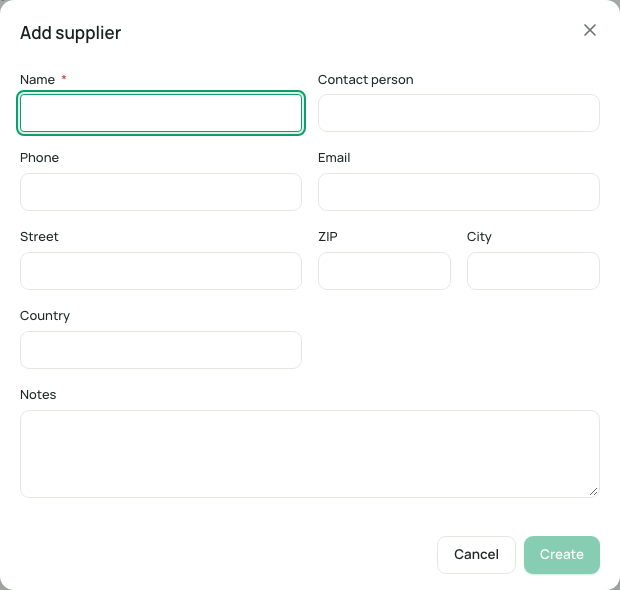
Section titled “Creating a supplier”- Open “Suppliers” and click “Add supplier” at the top right.
- Enter the “Name”, at least 2 characters.
- Add what you know: “Contact person”, “Phone”, “Email”, “Street”, “ZIP”, “City”, “Country” and “Notes”.
- Save.
| Field | Meaning | Required |
|---|---|---|
| Name | Name of the dealer. There must not be a second supplier with the same name, upper and lower case do not count. Otherwise you see “A supplier with this name already exists.” | Yes |
| Contact person | The person at the dealer. | No |
| Phone, Email | Contact details. | No |
| Street, ZIP, City, Country | The address. | No |
| Notes | Free text for your office. | No |
The list
Section titled “The list”The list shows “Supplier”, “City”, “Contact”, “Assets”, “Orders”, “Purchase”, “Sale” and “Margin” as well as the status “Active” or “Inactive”.
- Search: “Search supplier, city or contact…”.
- Views: “All”, “Active”, “Inactive” and “With purchases”.
- Filter: “City”.
- Export: “Export as CSV” or “Export as Excel”.
A supplier’s page
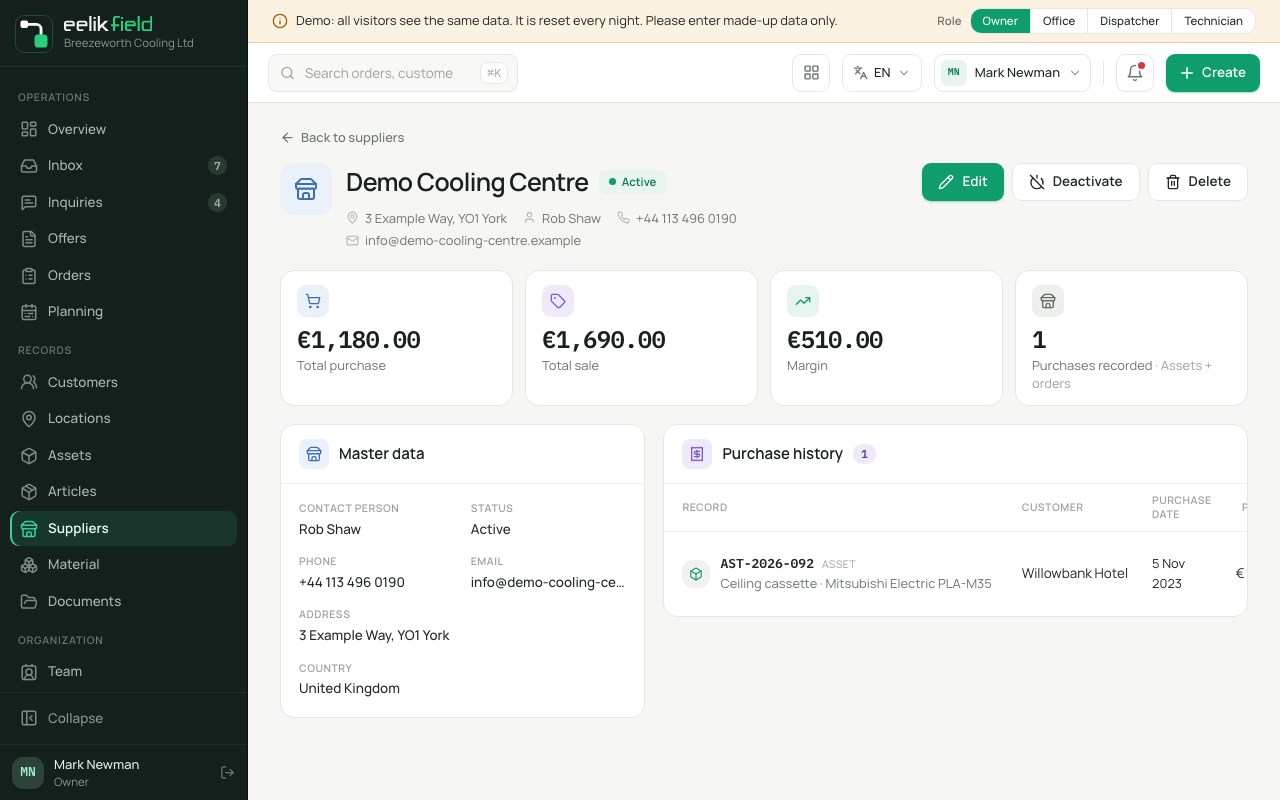
Section titled “A supplier’s page”Click a row to open the supplier’s page. At the top there are four key figures: “Total purchase”, “Total sale”, “Margin” and “Purchases recorded” (“Assets + orders”). Below that:
- Master data, contact person, address, notes with “Phone”, “Email”, “Country” and “Status”.
- Purchase history: the purchases that are assigned to this dealer, with “Record” (“Asset” or “Order”), “Customer”, “Purchase date”, “Purchase”, “Sale”, “Margin” and “Receipt”. Only the latest entries are shown. The totals at the top include all purchases. An order whose device has already been counted carries the “Duplicate” badge and is not added up twice.
At the top right are “Edit”, “Deactivate” or “Activate”, and “Delete”.
Assigning purchases to a supplier
Section titled “Assigning purchases to a supplier”The assignment is not made here, but on the device or the order. In the asset, under “Purchase origin”, you enter the “Dealer”, the “Purchase date”, the “Purchase price”, the “Sale price” and the “Receipt number” (Assets). Without assigned purchases, the history says “No purchases assigned yet”. Only dealers that are “Active” are offered for selection.
Deactivating or deleting
Section titled “Deactivating or deleting”- Deactivate takes the dealer out of the selection lists but leaves all assignments in place. With “Activate” you bring it back. This is the right way if there are already purchases.
- Delete removes the dealer permanently. The purchase data (price, date, receipt) stay on the devices and orders, but the assignment to the dealer is lost, and this cannot be restored. eelikField asks “Delete supplier?” beforehand and offers deactivating if there are purchases.
Frequently asked questions
Section titled “Frequently asked questions”Is a supplier a dealer I buy from? Here it is the dealer where your customer bought the device. It serves traceability, for example in a warranty case.
Do customers see the purchase prices? No. “Purchase origin” is for the office only and is never visible in the customer portal.
Can the warehouse delete suppliers? Yes, like the office. The warehouse also sees the purchase figures.