

Time and breaks
The app records three kinds of time: Travel, Work and Break. Most of the time this happens by itself with the buttons of the job (The job step by step). In the time window you see everything at a glance, can start and stop clocks by hand and add forgotten time. Everyone records their own time. Owners and the office also record on their own person.
The recorded time appears in the office in the job under “Logged time” with the “Individual entries”: kind, person, minutes and note.
Open the time window
Section titled “Open the time window”In the job, tap the tile “Time tracking” in the documentation. The window “Record time” opens. The window shows, from top to bottom:
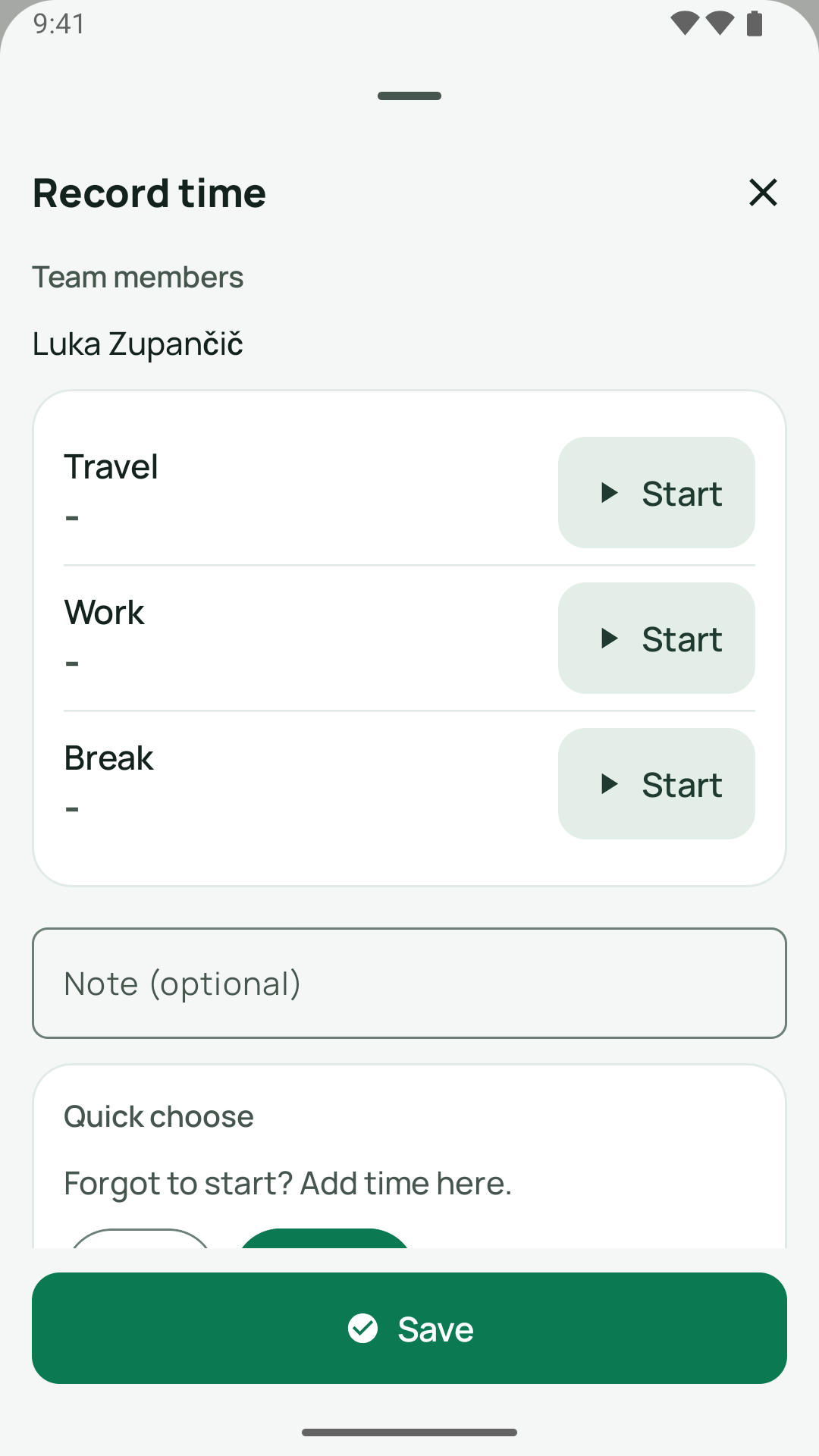
- “Team members”: the names of the people scheduled on the job. This is only a display. You cannot record for colleagues, everyone records their own time.
- “Not saved yet”: entries for this job that the server has not yet confirmed (only if there are any, see below).
- Three rows: “Travel”, “Work”, “Break”. Each row shows the time that has been recorded or is running since the window was opened (or “-” if nothing is recorded and nothing is running), and the button “Start”. If the clock is running, it says “Stop” there, and the time counts live. The row then reports “running”.
- “Note (optional)”: a text field. The note is sent along with a stop, a quick entry and a manual entry, and appears in the office with the entry.
- “Quick choose” with the note “Forgot to start? Add time here.”
- “Add time manually”.
- “Summary”.
- At the bottom the button “Save”.
At the top left, the cross closes the window. While an entry is being sent, it is locked so that you do not miss an error.
How to do it
Section titled “How to do it”Record time with Start and Stop
Section titled “Record time with Start and Stop”- In the row (for example “Work”), tap “Start”. If time is still running on another job, the app first asks “Time is still running on …” and offers “Stop and start”. Only one clock runs at a time.
- When you are finished, tap “Stop”. The app books the duration on the server. If it works, it shows, for example, “Work 45min saved ✓”.
- Alternatively, tap “Save” at the bottom. This stops and books all running clocks of this job. The window only closes if everything has been confirmed. If an entry fails, it stays open, and the entry is listed at the top under “Not saved yet”.
Add forgotten time
Section titled “Add forgotten time”If you forgot to start a clock, add the time afterwards.
Quick choose
- Choose the kind: “Travel” or “Work” (there is no break here).
- Tap the duration: 15, 30, 45, 60, 90 or 120 minutes.
- The entry is sent immediately. The app reports “Work 30min added ✓”.
Add time manually
- Choose the kind: “Travel”, “Work” or “Break”.
- Set the “Minutes” with the plus and minus buttons. The steps are 5 minutes, the range goes from 1 to 1440 minutes, the default is 30.
- Tap “Add”.
A note in the field “Note (optional)” goes with it. After a successful entry, the app clears the note and sets the minutes back to 30. If the entry fails, all entries stay in place.
The summary
Section titled “The summary”The “Summary” shows “Travel”, “Work” and, if there is break time, “Break”. “Total” is the sum of travel and work. The break does not count. The values show the time that you have recorded in this open window, plus the clocks that are running right now. What you recorded earlier is not counted here. The office sees all entries in the job.
Fields and rules at a glance
Section titled “Fields and rules at a glance”| Field | Meaning | Required |
|---|---|---|
| Kind (Travel, Work, Break) | What the time was | yes |
| Minutes | Duration, 1 to 1440, whole minutes | yes |
| Note (optional) | Free text for the entry | no |
The 24-hour limit
Section titled “The 24-hour limit”A single entry may be at most 24 hours (1440 minutes) long. This is the limit of the server. A clock that runs longer is capped at 1440 minutes. This happens, for example, if you forgot a clock overnight. It applies from 1440 minutes and 30 seconds. When opening, the app also checks whether a clock is older than 24 hours and then converts it into a capped entry.
The app does not send such an entry by itself, because a forgotten clock would be a billing risk. It is listed under “Not saved yet” with the note “Time capped at 24 h. Please check.” Check whether the duration is right. Then tap “Record anyway” (the app asks “Really record
Unsaved entries
Section titled “Unsaved entries”An entry can only be saved if there is a network. Otherwise it waits on the phone, nothing is lost. An entry only leaves the phone when the server has accepted it or you explicitly discard it.
Where you see them
Section titled “Where you see them”- In the time window at the top under “Not saved yet”.
- In the job in a strip “Not saved”. It offers “Try again” if that is safe to do, as well as “Time tracking” and, on the iPhone, “My open time entries”.
- iPhone only: under “Today” as a card, for example “2 time entries not saved”. A tap opens “My open time entries”, the list of all your unsaved entries, sorted by job (with job number and customer). If nothing is open, it says “All time entries are saved.”
- On Android you see the entries in the time window and in the strip in the job. There is no overall list there.
What the messages mean and what you do
Section titled “What the messages mean and what you do”| Message on the entry | Meaning | Your button |
|---|---|---|
| “Not saved” | The entry certainly did not arrive, for example without a network. | “Try again” |
| “Saving…” | The entry is on its way right now. | none, wait |
| “Unclear whether it was saved. Check first, then send again.” | The connection broke off while sending. The server may have recorded it. | “Check” |
| “The server rejected the entry. Send it again or discard it.” | The server did not accept the entry. | “Try again” or “Discard” |
| “This job is now assigned to someone else. This time could not be recorded. Please tell the office. The entry stays saved here.” | The office has rescheduled the job. | “Send again” (for example after the office has given the job back) or “Discard” |
| “Time capped at 24 h. Please check.” | See above. | “Record anyway” or “Discard” |
| “The device clock was changed, so the duration is unknown. Please discard it and add the time correctly.” | The clock of the phone went back during the time. | “Discard”, then add by hand |
“Check” looks in the job to see whether time has already been recorded, and then tells you:
- “No time is recorded on this job: the entry did not arrive. You can send it again.”
- “Time is now recorded on this job: probably saved. Don’t send it again; if in doubt, ask the office.”
- “This can’t be cleared up here. Please ask the office.”
“Discard” asks first: “Discard entry?”, “The time will then not be recorded. Only discard it if it is already saved or wrong.” This cannot be undone.
The entry carries its own identifier. If the app sends it again, the server never saves it twice. With newer servers, the app may therefore also send an “unclear” entry again without “Check” first.
What happens to the time at completion
Section titled “What happens to the time at completion”If you tap “Complete”, the app first takes care of the time:
- Entries that are still “Not saved” and may safely be sent, it sends now.
- Everything that is still running (travel, work and break), it stops with the same point in time and books it. A clock that has run for less than a minute is discarded in the process and not booked.
If that fails, the job is not completed, and it says “Completion stopped: the running time was not saved. Please try again.” Entries that are held for checking (for example capped or rejected ones) do not block completion. For the requirement “Time recorded”, only travel or work counts as time. A break alone is not enough.
Good to know
Section titled “Good to know”- The clock keeps running on your phone, even if you close the app or restart the phone. The start is saved, the duration is always recalculated from the current time.
- Whoever signs out on the same phone keeps their times: they stay saved separately per person and are back after signing in again. Another person never sees them.
- Whole minutes are recorded, at least one. With an explicit “Stop”, even a short time counts as one minute. With automatic booking, namely when you “Resume” after a break and before completion, a time under one minute is discarded.
- On Android, a note appears once after the first sign-in: “Your times and your status are recorded per job and shown to the office.”
Frequently asked questions
Section titled “Frequently asked questions”Why is no time running although I opened the job? The app never starts a clock by itself. Tap “Start work” or, in the time window, “Start”.
I booked twice. How do I get rid of one entry? This is not possible in the app. Tell the office via “Office”.
Can I record for a colleague? No. Everyone records their own time.
The entry is stuck at “Unclear whether it was saved”. Tap “Check”. If the app shows that time has already been recorded, do not send it again.