

AI planning
AI planning is an add-on. It makes suggestions about who could take on what and when. It never plans by itself. Every suggestion is a draft that you check and accept or discard with one click. Without the AI, the whole planning board works exactly as it does otherwise.
AI planning is switched off until you set it up. For this you need your own account with an AI provider. eelikField does not provide AI access. The costs of the requests go through your provider, not through eelikField.
What AI planning can do
Section titled “What AI planning can do”It works in four places:
| Function | Where | What it does |
|---|---|---|
| “AI day planning” | Planning board, at the top | Suggests for the day which unplanned orders and site visits fit which person and which time slot. |
| “AI reschedule” | Planning board, at the top | You choose a person who is absent. The AI suggests how their open appointments on that day are spread across available colleagues. |
| “AI suggestions” | Dialog “Resolve absence” | The same as rescheduling, but for all days of an absence. The suggestions only preselect the choice there (see Absences). |
| “Earliest slot (AI)” | On an inquiry | Estimates when the earliest realistic appointment for this inquiry would be possible. |
AI day planning
Section titled “AI day planning”- Open “Planning” and choose the day.
- Click “AI day planning” at the top.
- Wait until “AI is drafting the day plan…” disappears.
- The suggestions appear as shadows in the rows of the people. Look at them.
- Click “Apply (5)”. The number says how many suggestions are applied.
- Afterwards you see, for example, “4 scheduled, 1 skipped”. “Skipped (conflict)” means: the time was taken in the meantime for this suggestion. Schedule it yourself.
If there is nothing to plan, you see “Nothing to plan: Everything is already scheduled.”
AI reschedule
Section titled “AI reschedule”- Click “AI reschedule” at the top.
- Under “Absent technician”, choose the person. The description reads: “Pick the absent technician. The AI redistributes their open appointments for this day across available colleagues.”
- Click “Generate suggestions”.
- For each appointment you see the suggested colleague, if needed a new time and a short reason.
- Accept with “Apply”. With “Recompute” you ask for new suggestions.
If the person has no open appointments on that day, you see “No open appointments”. If the AI finds nobody suitable, you see “No suitable technician”.
Earliest slot (AI)
Section titled “Earliest slot (AI)”- Open the inquiry. The button “Earliest slot (AI)” only appears if the AI is set up.
- Click it. “AI is estimating the earliest slot…” appears.
- You see the day, a possible time slot and the reason in one or two sentences.
- With “Schedule” you go to the planning board and plan the site visit yourself.
The estimate is information for you. It does not create an appointment. eelikField checks the answer beforehand: the day must be a real working day among the next ten working days with free time slots, and the time slot must lie within the working time of that day. Otherwise an error message appears instead of a wrong answer.
Setting up
Section titled “Setting up”Only Owners and Administrators can do this.
- Open “Settings” and the area “AI assistant”.
- Choose the “Provider”: “OpenAI”, “Mistral” or “Anthropic”.
- Under “API key”, enter the key that you created with your provider. It is not shown.
- Leave “Model” empty and the provider’s default model applies. The description reads: “Leave empty to use the default model.”
- Click “Save”.
- On the first save, the “Notice about AI planning” appears (see below). Read it and confirm it with “Understood, save”. Without this confirmation, eelikField does not store the key.
- After that you see “AI active”. With “Test” you check the connection (“Connection successful.”). With “Remove” you delete the key (“Key removed.”). Once the key is removed, the AI functions are gone.
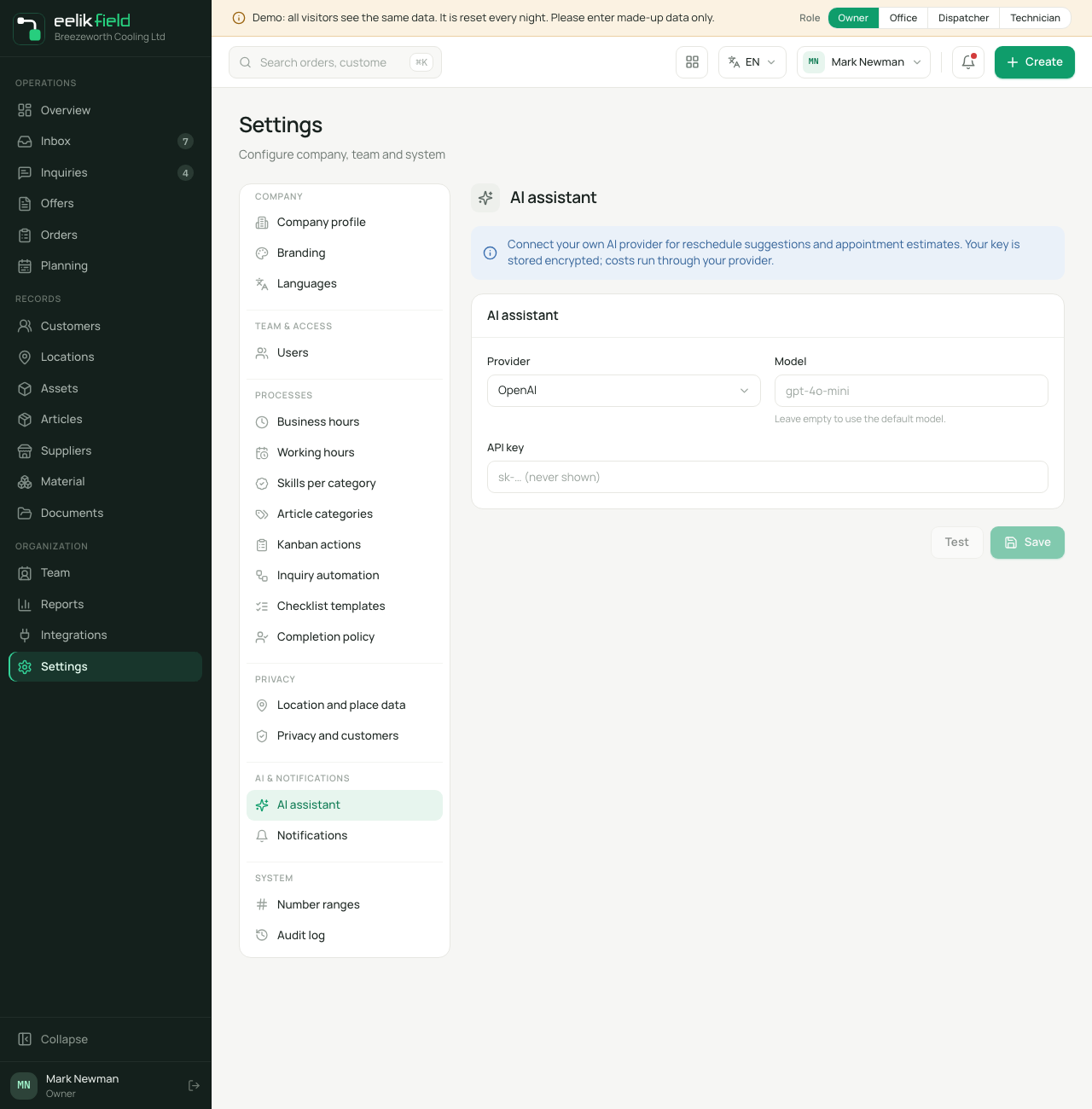
The key is stored encrypted and is never shown in plain text. Without setup, the planning board shows “Enable AI”, and on an inquiry the button “Earliest slot (AI)” is missing.
The notice before the first key
Section titled “The notice before the first key”The “Notice about AI planning” appears once per business, before the first key is stored. It says what goes to your AI provider. Below it is the sentence: “Make sure you have informed your employees.” This is important because the suggestions need details about your employees, for example their working time and skills.
Whoever confirms the notice confirms it for the whole business. In the area “AI assistant” it then says “Data transfer notice confirmed on 17.11.2026 by Name.” The confirmation is also in the activity log (“Notice about AI planning confirmed”). With every further save or change of the key, eelikField does not ask again.
What exactly goes to the AI provider
Section titled “What exactly goes to the AI provider”eelikField sends the request from its server to your provider. Your browser sends nothing to the provider. For each request, the provider only gets a fixed, short list of details. The server builds it field by field. A field that is added to the system later is not sent by accident.
For each order, inquiry or appointment:
- the postal code and the town,
- the type (installation, maintenance, repair or inspection),
- the priority,
- the duration,
- when rescheduling, the previous time slot of the appointment,
- for orders, the required skills.
For each employee who comes into question on that day:
- their skills,
- their service area (the region of their team),
- their working time on that day, from and to,
- their time slots already booked that day, each with postal code and town.
If a person is absent that day, does not work according to their working time, or their working time is already over, only the statement “not available” goes out. The provider does not learn which of the three reasons it is.
In addition: the day. For the earliest appointment, the working time (from the earliest to the latest time of the people who work that day) and the number of free time slots also go out for each of the next working days. Nothing about individual people goes out in this case.
What is not transmitted:
- names, neither of customers nor of employees,
- streets and house numbers,
- phone numbers and email addresses,
- order titles, descriptions and notes,
- order, inquiry, appointment and customer numbers,
- prices and order values,
- internal identifiers from the database.
Instead of names and numbers, the provider gets short identifiers such as “A1” and “M1” for the duration of a single request. The assignment exists only in the memory of the server. If the AI writes “M1 takes over A2” in its reason, eelikField replaces the identifiers with the name and the number only when you see it in the office.
Two restrictions apply to places, regions and skills. They are free text that you enter yourself. They only go out if they look like one designation, for example “Graz” or “gas safety check”. If such a field says something like “Graz, Hauptplatz 1 (Fam. Muster)”, the field is left out completely. eelikField cannot recognise a single string of digits or a single word that is really a name or a street. So write only designations in these fields, and no names or addresses.
What the provider does with the data is governed by its terms. This is another reason to take the notice before the first key seriously and to inform your employees.
How the answer is checked
Section titled “How the answer is checked”The answer of the AI goes through a check before you see it:
- An identifier that the request did not have is discarded.
- Absent people and times outside the person’s working time do not appear.
- On today’s date there is no suggestion before the current time.
- The times lie on a 15-minute grid, do not overlap, and each order appears only once.
- If the suggested colleague lacks a required skill, the suggestion is not removed. It carries a note.
- The free text of the AI is shown only as text and is never executed as an instruction.
If nobody has working time on a day according to the working hours, the AI makes no suggestion for that day.
Limits
Section titled “Limits”- At most 40 items at once. If there are more unplanned orders and inquiries, the most urgent go first. Below it says “12 more not considered (at most 40 go to the AI at once, the most urgent first).” Then plan in several rounds.
- One day per request. Day planning and rescheduling always work for the day that the board shows.
- No routes and no travel times. The AI knows postal code and town, no streets and no maps. It estimates distances roughly.
- No guarantee. A suggestion can be wrong. Check every suggestion before you apply it.
- Nothing without your action. The AI never changes the plan by itself.
- Only in your own business. In the public demos and in a business without a key, it does not exist.
- Roles: Only Owners and Administrators manage the key. The roles Owner, Administrator, Office and Dispatcher can request the suggestions.
- There is a time limit and a quota at the provider. If the answer takes too long or the quota is used up, you see one of the following messages.
Messages and what you do
Section titled “Messages and what you do”| Message | Cause and solution |
|---|---|
| “AI is not set up. Please enable it in settings.” | No key is stored. Set it up. |
| “The AI provider rejected the key. Please check the key in the settings.” | The key is wrong, expired or blocked. Create a new one with the provider and enter it. |
| “The quota at the AI provider is used up, or too many requests came in at once. Please try again later.” | The credit or the limit is reached at the provider. Check your account there, or wait. |
| “The AI provider did not reply in time. Please try again.” | Try once more. |
| “The AI provider cannot be reached. Please try again later.” | The fault is on the provider’s side. Wait. |
| “The answer of the AI provider is unusable. Please check the model in the settings or try again.” | A model that is not suitable for this or does not exist. Leave “Model” empty. |
| “The answer of the AI provider was cut off. Please try again.” | Try once more. |
| “The AI did not give a reliable answer. Please try again or set the date yourself.” | The answer did not pass the check. Repeat, or plan yourself. |
| “There is no working time left on this day. Please choose a later day.” | The day is over. |
| “According to the working hours, nobody works during this time. Please choose another day or check the working hours.” | On that day, no person has working time. |
| “Could not process the AI response. Please try again.” | Repeat. |
Frequently asked questions
Section titled “Frequently asked questions”Does AI planning cost extra? eelikField charges nothing of its own for it. The requests go to your AI provider, and the costs arise there according to its prices.
Do eelikField or the provider see the names of my customers? No, the provider gets no customer names and no streets (see above). The assignment of the identifiers to names stays on the eelikField server.
Can I switch the AI off again? Yes. In “Settings”, “AI assistant”, click “Remove”. After that nothing goes to the provider any more.
Why is “AI reschedule” missing for me? Either no key is set up (then it says “Enable AI” there), or you are working in a demo.