

Jobs in the app
Under “Jobs” you find all jobs that belong to you, sorted by status. From here you open a job and work in it: report the journey, book time, take photos, complete. The office creates the jobs themselves on the web (see Jobs in the office). You do not create new jobs in the app.
Which jobs you see here
Section titled “Which jobs you see here”A job appears for you if at least one of these applies:
- You are entered in the job under “Responsible”.
- You have an appointment for the job (also on another day).
You do not see colleagues’ jobs in the list, not even as an owner. If you still want to open someone else’s job, for example via a message or an asset’s QR sticker, you can. Depending on your role, you can then only read it (role “Technician”) or also edit it (office roles, including owner).
The list
Section titled “The list”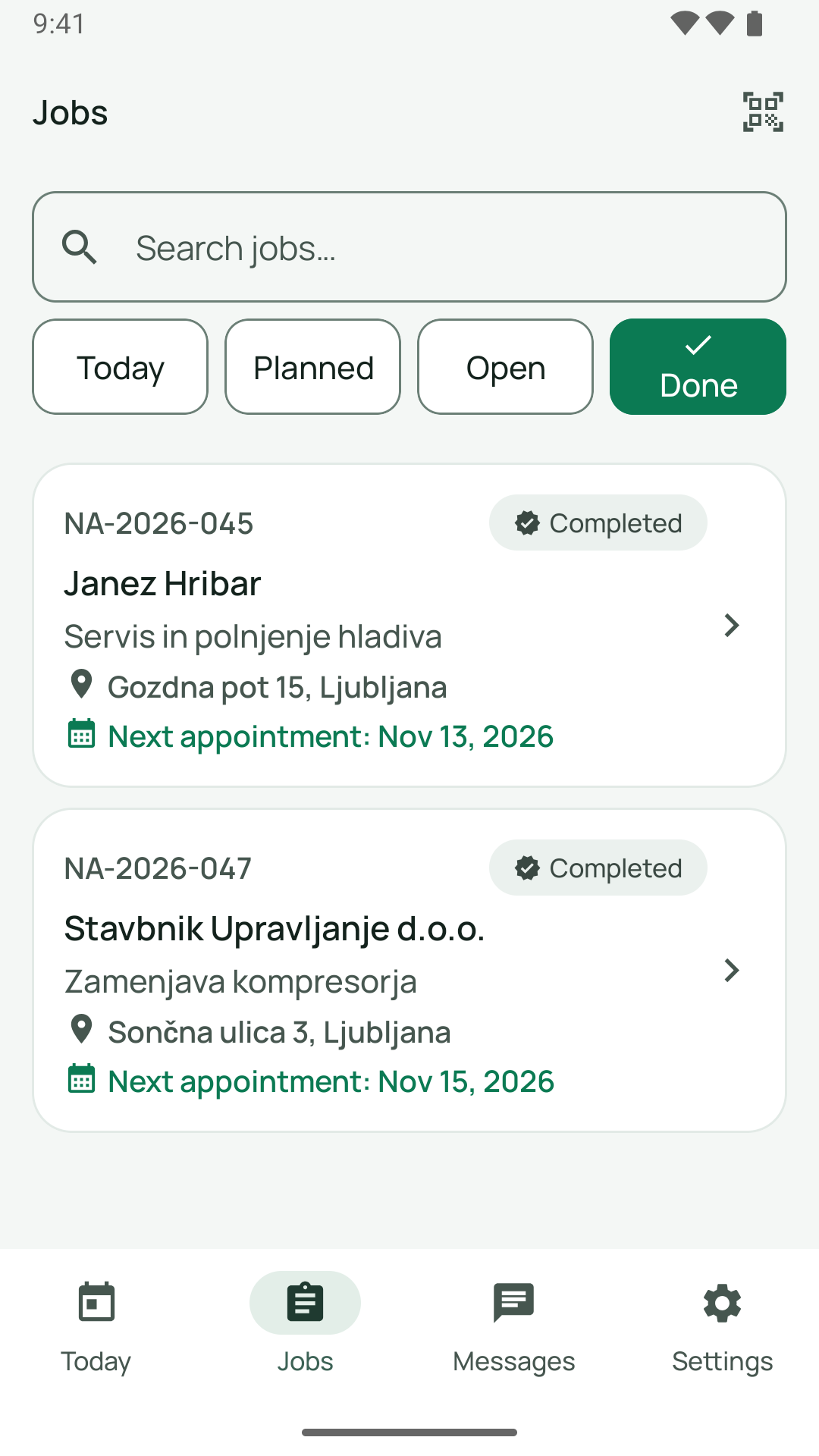
At the top is the search field “Search jobs…”, with four selection fields below it:
| Selection | What it contains |
|---|---|
| Today | Jobs whose next appointment is today |
| Planned | Jobs whose next appointment is after today |
| Open | All jobs that are not yet completed, exported or cancelled |
| Done | Completed and exported jobs |
When you open it, “Open” is preselected, not “Today”. This applies on the iPhone and on Android. The selection and the search text are kept when you switch to another tab and come back.
Each row shows:
- the job number and, next to it on the right, the status as a badge,
- the customer,
- the subject of the job,
- the address (street and town),
- “Next appointment:
” , if there is one.
The status badges are called: “Unplanned”, “Planned”, “Waiting”, “Ready”, “In progress”, “Blocked”, “In review”, “Completed”, “To ERP”, “Exported”, “Cancelled”. In an opened job, the badge also shows “En route” and “On site”, depending on the stage of the visit.
The server orders the list: by the date of the next appointment and then by time. The app does not re-sort it. Pull down to reload the list.
Tap a row and the job opens (see below).
Empty list and errors
Section titled “Empty list and errors”- “No jobs in this view.” means there is nothing in this selection. Change the selection.
- “Could not load jobs.” appears when no list had been loaded yet and the request failed, for example because there was no connection. Pull down or try again. If you have already loaded a list, it stays, and the strip “No network. Your entries stay on the device.” appears at the top.
The search
Section titled “The search”Tap the field “Search jobs…”. The list gets smaller with every letter. The following applies:
- The search covers number, customer, subject, description, street and town. It does not cover colleagues, status and type.
- Upper and lower case and accents do not matter. “hribar” finds “Hribar”, “soncek” finds “Sonček”.
- If you enter several words, all of them must appear, each in any field. Part of a word is enough: “vrb” finds “Vrbica”.
- You can also find the job number without hyphens: “2026045” finds “NA-2026-045”.
- The search only covers the selected selection. The app says so too: “The search only covers the selected filter.” If you search in “Open” and find nothing, try “Done”.
- If the search finds nothing, it says “No results for “
”“. Use “Clear search” to reset it.
The job screen
Section titled “The job screen”When you open a job, you see from top to bottom:
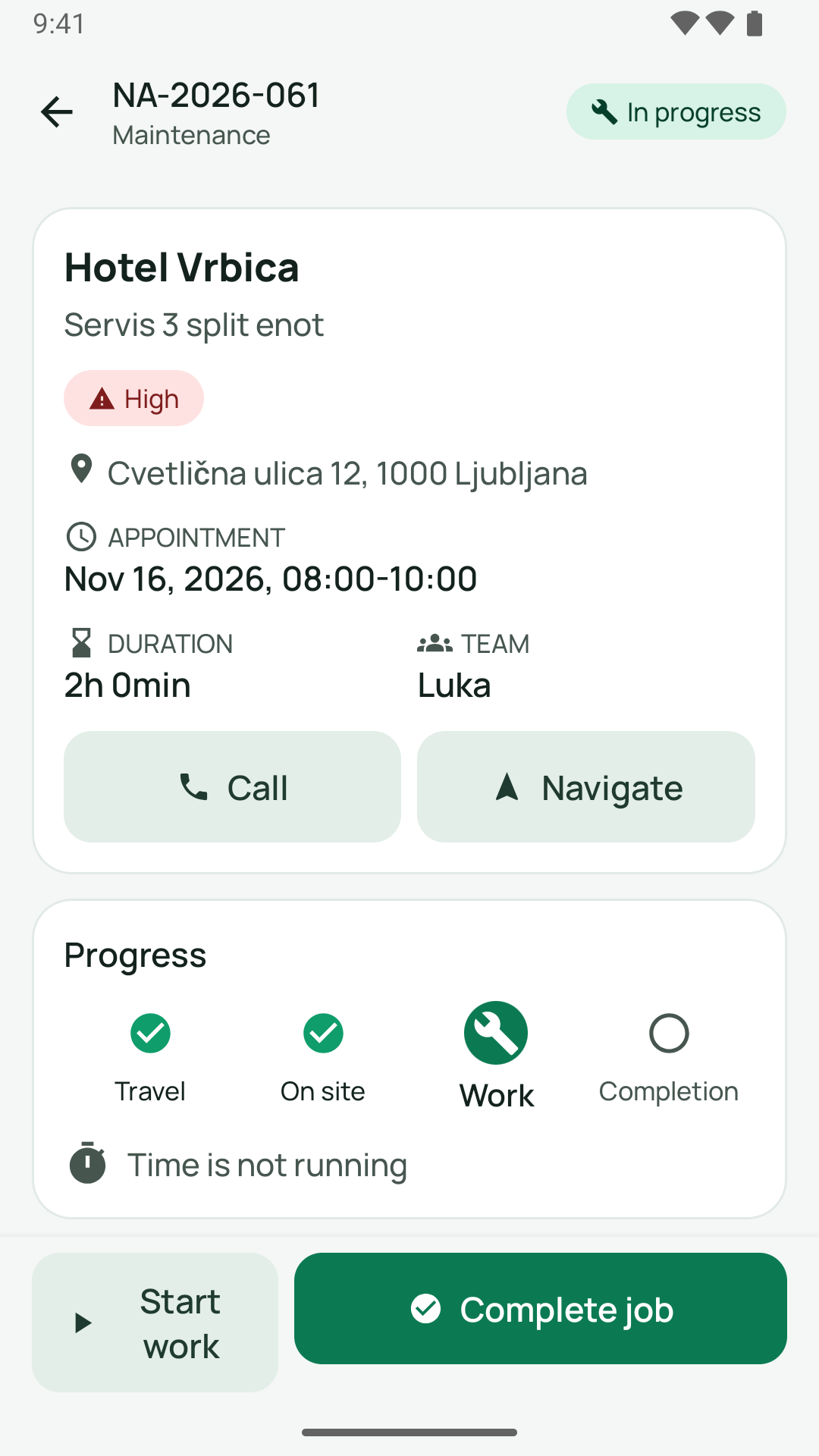
- Header line with the job number, the type (for example “Maintenance”, “Installation”, “Repair”, “Inspection”) and the status.
- Header card with customer, subject, urgency (“High”, “Medium”, “Low”), address, appointment, duration and team. Below it the buttons “Call” and “Navigate”.
- Notices in a coloured strip, only when they apply: “Planned for
” (the job belongs to a colleague), “This job was handed over to ”, “Completed” or a message about time bookings that are not yet saved. - The “Progress” card with the stages En route, On site, Work and Completion, and the line “Time is not running” or “<Travel/Work/Break> running”. If a “Stop” is possible, it is here.
- For jobs with several people and a team rule, the “Team sign-off” card (Completion with a team).
- “Documentation” with the tiles “Photo”, “Time tracking”, “Material usage”, “Signature”, “Problem”, “Office”, “Capture asset” (iPhone only) and “Request material”. If something is already done for a tile, it carries a tick, and for time it says “running” as long as the clock is running.
- Collapsible sections, each only if it has content: “Checklist (x/y)”, “Work order”, “Contact person”, “Access & parking”, “Material”, “Assets”, “Photos (n)” and “History”. At the start, only the checklist and the work order are open.
- The button bar at the bottom with the step that is due now (usually the time action on the left, the main step on the right). What the buttons do is explained on the page The visit step by step.
On Android the layout is the same. The “Capture asset” tile does not exist there.
What the sections show
Section titled “What the sections show”- Work order: The description of the work from the job.
- Contact person: Name, role and phone number of the contact person with a call button (mobile before landline). If the office has removed a contact at the customer, it no longer appears here.
- Access & parking: Notes on the driveway, access and parking that are stored on the site in the office (“Access: …”, “Parking: …”).
- Material: the planned material lines and the latest request with its status (“Requested”, “Ordered”, “Partly available”, “Missing”, “Ready”). Also the buttons “Material usage” and “Request material” (Material).
- Assets: devices that are stored in the job, with manufacturer, model, serial number and status.
- Photos: small preview images of the photos on the job (Photos).
- History: up to six latest entries with date.
- Checklist: (Checklist).
Other people’s and completed jobs
Section titled “Other people’s and completed jobs”- If the job belongs to a colleague (role “Technician”), you can only view it. The tiles “Photo” and “Problem” are grey, “Office” stays active, the checklist shows a lock, and the button bar is missing.
- If the office has cancelled the job, it no longer appears in “Today”, “Planned”, “Open” and “Done”. See the section “If the office cancels a job” further down.
- If the job is completed, “Completed” appears in a strip. The tiles are missing except for “Office”, and the progress buttons are gone. A completed job cannot be reopened from the app.
If the office cancels a job
Section titled “If the office cancels a job”The office can cancel a job on the web by giving a reason (see Jobs in the office). For you this means:
- The job’s open appointments are cancelled. If you were scheduled, you receive the notification “Appointment changed”.
- The planned day of the job is empty. The job therefore no longer appears in “Today”, “Planned” and “Open”. It is not in “Done” either, because it is neither completed nor exported.
- If you open a cancelled job anyway, for example via a message, it carries the badge “Cancelled”.
- If you already have the appointment open in the app and tap “Start travel” or “Start work”, the cancelled job can be reopened by doing so. If in doubt, call the office briefly before you set off.
- Time that you have already booked is kept.
If the office edits a job
Section titled “If the office edits a job”If the office changes the customer, site, subject, description, urgency or planned duration of a job, you see the new values in the same fields in the app as soon as the view reloads (pull down). If the office changes the address of a job whose appointment is already open, you get no notification about it. The app only shows the new address after reloading. If you are unsure about the destination, pull the job down before you leave.
Good to know
Section titled “Good to know”- Jobs are never created, rescheduled or deleted in the app. The office does that on the web.
- If the office changes something while you have the job open (for example the appointment or the address), you see it after refreshing. To do that, pull the job down.
- The selection “Open” shows a lot. For the working day, “Today” is usually the better view. Even more convenient is the tab Today.
Common questions
Section titled “Common questions”My job is missing in “Open”. Completed, exported and cancelled jobs no longer appear in “Open”. A cancelled job is in none of the four selections. You find completed and exported ones under “Done”. If it is assigned to a colleague and you have no appointment there, it does not appear for you.
I am the owner and see no jobs. Enter yourself in the job under “Responsible” or schedule yourself on the planning board. For that, your row under “Team” needs the switch “Also works in the field”. More on the page For owners who work alone.
Can I search in the app for a job that is not in my list? No. The search applies to the loaded list. Via an asset (QR code or asset number) you get to the open jobs of that asset (Assets by QR code).