

Articles and categories
The article master holds all the goods and services that you sell or install: an air conditioner, a metre of copper pipe, an hour of installation, a service flat rate. Offers and orders draw on this master. That way you do not type the name and price anew every time.
Owners, administrators, office staff, dispatchers and the warehouse can view, create and edit articles. Only owners, administrators, office staff and dispatchers can change the sales price and the tax rate, not the warehouse. Technicians do not have the “Articles” page. You find “Articles” in the left-hand menu in the “Master data” group.
Creating an article
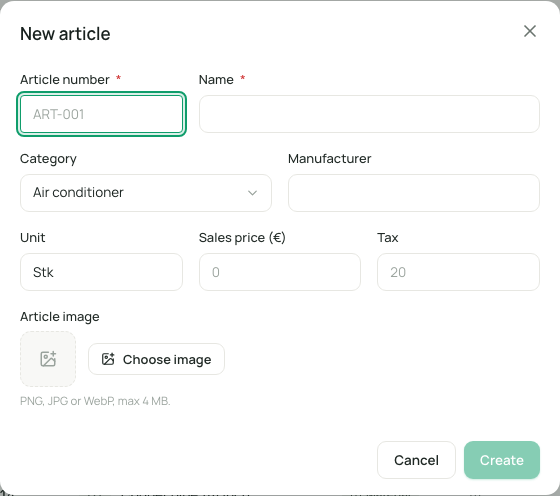
Section titled “Creating an article”- Open “Articles” and click “New article” at the top right.
- Enter the “Article number”, for example “ART-001”.
- Enter the “Name”. It needs at least 2 characters.
- Choose the “Category” or “No category”.
- If needed, enter “Manufacturer”, “Unit”, “Sales price” and “Tax”.
- Optionally choose an “Article image”.
- Click “Create”.
| Field | Meaning | Required |
|---|---|---|
| Article number | Your own number for the article. It must be unique and cannot be changed later. | Yes |
| Name | The name as it appears in offers and orders. | Yes |
| Category | The group of the article (see below). | No |
| Manufacturer | The manufacturer, if relevant. | No |
| Unit | The unit in which the article is counted. If you leave it empty, “pcs” (pieces) applies. You can type the unit freely. | No |
| Sales price | The price without tax in your company’s currency, for example “Sales price (net, €)”. | No |
| Tax | The tax rate in percent. If you leave it empty, eelikField uses the usual rate of your country. It appears as a hint in the field. | No |
| Article image | PNG, JPG or WebP, 4 MB at most. | No |
Which tax rate is suggested depends on the “Country” in your settings: 19 percent in Germany, 20 percent in Austria, 17 percent in Bosnia and Herzegovina, 25 percent in Croatia, 8.1 percent in Switzerland, 22 percent in Slovenia and for unknown countries (Company). The rate is a suggestion for new items: existing articles and offers do not change because of it.
If the warehouse creates an article, it gets the price 0 and the usual tax rate of the country. The two fields are locked for the warehouse. The office enters the price later.
If you have already used an article number, eelikField does not create the article and the window stays open.
The article list
Section titled “The article list”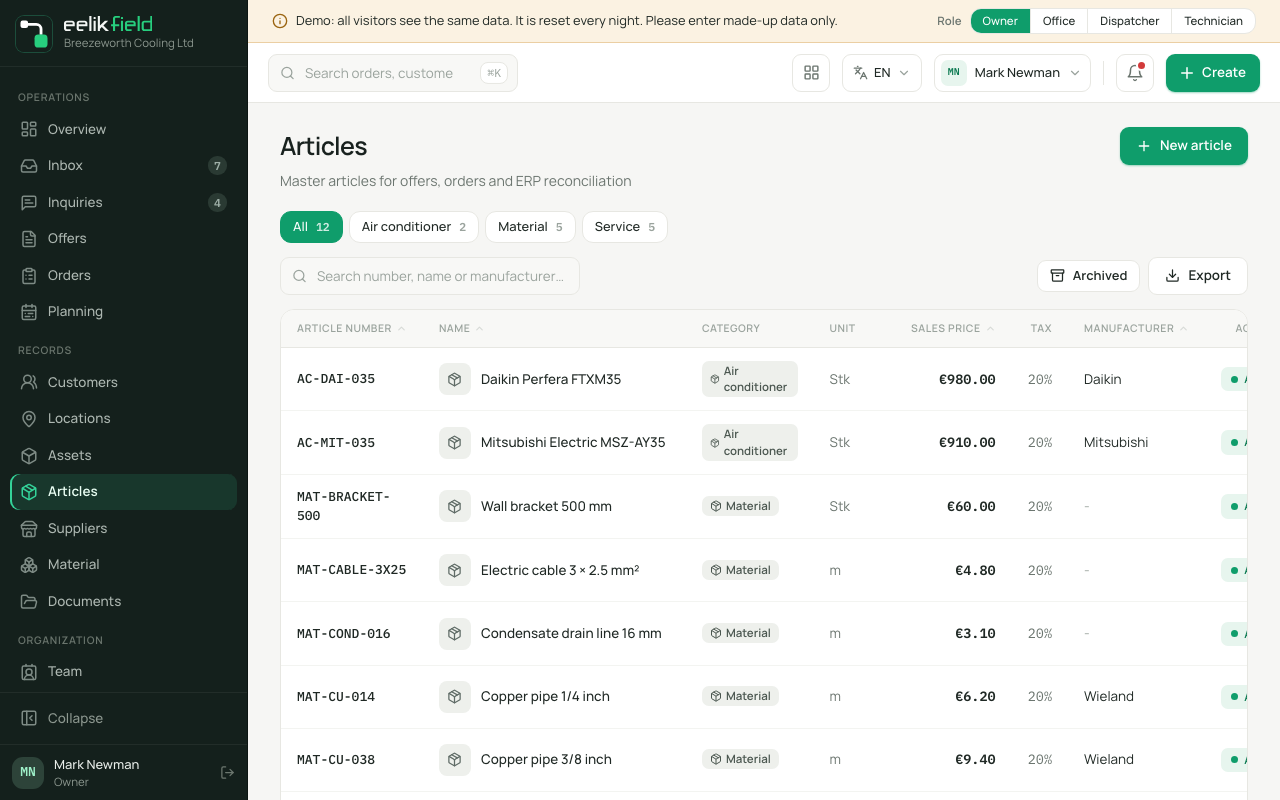
| Column | Content |
|---|---|
| Article number | Your number. |
| Name | The name with image. |
| Category | The category as a badge. |
| Unit | For example “pcs”. |
| Sales price | Net. |
| Tax | The rate. |
| Manufacturer | Manufacturer or “-”. |
| Active | “Active” or “Archived”. |
| ERP reference | The link to the accounting program. |
- Search: “Search number, name or manufacturer…”.
- Tabs: “All” and one tab for each category of your company. One click shows only that category.
- Archived: The list shows only active articles. With the “Archived” button in the toolbar you see only the archived ones instead. If there are no hits, it says “No archived entries.”
- Export: “Export as CSV” or “Export as Excel”.
- Pages: 50 articles per page.
If you want to take over many articles at once, owners and administrators use the “Import wizard” under “Integrations” (“Import customers and articles from CSV”, with a template to download). The “Getting started” card on the overview mentions the same.
Viewing and editing an article
Section titled “Viewing and editing an article”Click a row to open the side view on the right. At the top you see the image, name, article number, category and status. Below that follow:
- Master data: category, unit, status, manufacturer.
- Prices & tax: “Sales price (net)”, “Tax rate” and “Gross price”. The gross price is calculated for you.
- ERP assignment: The “ERP reference”, the link for the export to the merchandise management system. Only needed if you hand articles over to an accounting program.
To change something:
- Click “Edit” at the bottom.
- Change “Name”, “Category”, “Unit”, “Sales price”, “Tax rate”, “Manufacturer” or “ERP reference”.
- Click “Save”.
Image: With “Upload image”, “Replace” and “Remove” you change the article image. It is uploaded immediately. You see “Only PNG, JPG or WebP files are allowed.” or “Image is too large (max 4 MB).” if the file does not fit.
Archiving and restoring
Section titled “Archiving and restoring”With “Archive” you take an article out of use without deleting it. The button is at the bottom of the side view next to “Edit”. The article then has the status “Archived”.
- It disappears from the article list and from the selection in new offers and orders. Offers and orders that have already been written do not change.
- You find it again with the “Archived” button in the list. Its side view shows the note “This article is archived. Restoring it makes it selectable again.”
- “Restore” makes it selectable again straight away.
- Archiving and restoring appear in the history (“Article archived”, “Article restored”).
The former switch “Article active” in the edit form no longer exists. Owners, administrators, office staff, dispatchers and the warehouse can archive and restore. There is no way to delete an article.
Article categories
Section titled “Article categories”Categories organise the article master. They appear for selection when you create and edit articles and as tabs in the article list. Only owners and administrators maintain the categories:
- Open “Settings” and, in the “Processes” group, choose the “Article categories” section.
- Under “New category, e.g. Maintenance”, type a name (2 to 60 characters) and add it.
- With “Rename” you change a name. All articles of that category move along with it.
- With “Remove” you take a category out of the selection. The articles keep their category name, and it still appears in the list. If you create the same category again later, it is back.
If the name already exists, you see “This category already exists.” If there are no categories, it says “No categories yet” with a note to create the first one. In the “New article” window, the entry “+ Create category” leads there.
If you type a category name that does not exist yet when you create an article, it is added to the category list automatically.
Where articles are used
Section titled “Where articles are used”- In offers you choose articles for the items from the master.
- In the material request (on the order and in the “Material” menu item) and in the service entry of an asset (“Parts & services”) you also choose articles.
- In the export to the accounting program, the “ERP reference” goes along.
Good to know
Section titled “Good to know”- Prices are net prices. The gross price is the sum of the net price and tax.
- The currency is your company’s and cannot be changed once there are offers or orders with amounts (Company).
- Price tiers, stock levels and supplier prices per article do not exist.
Frequently asked questions
Section titled “Frequently asked questions”Can I change the article number? No. If you make a mistake, create a new article and archive the old one.
Why can’t the warehouse change the price? Because sales prices are office work. The warehouse maintains name, category, unit and manufacturer.
An article does not appear in the new offer. It is probably archived. In the article list, choose “Archived”, open the article and choose “Restore”.