

Planning board
The planning board is the page where you decide who goes where and when. On the left are the orders that do not have an appointment yet. On the right you see a row for each person with their appointments. In the menu, the page is called “Planning”.
The planning board is meant for the roles owner, administrator, office and dispatcher. Technicians and all people who have “Also works in the field” switched on on the Team page can be scheduled. This also applies to you as owner if you drive to the customer yourself.
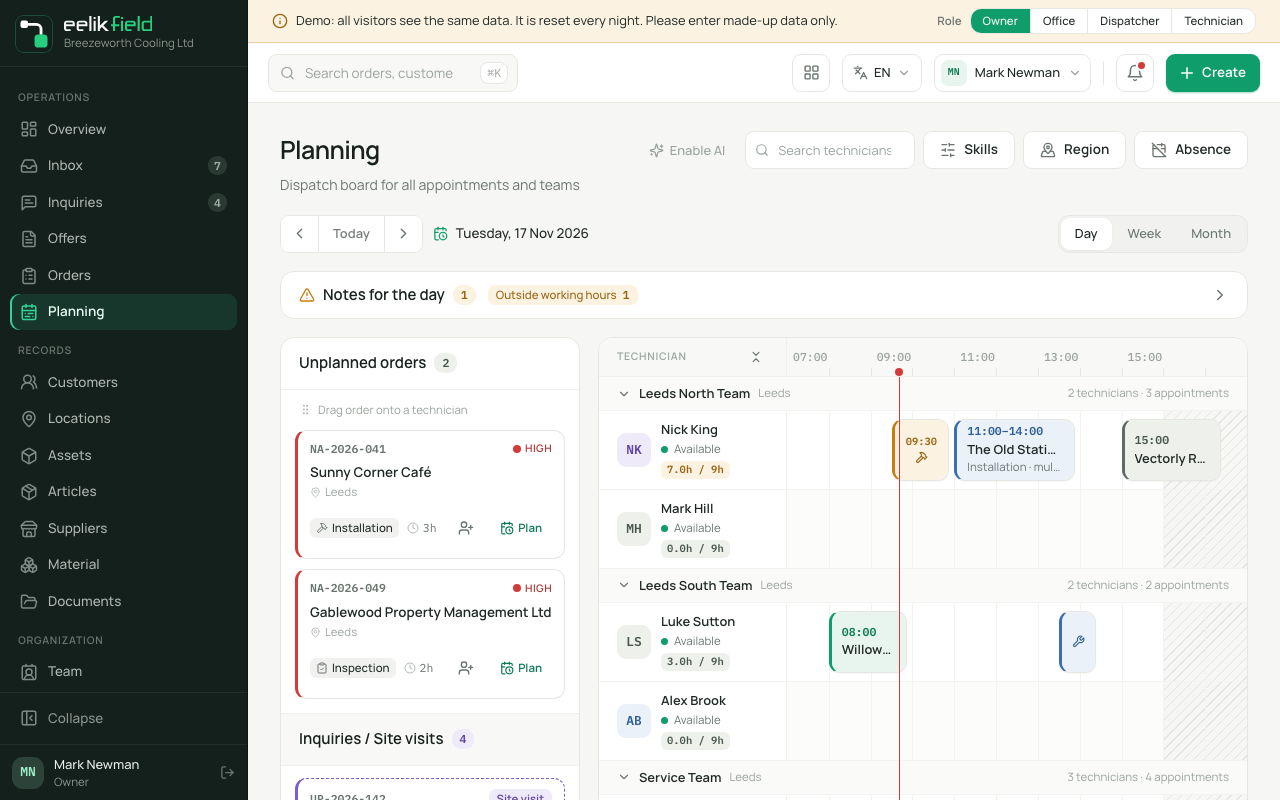
Layout of the page
Section titled “Layout of the page”The controls are at the top, the board below.
- Date: The arrows move one day back or forward. “Today” jumps to today. The date is shown next to them.
- View: “Day”, “Week” or “Month” (see below).
- Search “Search technicians…”: Shows only people whose name matches.
- “Skills” and “Region”: Filter the rows by skill or region. The chosen filters appear as chips and can be cleared with “Reset”.
- “Absence”: Records vacation, sickness and other things (see Absences).
- “AI reschedule” and “AI day planning”: Appear if the AI is set up. Without setup, it says “Enable AI” there (see AI planning).
Below that are two areas:
- The list on the left: At the top “Overdue” (only if there is anything), below it “Unplanned orders” and, if there are any, “Inquiries / Site visits”.
- The board on the right: One row per person, with the timeline of the day. At the bottom are the legend (Service, Installation, Repair, Site visit) and the number of planned appointments.
On small screens, the timeline changes to a list per person. At a width of roughly 768 to 1280 pixels, the list of unplanned orders sits above the board. It is collapsed and can be opened with a click on its row.
Day, week, month
Section titled “Day, week, month”The board always shows exactly one day. With the switch “Day”, “Week”, “Month” you decide how you jump to another day:
| View | What additionally appears |
|---|---|
| “Day” | Nothing. You move with the arrows or choose “Today”. |
| “Week” | A bar with the seven days of the week. Above it says “Pick a day this week”. |
| “Month” | A bar with all days of the month. Above it says “Pick a day this month”. |
The chosen day is highlighted and carries a small dot if appointments are on it. The bar shows nothing for the other days. A click on a day loads the board for that day.
Scheduling an order
Section titled “Scheduling an order”There are four ways. All of them create the same appointment.
Way 1: drag and drop
Section titled “Way 1: drag and drop”- On the left, grab the card of an unplanned order. The card shows the number, priority, customer, place, order type and, if known, the duration. The duration comes from the field “Planned duration (hours)” on the order.
- Drag the card onto the person’s row, at the time the appointment should start. A shadow shows start and end.
- Let go. The appointment is on the board, and the order disappears from the list.
The times snap in steps of 15 minutes. If you drag the card somewhere where there is no row, nothing happens.
On a tablet: Press and hold the card or the appointment until it comes loose (about a third of a second), then drag. If you only swipe briefly, the page scrolls as usual. The page says: “On a tablet: press and hold, then drag.”
Way 2: “Plan”
Section titled “Way 2: “Plan””- On the order’s card, click “Plan”.
- “Plan appointment” opens. A free time is already suggested.
- Check or change the details:
| Field | Meaning | Required |
|---|---|---|
| “Technician” | The person who gets the appointment. Absent people appear in the list with the addition “absent”. | yes |
| “Date” | The day. The default is the day the board is currently showing. | yes |
| “From” | Start. | yes |
| “To” | End. It must be after the start. | yes |
| “Note” | For example an access code or special tools. | no |
- Click “Plan”.
For an inquiry in the list “Inquiries / Site visits”, the dialog is called “Plan site visit”. A site visit is an appointment without an order, with a suggestion of 90 minutes. In the legend it carries the colour “Site visit”.
Way 3: “Assign technician”
Section titled “Way 3: “Assign technician””The icon with the plus on the card opens a menu “Assign technician”. It lists all people who can be scheduled and are not absent on that day. A click on a name creates the appointment at the first free spot of the day.
Way 4: on the order
Section titled “Way 4: on the order”On the order there are “Plan appointment” and “Assign team” (see Orders). There you can also schedule a whole team at once.
After planning
Section titled “After planning”- The order gets the status “Planned”.
- The technician sees the appointment in the app under “Today” or “Planned”. They get the notification “New appointment” if notifications are set up on their device.
- If there is a conflict or the person is absent, eelikField asks first (see “Conflict and absence when planning”).
Editing appointments
Section titled “Editing appointments”Rescheduling
Section titled “Rescheduling”- Drag: Grab the appointment and drag it to another time or into another person’s row.
- Change the length: Drag the right edge of the appointment. The handle is called “Change duration”.
- Dialog: Open the appointment with a click and choose “Reschedule”. “Reschedule appointment” opens.
Completed, cancelled and rescheduled appointments cannot be dragged.
Unscheduling
Section titled “Unscheduling”The order goes back to the list “Unplanned orders”. There are two ways:
- Drag the appointment into the list on the left. There it says “Drop here to unschedule”.
- Open the appointment, click “Unschedule” and confirm with “Yes, unschedule” (“Really unschedule this appointment?”).
The appointment in the side panel
Section titled “The appointment in the side panel”A click on an appointment opens a side panel on the right with customer, service, order, value, address with “Navigate” and “Call”, the team, the material status and the notes from the order description. The buttons are at the bottom. The large main button changes with the status of the appointment: “Confirmed”, “En route”, “On site”, “In progress”, “Complete” or “Resume”. Next to it are “Reschedule” and “Unschedule”. In the panel itself you also find:
| Button | Effect |
|---|---|
| “Pause” | Sets a running appointment to “Paused”. |
| “Cancel” | Cancels the appointment. The order stays open and is listed under “Unplanned orders” again. |
| “No-show” | Marks the appointment as not attended. |
| “Open order” | Opens the order. |
| “Crew…” | Schedules several technicians onto the same order and time (see below). |
Appointments have these statuses: “Draft”, “Planned”, “Confirmed”, “En route”, “On site”, “In progress”, “Paused”, “Completed”, “No-show”, “Rescheduled” and “Cancelled”.
Scheduling a crew
Section titled “Scheduling a crew”With “Crew…” you schedule several people at once. In the “Assign crew” dialog, choose the technicians and click “Assign”. Colleagues with a conflict or absence are skipped. Afterwards it says, for example, “2 assigned, 1 skipped (conflict/absence).”
Overdue
Section titled “Overdue”At the top left, “Overdue” appears if there are open appointments from past days. Each card shows how many days the appointment is overdue. Two buttons:
- “To today” moves the appointment to today.
- “Missed” asks “Mark as missed?”. With “Yes, missed” the appointment counts as not attended.
Working hours and hatching
Section titled “Working hours and hatching”The timeline follows the working hours. The company sets them under “Settings”, “Working hours”. On the Team page, each person can have their own hours (“As company”, “Individual hours”, “Does not work”).
- Grey stripes in a row show times outside the working hours of that person. If you point at them with the mouse, it says “Outside working hours”.
- If a day is not a working day for a person, the whole row is striped and next to the name it says “Not a working day”.
- If a person is absent, the row is also fully striped, and next to the name it says “Absent today”.
- If you point at a name with the mouse, you see the working hours: “Working hours: 07:00 to 16:00”.
- On today’s board, a red line marks the time: “Now, 10:30”.
- The utilization compares a person’s planned hours with their target according to the working hours. The tooltip says “Planned hours and target from the working hours”.
The hatching is only a display. You can also schedule into the grey times. More on this in a moment under “Notes for the day”.
Notes for the day
Section titled “Notes for the day”Above the board, a bar “Notes for the day” appears as soon as there is something to note. If there is nothing, it is not there. The notes do not hold up planning. They only tell you where it is worth taking a look.
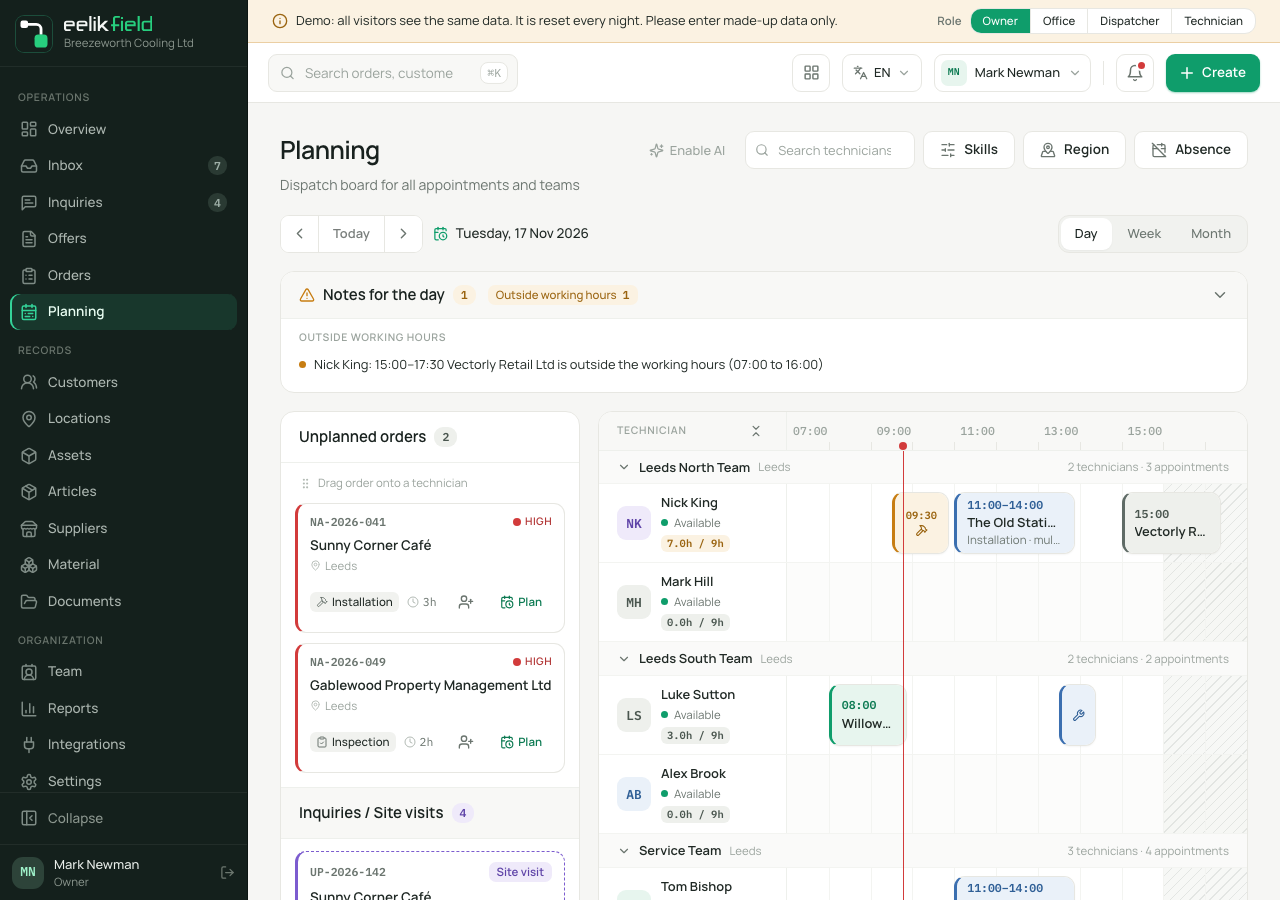
There are six kinds. Each has a heading with a number and lists the cases one by one:
| Kind of note | When it appears | Example text |
|---|---|---|
| “Overlaps” | Two appointments of one person overlap. | “Name: 09:00 to 10:00 Customer overlaps with 09:30 to 11:00 Customer” |
| “Appointments despite absence” | A person has an appointment on a day when they are absent. | “Name is absent: 09:00 to 10:00 Customer” |
| “Outside working hours” | An appointment lies wholly or partly outside the person’s working hours. An appointment on a day without working hours counts too. | “Name: … is outside the working hours (07:00 to 16:00)” or “… is on a day without working hours” |
| “Missing skill” | The scheduled person lacks a skill that the order needs. | “Name: …. Missing skill: Gas test” |
| “Orders without duration” | An order has no planned duration. This affects orders with an appointment on that day and unplanned orders. Enter the “Planned duration (hours)” when creating the order or with “Edit” on the order, and the note disappears for that order (see Orders). | “Order A-100 (Customer) has no planned duration” |
| “Above target” | A person’s appointments add up to more hours than their working hours allow. | “Name: 9 h planned, target 8 h” |
This is how you use the bar:
- “Go to the appointment”: A click on an entry jumps to the appointment on the board and highlights it briefly. For an unplanned order, it jumps to the card in the list.
- “Show {n} more” and “Show fewer”: If there are many notes, the bar first shows only some.
- “Hide notes” and “Show notes”: Hides the bar or shows it again.
Missing skill
Section titled “Missing skill”Some orders need a skill (see Orders). If the scheduled person lacks it, three things happen: The appointment carries the sign “Missing skill: …”, the bar reports it, and everything stays possible when scheduling. You decide. Which skill an order needs, you set on the order. The default per order type you set under “Settings”, “Skills per category”. You enter people’s skills on the Team page.
Conflict and absence when planning
Section titled “Conflict and absence when planning”Unlike the notes, two cases hold up saving until you expressly agree:
- The appointment overlaps with another appointment of the person: “Scheduling conflict. Conflict: overlaps with … Schedule anyway?”
- The person is absent on that day: “Technician absent. The technician is absent on this day. Schedule anyway?”
With “Schedule anyway” you save the appointment after all. The board then shows a yellow note, and the bar “Notes for the day” carries the case on.
When two people plan at the same time
Section titled “When two people plan at the same time”If two people work on the same appointment, neither silently overwrites the other. Each appointment has an internal counter that rises with every change. With every action, the board sends the counter it saw last.
If someone else has changed the appointment in the meantime, this happens:
- Your action is not carried out. Nothing is written and nothing is repeated by itself.
- The board shows the new state. The appointment jumps to where it now is. Open windows for the appointment close.
- A blue note appears at the top: “This appointment has been changed in the meantime. The board now shows the current state.” It disappears after about 15 seconds or with the cross.
What you do: Look at the new state. If your change is still wanted, carry it out again. Your colleague may have done the same thing already.
This applies to all ways: dragging, changing the length, unscheduling, the “Overdue” bar, “Reschedule”, “Assign crew”, the buttons in the side panel, AI rescheduling and “Resolve appointments”. Changes from the app or from the order page count too. For “Resolve appointments”, the result row says “Changed in the meantime”.
An old board: If you leave the board open for a long time, it reloads quietly when you return to the tab after at least a minute or when it has not been loaded for five minutes. If you are dragging right now or a window is open, it does not load and shows a small line instead: “The board is no longer up to date.” A click on “Reload” fetches the current state.
Notification to the technician
Section titled “Notification to the technician”If a change takes an appointment away from a technician, they find out:
| What you do | Who gets what |
|---|---|
| You move an appointment to another person. | The previous technician gets “Appointment changed”. The new one gets “New appointment”. |
| You unschedule an appointment (drag it into the list or “Unschedule”). | The technician gets “Appointment changed”. |
| You cancel an appointment in the side panel. | The technician gets “Appointment changed”. |
| You set the order back to “Unplanned” in the order view. | The technician gets “Appointment changed”. |
| You cancel the whole order with “Cancel order”. | Every scheduled person gets “Appointment changed”. The open appointments disappear from the board. |
The notification names the day and the order number, not a customer name. Whoever makes the change themselves gets no notification. A notification only arrives if notifications are set up on the technician’s device (see Notifications in the app). Without them, the technician sees the change the next time they open the app.
Frequently asked questions
Section titled “Frequently asked questions”The order is missing from the list “Unplanned orders”. That list holds orders without an open appointment. If the order has an appointment, you will find it on the board. If there are very many unplanned orders, the list shows only some of them. Below it says “More unplanned orders in the orders board”, and a click leads to the order list.
A person is missing from the board. Check the filters at the top. A person only appears if they are a technician or have “Also works in the field” switched on. If a person only has old appointments, they still appear but cannot get new ones.
I rescheduled by mistake. Drag the appointment back or reschedule it in the side panel with “Reschedule”.
Can I see more than one day at once? No. The board shows one day. “Week” and “Month” only let you jump quickly to another day.