

Working hours
The planning board needs to know when work happens: how long is the day, how full is someone, and on which days is nobody there? This is what the working hours are for. You set them once for the whole business and change them for individual people only where they differ, for example for part-time work or a day off.
Owners and admins change the business’s working hours and a person’s own working hours. All other roles can only read them.
Setting the business’s working hours
Section titled “Setting the business’s working hours”- Open “Settings” and, on the left in the “Processes” group, choose the “Working hours” section.
- You see seven rows, Monday to Sunday. Each row has a switch at “Working day”.
- If the switch is on, enter “From” and “To” on the right, for example 07:00 and 16:00. If it is off, it says “Does not work”.
- Click “Save” at the bottom right. The button briefly shows “Saved”.
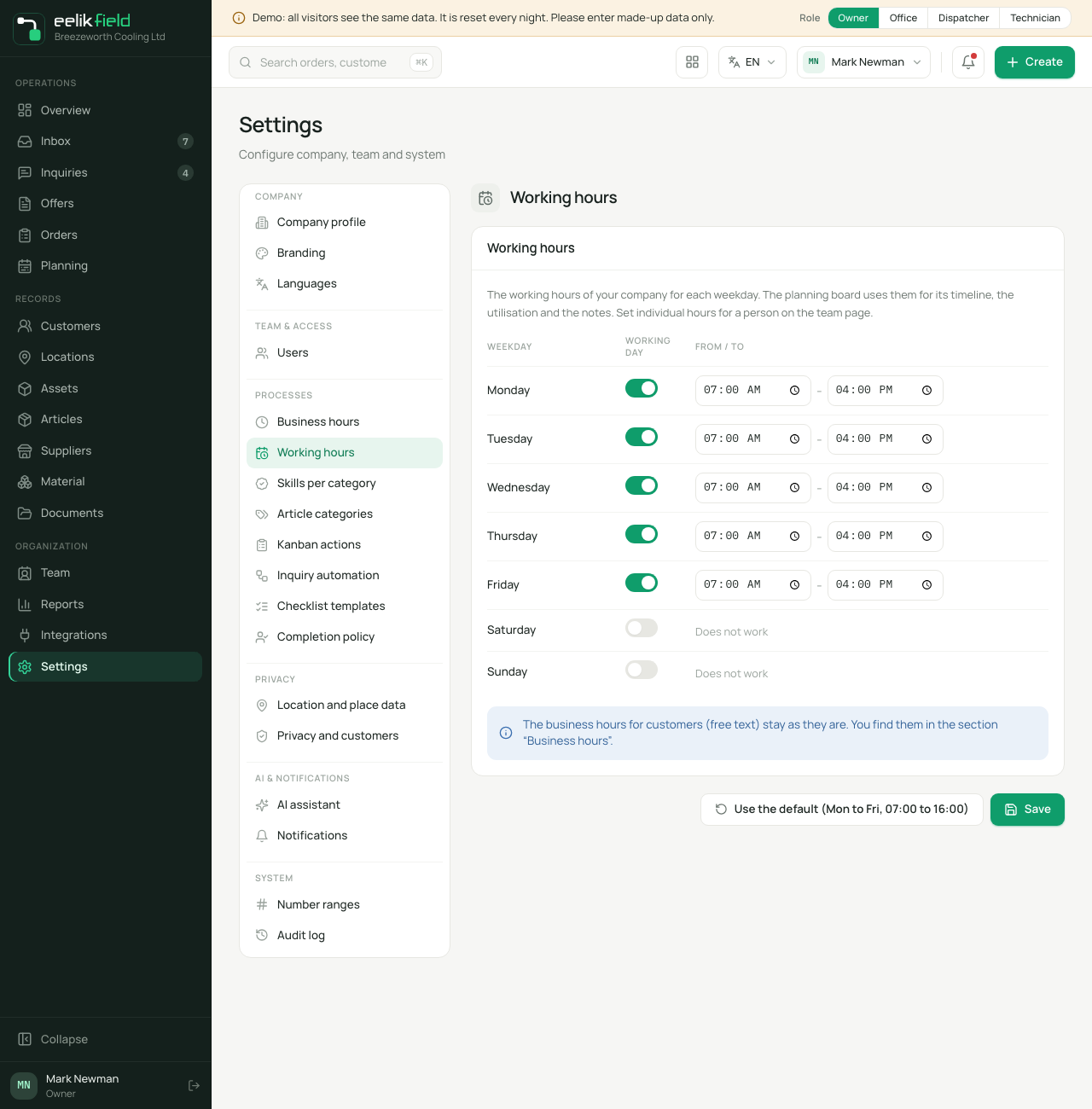
If you have not set anything, Monday to Friday from 07:00 to 16:00 applies, and Saturday and Sunday are free. With “Use the default (Mon to Fri, 07:00 to 16:00)”, you restore these values at any time. After that, you still have to click “Save”.
What eelikField checks
Section titled “What eelikField checks”- “From” must be before “To”. Otherwise, you see “Please check the times: “From” must be before “To”.” and nothing is saved. There are no working hours across midnight.
- Every day has exactly one time slot. You do not enter a lunch break.
- The times apply in your business’s time zone.
Individual working hours for a person
Section titled “Individual working hours for a person”The business works Mon to Fri 07:00 to 16:00. But a colleague works until 13:00 on Tuesdays and not at all on Fridays? Then you set this for her, without changing the business.
- Open “Team” in the left menu.
- Click the person’s row. Their profile opens on the right.
- In the “Working hours” block, you see the seven weekdays with the time that applies to the person. For days with their own time, it says “Individual hours”.
- Click “Change working hours”.
- For each weekday, choose:
- “As company” (the business’s time is shown after it): the person follows the business.
- “Individual hours”: “From” and “To” appear for this day.
- “Does not work”: the person does not work on this day.
- Click “Save”.
Individual hours replace the business’s time on that weekday. They are not added to it. Days where you leave “As company” follow the business, even if you change its hours later. If you chose “As company” for all days, the profile says “As the company”.
For a deactivated person, the block does not exist.
What happens with the working hours
Section titled “What happens with the working hours”- Timeline of the planning board: it shows the day from the earliest to the latest working time of the people shown, but at least 07:00 to 18:00. If an appointment lies outside, the timeline becomes wider so that nothing disappears.
- Grey area: in a person’s row, everything outside their working hours is hatched, with the note “Outside working hours”. On a day off, it says “Not a working day”.
- Utilisation: the target follows the working hours of the day. The tooltip is called “Planned hours and target from the working hours”.
- Notes for the day: if someone schedules an appointment outside working hours or on a day without working hours, a note appears, for example “… is outside the working hours (07:00 to 16:00)”. This does not prevent the scheduling. It is only a note.
- AI planning: the AI’s suggestions keep to the working hours. On days without working hours, it suggests nothing (AI planning).
You can find more about the planning board on the page Planning board.
If you work alone
Section titled “If you work alone”As the only employee, you set the business’s working hours the way you work. You need your own hours only if you work differently on certain days from what is set for the business. For you to be able to schedule yourself at all, you must also switch on the “Also works in the field” switch (Team).
Frequently asked questions
Section titled “Frequently asked questions”Why is the timeline wider than the working hours? Because someone has an appointment outside working hours, or a person has longer working hours. The timeline grows until everything is visible.
Do I have to enter individual hours for every person? No. Only people who differ need individual hours. Everyone else follows the business.
Do the new working hours change existing appointments? No. Existing appointments stay as they are. If they then lie outside working hours, you only get a note for the day.
Can I enter public holidays? No. There is no list of public holidays. For single days when someone is away, you enter an absence (Absences).