

Absences
An absence tells eelikField that someone is not working on certain days: because of vacation, sickness, training or another reason. The planning board shows the person as absent on those days and warns you if you schedule something for them anyway. If someone who already has appointments drops out, “Resolve absence” helps to redistribute those appointments.
The roles owner, administrator, office and dispatcher can record and change absences.
Recording an absence
Section titled “Recording an absence”There are two ways to the same dialog.
From the planning board:
- Open “Planning”.
- At the top, click “Absence”.
From the Team page:
- Open “Team” and the tab “Absences”.
- Click “Log absence”.
The “Log absence” dialog says: “Record sickness, vacation or training: shows in planning right away.”
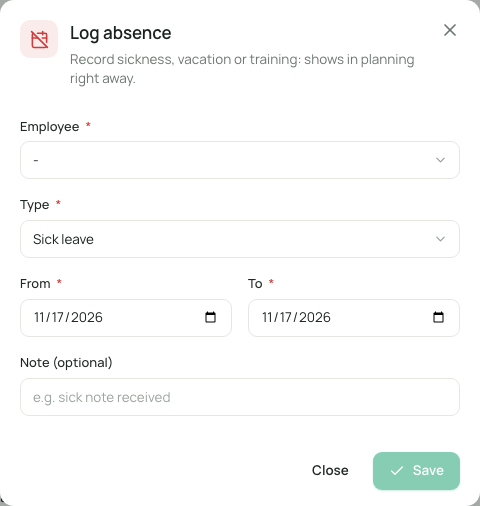
- Fill in the fields:
| Field | Meaning | Required |
|---|---|---|
| “Employee” | Who is absent. | yes |
| “Type” | “Sick leave”, “Vacation”, “Training”, “Parental leave” or “Other”. | yes |
| “From” | The first day of the absence. | yes |
| “To” | The last day. The end date must not be before the start date. | yes |
| “Note (optional)” | For example “sick note received”. | no |
- Click “Save”.
Whole days count. You cannot record half days. If an appointment should stay on a half day anyway, choose “Keep” when resolving (see below).
What happens after saving
Section titled “What happens after saving”The dialog shows “Absence recorded”. If there are already planned appointments in that period, it also says “3 planned appointments fall inside the absence window.” and the sentence “Reassign them to colleagues or unschedule them: nothing changes automatically.” With “Resolve in planner” you go straight on to “Resolve absence”. With “Later” you leave it for now.
So the appointments stay where they are. eelikField never reschedules by itself. Appointments are commitments to customers, and you decide what happens.
How the planning board shows an absence
Section titled “How the planning board shows an absence”- The person’s row is fully hatched. Next to the name it says “Absent today”.
- Next to the name is a chip with the type and the period, for example “Vacation until 12 Jul” or “Vacation from 8 Jul”. A click on it opens a small menu (see below).
- If the person still has appointments, a counter appears on the row: “3 appts”. If you point at it with the mouse, it says “3 appointments despite absence: click to resolve”. A click opens “Resolve absence”.
- In the bar “Notes for the day”, the note “Appointments despite absence” appears (see Planning board).
- The menu “Assign technician” on the cards of the unplanned orders does not offer absent people.
- If someone schedules onto an absent person, eelikField asks first: “Technician absent. The technician is absent on this day. Schedule anyway?”
- AI planning treats absent people as unavailable (see AI planning).
On the Team page, the person’s row also shows a chip (“Vacation until …”). In the tab “Absences” there are two lists: “Absent today” and “Planned absences”. If there is nothing, it says “No absences”.
The menu on the chip
Section titled “The menu on the chip”A click on the chip with the absence opens a menu. At the top are the type and the period. Below that:
| Entry | Effect |
|---|---|
| “Available again from today” | Ends the absence today. Afterwards it says “Name is available again.” An absence that was already running ends yesterday and stays in the past. One that has not started yet is removed. On the Team page, the entry is called “Available from today”. |
| “Resolve appointments” | Opens “Resolve absence”. The entry only appears if the person still has appointments in that time. |
| “Remove absence” | Deletes the absence. A confirmation “Remove this absence?” prevents mistakes. You confirm with “Remove”. |
Resolve absence
Section titled “Resolve absence”“Resolve absence” shows you every appointment that falls into the absence and lets you decide for each one separately. Nothing happens automatically.
How it works
Section titled “How it works”- Open “Resolve absence”: via “Resolve in planner” after recording, via the counter on the row, or via “Resolve appointments” in the menu on the chip.
- The dialog loads the affected appointments (“Loading affected appointments…”). They are sorted by day, with weekday and date. If there are none, it says “No appointments: No scheduled appointments during the absence.”
- For each appointment, choose what should happen to it:
| Choice | Effect |
|---|---|
| “Keep” | The appointment stays unchanged. Useful for an absence of only half a day. “Keep” is preselected for every appointment. |
| “Reassign” | The appointment goes to a colleague. Under “Technician”, choose who. All people who can be scheduled except the absent one are available. |
| “Unschedule” | The appointment is dropped. The order returns to the list “Unplanned orders”. |
- With “Unschedule all” and “Keep all” you set all appointments at once.
- Click “Apply (3)”. The number says how many appointments you change.
- The dialog shows the result for each appointment and a summary, such as “2 reassigned, 1 unscheduled, 0 skipped”.
The results per appointment
Section titled “The results per appointment”| Result | Meaning |
|---|---|
| “Reassigned” | The appointment is now with the chosen colleague. |
| “Unscheduled” | The appointment is dropped, the order is unplanned again. |
| “Skipped (conflict)” | The time is already taken at the colleague’s or they are absent. Nothing was changed. Reschedule this appointment yourself. |
| “Failed” | Saving did not work. |
| “Changed in the meantime” | Someone changed the appointment after the dialog loaded it. Nothing was changed and nothing repeated. See Planning board. |
The dialog always works without “Schedule anyway”. So no double booking arises. Anyone who does not fit an appointment is skipped, and you resolve that case by hand.
Suggestions from the AI
Section titled “Suggestions from the AI”If the AI is set up, the dialog has the button “AI suggestions”. It suggests for each appointment who it can be reassigned to, with a short reason. The suggestions only pre-set the selection. You check and change it as you like and then click “Apply” yourself. If the suggested colleague lacks a skill, a note appears. If the AI fails, it says “AI suggestion failed: please assign manually.” What is transmitted in the process is described under AI planning. In the public demos, the AI is not available.
Notification to the technicians
Section titled “Notification to the technicians”If you reassign or unschedule an appointment, the previous technician gets the notification “Appointment changed”. Whoever newly gets the appointment receives “New appointment”. More on this under Planning board.
Good to know
Section titled “Good to know”- An absence changes nothing about the appointments. It is a display and a warning. Even with an absence, you can schedule something for someone if you choose “Schedule anyway”.
- There is no vacation management: no vacation days, no requests, no approval. You only enter periods.
- You do not change an absence afterwards. Remove it and record it again, or end it with “Available again from today”.
- If someone regularly does not work, for example every Friday, that is not an absence. Set it under “Working hours” (see Working hours).
Frequently asked questions
Section titled “Frequently asked questions”I reported a technician sick, but their appointments are still there. That is intended. Open “Resolve absence” and redistribute the appointments.
The colleague is not offered at “Reassign”. Only people who can be scheduled are offered. For people with an office role, “Also works in the field” must be switched on on the Team page.
What does “Skipped (conflict)” mean? The appointment would have overlapped with another appointment of the colleague, or the colleague is absent. eelikField did not move it. Schedule it by hand.
How long does an absence last? From “From” to “To”, both days included.