

Privacy settings
eelikField captures only as much location data as your business needs. You decide which data that is in the settings, in the “Privacy” group. There are two sections: “Location and place data” and “Privacy and customers”. Only owners and admins change them. All other roles do not have the “Settings” menu item. The sections themselves carry the note “Only owners and admins can change these settings.”
The defaults are always the choice that keeps the least data. You do not have to set anything for eelikField to work with minimal data. If you deviate from a default, eelikField shows the note “The default keeps less data. Your business is responsible for choosing differently.”
How to change a switch
Section titled “How to change a switch”- Open “Settings” and, on the left in the “Privacy” group, choose the “Location and place data” section.
- Flip the switch you want, or choose an option.
- The change is saved immediately. A green tick appears briefly next to it. There is no “Save” button here.
eelikField records every change with time and user in the “Audit log”, for example “Setting changed · Remove place data from photos: on → off” (Company).
Location and place data
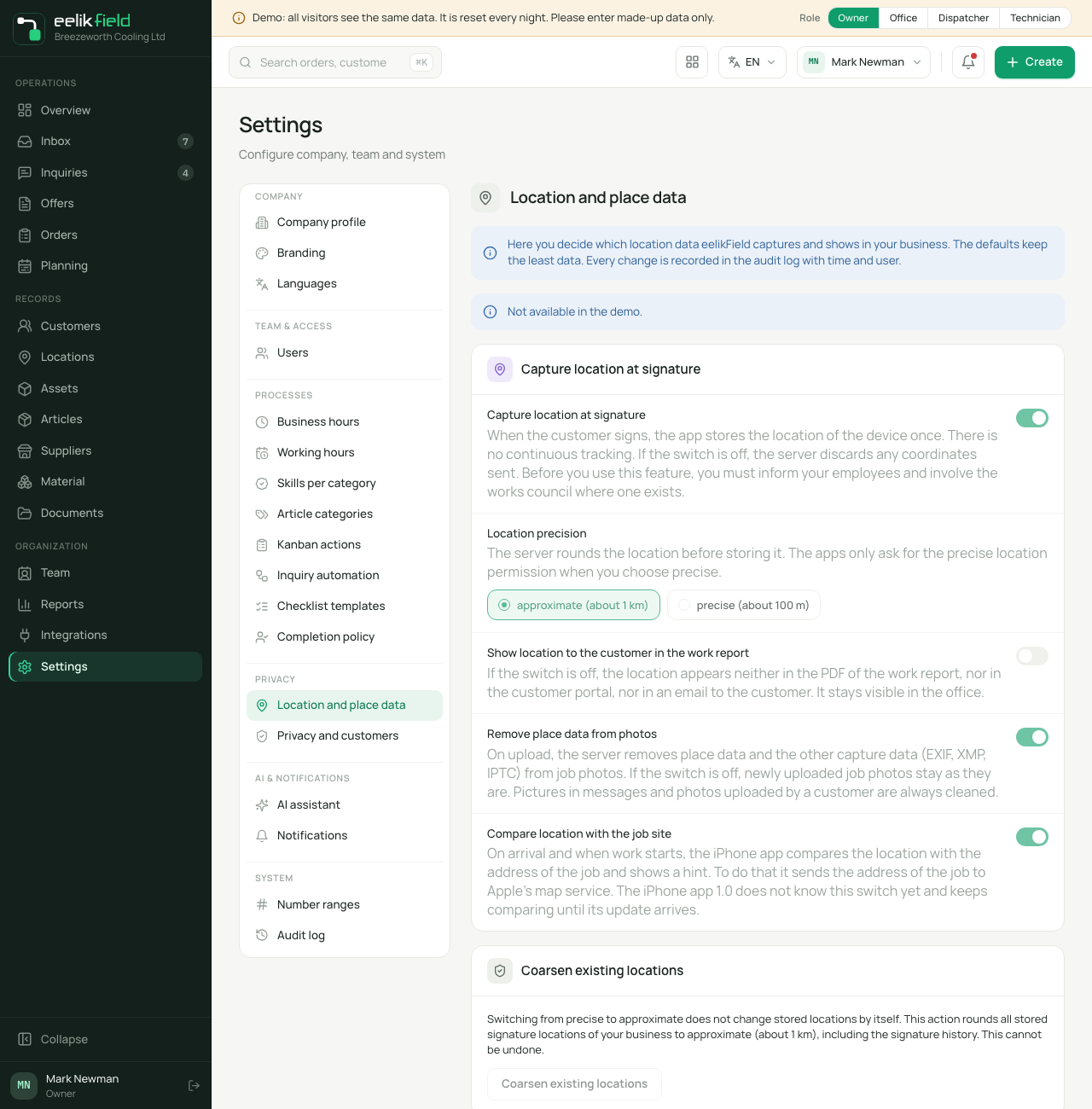
Section titled “Location and place data”At the top is an explanation: here you decide which location data eelikField captures and shows in your business. Five settings follow.
| Setting | Default | What it does |
|---|---|---|
| Capture location at signature | on | When the customer signs in the app, the app stores the phone’s location once. |
| Location precision | approximate (about 1 km) | How precise the stored location is. |
| Show location to the customer in the work report | off | Whether the location is visible to the customer in the work report. |
| Remove place data from photos | on | Removes location details and capture data from job photos. |
| Compare location with the job site | on | The iPhone app compares the location with the address of the job and shows a hint. |
Capture location at signature
Section titled “Capture location at signature”Switches the storing of the location at the signature on or off. There is no continuous tracking: the app reads the location only once, at the moment of the signature. If the switch is off, eelikField discards any coordinates sent along, so they are not stored.
Location precision
Section titled “Location precision”Two options:
- approximate (about 1 km): default. eelikField rounds the location to two decimal places before storing it.
- precise (about 100 m): the location is rounded to three decimal places. The apps ask for the phone’s precise location permission only with this choice.
If you switch from “precise” to “approximate”, this does not change locations that are already stored. For that, there is the action “Coarsen existing locations” (see below).
Show location to the customer in the work report
Section titled “Show location to the customer in the work report”If the switch is off (default), the location appears neither in the PDF of the work report, nor in the customer portal, nor in an email to the customer. It stays visible in the office.
Remove place data from photos
Section titled “Remove place data from photos”If the switch is on (default), eelikField removes location details and the other capture data (EXIF, XMP, IPTC) from job photos on upload. If it is off, newly uploaded job photos stay as they are. Pictures in messages and photos that a customer uploads are always cleaned, however the switch is set.
Compare location with the job site
Section titled “Compare location with the job site”On arrival and at the start of work, the iPhone app compares the location with the address of the order and shows a note if the two are far apart. To do this, the app sends the order’s address to Apple’s map service. The comparison happens on the device.
Coarsen existing locations
Section titled “Coarsen existing locations”Below the switches is a card of its own, “Coarsen existing locations”. The action rounds all already stored signature locations of your business to “approximate (about 1 km)”, including in the signature history. This cannot be undone.
- Click “Coarsen existing locations”.
- Read the explanation in the window.
- Click “Coarsen now”.
- Afterwards, it says, for example, “Coarsened: 12 orders, 14 history entries.” If all locations were already stored approximately, it says “There was nothing to coarsen. All locations are already stored approximately.”
Privacy and customers
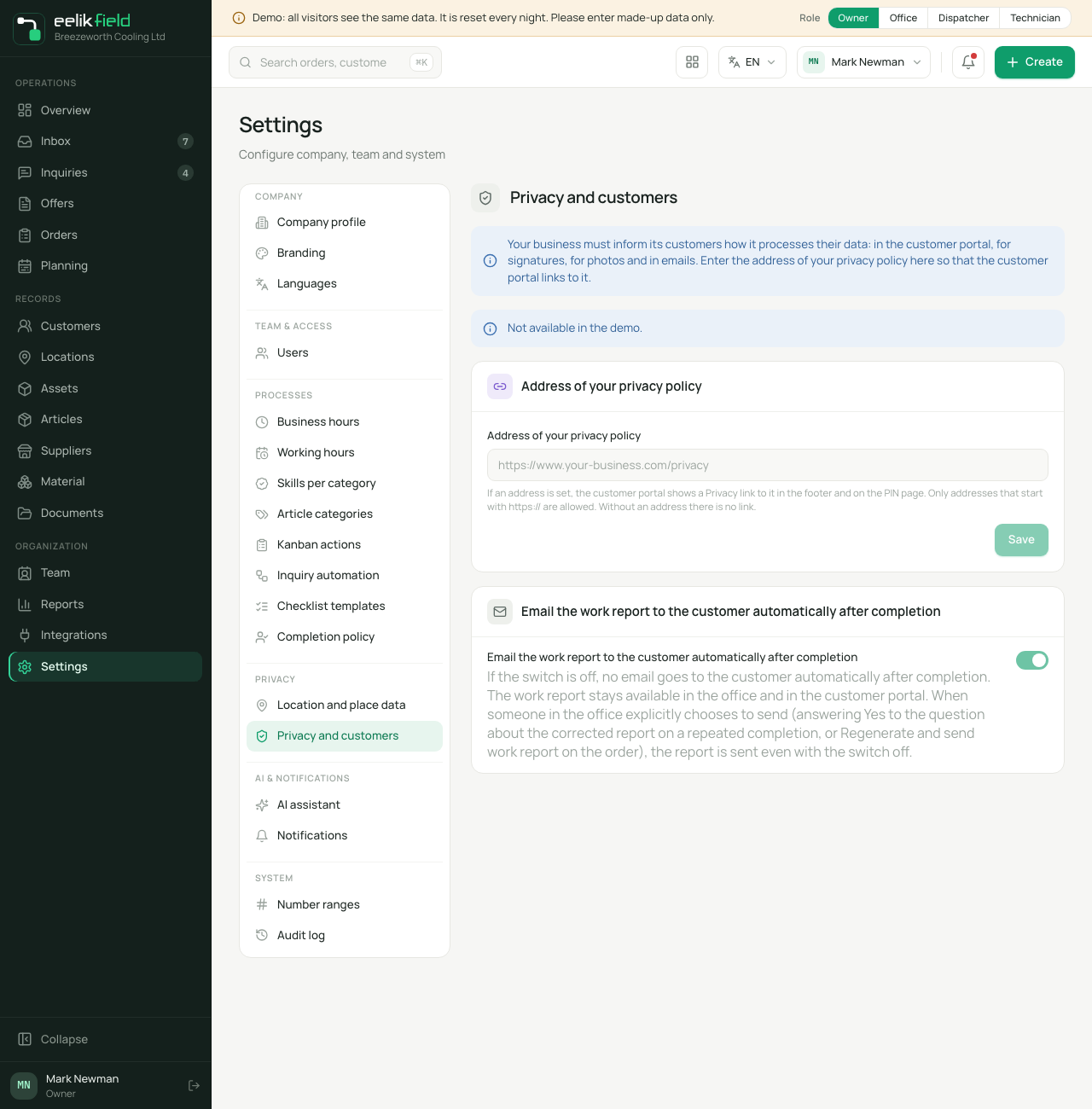
Section titled “Privacy and customers”Your business must inform its customers how it processes their data: in the customer portal, for signatures, for photos and in emails. This section has two settings.
Address of your privacy policy
Section titled “Address of your privacy policy”Enter the web address of your own privacy policy, for example https://www.your-business.com/privacy, and click “Save”. The customer portal then shows the link “Privacy” to this address in the footer and on the PIN page. Without an address, no link appears.
Only addresses that start with https://, have no spaces and have at most 500 characters are allowed. Otherwise, you see “Please enter an address that starts with https://, or leave the field empty.” With an empty field and “Save”, you remove the link again.
Email the work report to the customer automatically after completion
Section titled “Email the work report to the customer automatically after completion”Default: on. Then, after an order is completed, an email with the work report goes to the customer by itself. If the switch is off, nothing goes out by itself after completion. The work report stays available in the office and in the customer portal. If someone in the office explicitly chooses to send, it is sent even when the switch is off: by answering “Yes” to the question about the corrected report on a repeated completion, or with “Regenerate and send work report” on the order (Work report).
The note on AI planning
Section titled “The note on AI planning”AI planning is a special case, because data goes to your AI provider. Before an owner or admin saves an AI key for the first time, they confirm a notice about which details are transferred there. Who confirmed this and when is recorded. After the notice, the following are transferred for each order, inquiry or appointment, among other things: postal code and town, type, priority and duration, and for each employee the skills, the team’s region, booked time slots and the working hours on the day in question. Names, streets, titles and numbers do not go out. More on this on the page AI planning.
More privacy features elsewhere
Section titled “More privacy features elsewhere”- Customer portal: personal links and the PIN for QR stickers can be blocked (Customer portal).
- App access: links are valid only briefly and once. Devices can be blocked (App access).
- Phone permissions: the app asks the phone for camera, photos, location and notifications one by one (Set up the app).
Good to know
Section titled “Good to know”- eelikField does not replace legal advice. Whether and how you may capture your employees’ location data depends on your country and your business. The notes in the settings are a reminder, not legal advice.
- The settings apply to the whole business, not per person.
- A switch affects new data. What is already stored changes only through the action “Coarsen existing locations”.
Frequently asked questions
Section titled “Frequently asked questions”Is my employees’ location tracked all the time? No. There is no continuous tracking. The app reads the location at most once at the signature, and once on arrival and at the start of work for the comparison with the job site.
I switched off “Capture location at signature”. Is something missing now? The signature stays valid. Only no location is stored with it.
The customer should not see the location in the report. What do I do? Nothing. The default is “off”.
An employee does not see the settings. That is correct. Only owners and admins have “Settings”.