

Signing in and out
On this page, you read how to get into the browser, what to do if you forget your password and how to accept an invitation. All roles sign in the same way. Signing in to the app on the phone is described on the page Set up the app.
The address of your business
Section titled “The address of your business”Every business works in its own workspace with its own web address. It ends in eelikfield.com, preceded by the short name of your business, for example your-business.eelikfield.com. The address is created when the workspace is set up, from the company name: lower case, without umlauts and special characters, and spaces become hyphens. It is in the welcome email that you receive during setup.
You do not have to remember the address. The sign-in page of the main address eelikfield.com works too. After you sign in, eelikField forwards you to your workspace.
How to sign in
Section titled “How to sign in”- Open the sign-in page of your business (or
eelikfield.com/login). You see the heading “Welcome back”. - Enter your email address in “Email”.
- Enter your password in “Password”. With the eye icon on the right of the field, you can show the password to find typing mistakes.
- Click “Sign in”.
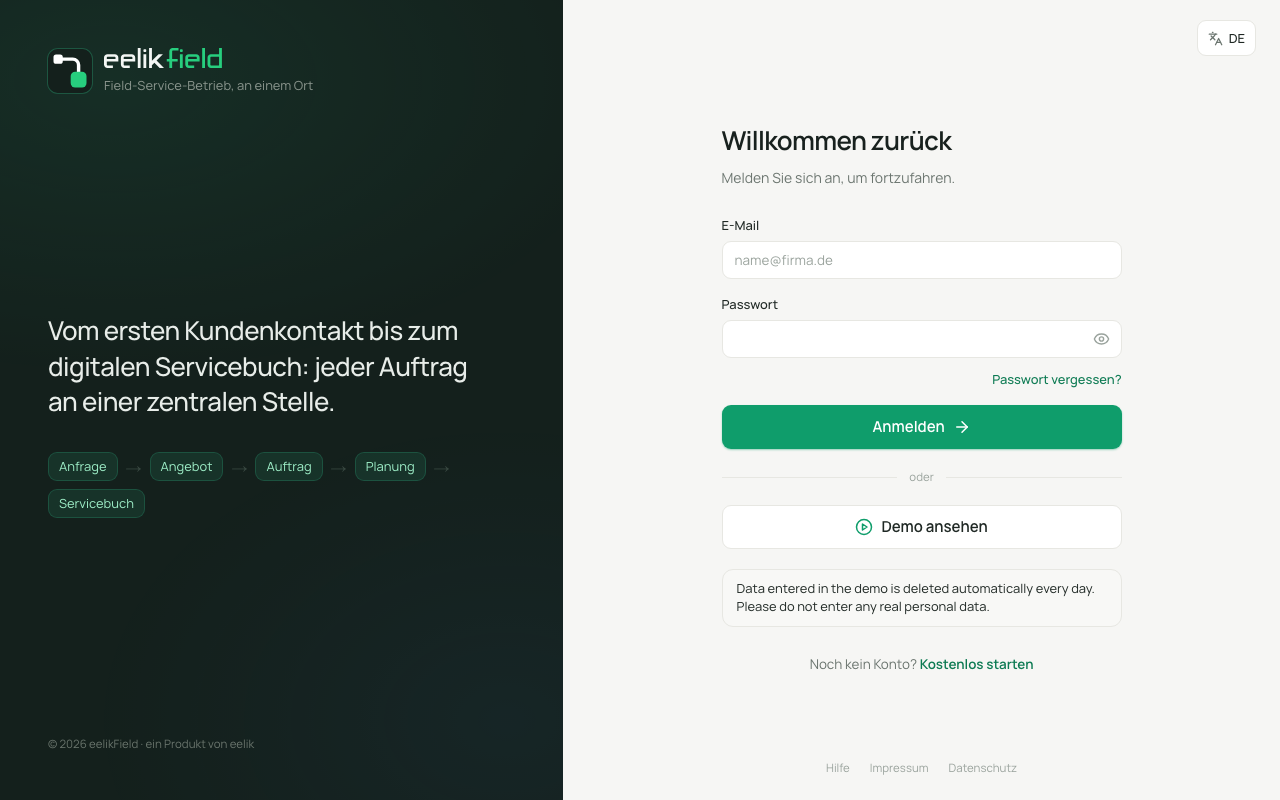
Where you go next depends on your role:
- Owners, admins, office staff, dispatchers and warehouse staff land on the “Overview” of the office.
- Technicians land on the mobile view “Today”, which is built for the phone. Technicians mostly work in the app; the view in the browser is the alternative.
You can find more about the roles on the page Users and roles.
If signing in does not work
Section titled “If signing in does not work”| Message | What it means | What you do |
|---|---|---|
| “Email or password is incorrect.” | The combination is wrong. For security reasons, eelikField does not say which part is wrong. | Check the upper and lower case of the password. Show it with the eye icon. If you no longer know it: “Forgot password?” |
| “Too many attempts. Please wait a few minutes.” | There were too many wrong sign-ins in a short time. This protects your account. | Wait about a quarter of an hour and then try again. Only wrong attempts are counted. |
An employee who was added without an email address (“App only, no web login”) cannot sign in in the browser. They work only with the app. How the office assigns them an email address is explained on the page Team.
Forgot password
Section titled “Forgot password”- On the sign-in page, click “Forgot password?” under the password field.
- On the “Reset password” page, enter your email address and click “Send link”.
- You see the note “If an account exists, a link was sent.” The same answer also appears for an unknown address. This way, nobody can test who has an account.
- Open the email “eelikField: reset your password” and click “Set a new password”. The link is valid for 1 hour.
- On the “New password” page, enter a new password (at least 8 characters) and click “Save password”.
- You land on the sign-in page again and sign in with the new password.
After the reset, all other sign-ins are ended: browsers on other devices and the app sign out. Open app access links of the account become invalid. On the phone, you then set up the app again (link or QR code from the office) or sign in with your email and new password.
If you see “This link is invalid or expired.” instead, click “Request a new link” and start again at step 2. A link works only once. As soon as you have saved a new password, all other open links for your account are also invalid.
If the note “Email sending is not set up yet. Please contact your administrator to reset your password.” appears after step 2, your business cannot send emails. An owner or admin can then create the link by hand and pass it on (see below).
For owners and admins: reset the password for a person
Section titled “For owners and admins: reset the password for a person”If someone in your team no longer knows their password, you can also trigger the link yourself:
- Open “Settings” and, there, the “Users” section.
- In the person’s row, click the pencil icon (Edit). “Edit member” opens.
- At the bottom left, click “Reset password” and confirm the question. The link is valid for 24 hours.
- If email sending is set up, you see “Reset link sent by email.” Otherwise, eelikField shows the “Reset link” with “Copy”, and you pass it on to the person yourself.
In some cases, for example for an owner’s account, the link goes only to the person’s own email address and is not shown to you. For members without an email address, there is no link: they get new app access (App access).
Accepting an invitation
Section titled “Accepting an invitation”When you are invited to a business, you receive an email “Invitation to
- Open the link. At the top, it says “You’re joining:” and the name of the business, with “Set up account” below it.
- The “Email” is filled in and cannot be changed. This is the address that the invitation was sent to.
- Enter your name in “Your name”.
- Choose a “Password”. It needs at least 8 characters.
- Click “Join”. You are signed in straight away.
The invitation is valid for 7 days and can be used only once. After that, you see “Invalid invitation” with the note “This invitation has expired or has already been used. Please request a new one.” Then ask the office for a new invitation.
If you already have an eelikField account with this email address, for example because you work in another business, it says “An account already exists for this email: please enter your existing password.” You then enter your existing password and from now on also belong to the new business. No second account is created.
If you see “This invitation cannot be accepted. Please contact the company’s administration.”, your access in this business has been blocked. A new invitation does not help: only an owner or admin can unblock you.
Several workspaces
Section titled “Several workspaces”If you belong to more than one business, you need only one account. This is how you switch:
- Click your name at the top right.
- Under “Workspace”, you see all your businesses, and the current one is ticked.
- Click the business you want to open.
Right after you sign in, eelikField opens one of your workspaces. If it is not the right one, switch as described.
My account
Section titled “My account”In the same menu at the top right, you will find “My account”. There you change your own name, your phone number (it applies to this business) and your password. The email address is your sign-in and cannot be changed here.
For the password, enter “Current password”, “New password” and “Repeat new password” and click “Change password”. The new password needs at least 8 characters and must differ from the old one. After that, you are signed out on all other devices and in the app. In the browser where you made the change, you stay signed in.
Signing out
Section titled “Signing out”Click your name at the top right and then “Log out”. You return to the sign-in page. Always sign out on a computer that other people also use.
How long do you stay signed in?
Section titled “How long do you stay signed in?”- In the browser, you stay signed in for 30 days. After that, you sign in again. The sign-in applies to all eelikField addresses, including when you switch workspace.
- In the app, every device stays signed in for as long as it is used. If the app is not opened for 90 days, the sign-in has expired.
- There is no list of all open browser sign-ins. If you want to end all other sign-ins, change your password under “My account”.
Frequently asked questions
Section titled “Frequently asked questions”I do not receive an email to reset. Check the spam folder and check whether you are using the same address as for the invitation. Wait a few minutes before you request a second link. There is a limit on many requests in a short time.
Can I change my email address? Not yourself. The address is your sign-in. An owner or admin can only add or correct the address as long as a person has not yet set a password (page Team). Otherwise, write to hello@eelik.ba.
Why does the technician land on a different page from the office? The sign-in looks at the role. Technicians get the mobile view. If you work in the office and also go out to jobs yourself, you can switch between “Office (desktop)” and “Technician (mobile)” at the top using the “View” icon.
I am the only employee. Do I have to sign in twice, in the browser and in the app? Yes, once per device. You set up the app with a link or QR code that you create for yourself. The page App access describes this.