

Skills
Skills are short keywords that say what an employee can do, for example “Refrigeration”, “Gas” or “Electrical”. eelikField uses them in three places: you enter them for your employees, you set what an order needs, and the planning board warns you if the two do not match. The warning is a note. Scheduling is never stopped.
In eelikField they are called “Skills” in both places: on the team page (dialog “Edit member”) and on the planning board, in the order and in the settings. The same thing is meant.
Owners and administrators can enter and set them. On the order, office roles (owner, administrator, office, dispatcher) choose the required skills.
Step 1: The skills catalogue
Section titled “Step 1: The skills catalogue”The catalogue is a uniform vocabulary for your company. It makes sure you write “Refrigeration” everywhere and not “Refrigeration” once, “Cooling” once and “Refridgeration” once. Otherwise the filters on the planning board do not work reliably.
- Open “Settings” and go to the “Users” section. The catalogue is under the list of members in a card “Skills catalog”.
- In the field “Type a new skill and press Enter…”, type a keyword and press Enter (or a comma).
- With the small cross on the keyword you remove it again.
- Click “Save”.
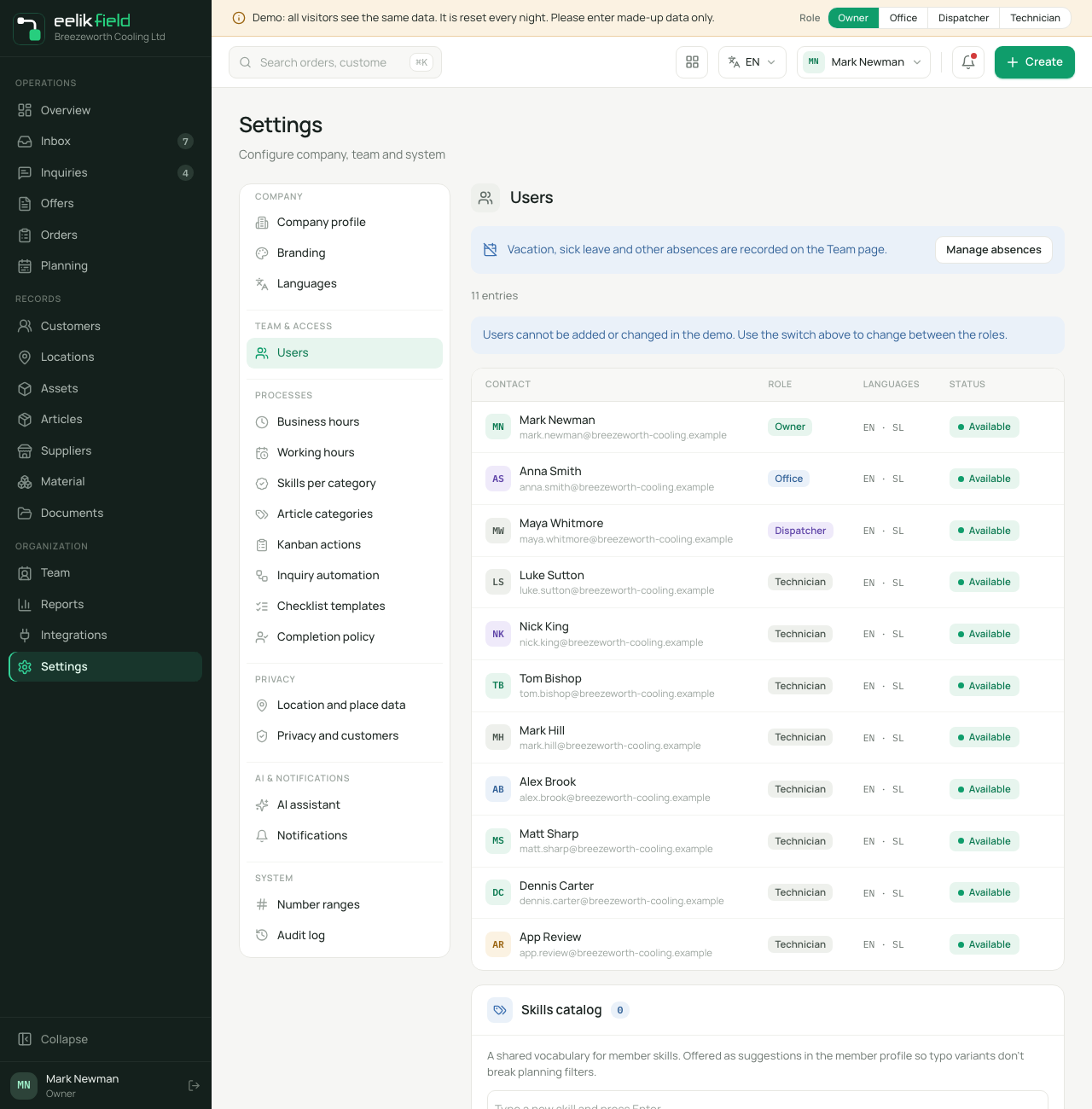
A keyword can be up to 40 characters long, the catalogue up to 60 keywords. eelikField does not create duplicate entries (even with different upper and lower case).
The catalogue is optional. It is offered as a suggestion so that typing errors do not disturb the filters. If you do not maintain it, you can type the skills directly for the people.
Step 2: Entering skills for a person
Section titled “Step 2: Entering skills for a person”- Open “Settings”, “Users” and click the pencil icon in the person’s row (“Edit member”). Or click the person on the “Team” page and then “Edit”.
- In the “Skills” field, type a keyword. Suggestions from the catalogue appear. Confirm with Enter.
- With the cross on the keyword you remove it. There are at most 20 keywords per person.
- Click “Save”.
If a word you type matches a keyword in the catalogue, even with different upper and lower case, eelikField takes over the catalogue’s spelling. A new word that is not in the catalogue is still allowed.
On the “Team” page, the “Skills” tab shows how many people have which skill (Team). Deactivated people are not counted there.
Step 3: What an order needs, per order type
Section titled “Step 3: What an order needs, per order type”You do not have to choose anew for every order. Set what an order type usually needs. That is then the default.
- Open “Settings” and, in the “Processes” group, choose the “Skills per category” section.
- You see four blocks: “Installation”, “Maintenance”, “Repair” and “Inspection”. These are the four order types (Order types).
- For each type, choose the skills that an order of this type usually needs. “None” is also possible.
- Click “Save”.
The skills that already exist in your company are offered: from the catalogue and from the people. If there are none yet, it says “No skills have been entered yet. Add them to the people on the team page.”
Step 4: On the individual order
Section titled “Step 4: On the individual order”In the order there is the card “Required skills” with the note “Only a note on the planning board. Scheduling is not stopped.”
- At first it shows the default of the order type, with the note “Default of the category” and the name of the type, for example Maintenance.
- With “Change” you choose different skills for this one order. It then says “Chosen for this order”.
- With “Use the default” you return to the default of the order type.
What the planning board does with it
Section titled “What the planning board does with it”- If someone plans a person who lacks a required skill, the appointment shows a small sign and the note “Missing skill: Refrigeration”. It is still scheduled, without a prompt.
- In the “Skills” filter of the planning board, you show only technicians with a certain skill. That helps when looking for the right person (Planning board).
- AI planning knows an order’s required skills and the employees’ skills and can take them into account in its suggestion (AI planning).
Good to know
Section titled “Good to know”- Skills are just keywords. There is no check of certificates, expiry dates or levels.
- Skills never hold up planning. They are a memory aid.
- Every change to the default and to an order’s required skills is recorded in the “Audit log” (“Skills per category changed”, “required skills changed”).
Frequently asked questions
Section titled “Frequently asked questions”Do I have to create the catalogue? No. It only helps against typing errors.
Why is the skill on the person but not in the catalogue? Because someone typed it freely. It still counts and appears in the selection lists.
Can the planning board block someone without the skill? No. It only warns.
Where do I see who has which skill? On the “Team” page in the “Skills” tab and in the “Users” list in the “Skills” column.