

Offers
An offer tells the customer what you will do and for what price. You write it in the offer editor and send it by email as a PDF, together with a link to the customer portal. The customer accepts it there digitally, and the accepted offer becomes an order.
The roles Owner, Administrator, Office and Dispatcher can create and send offers. eelikField does not write invoices (see Exporting data).
The offer list
Section titled “The offer list”Open “Offers” in the menu. The page is called “Offers” (“Create, send and track quotes”).
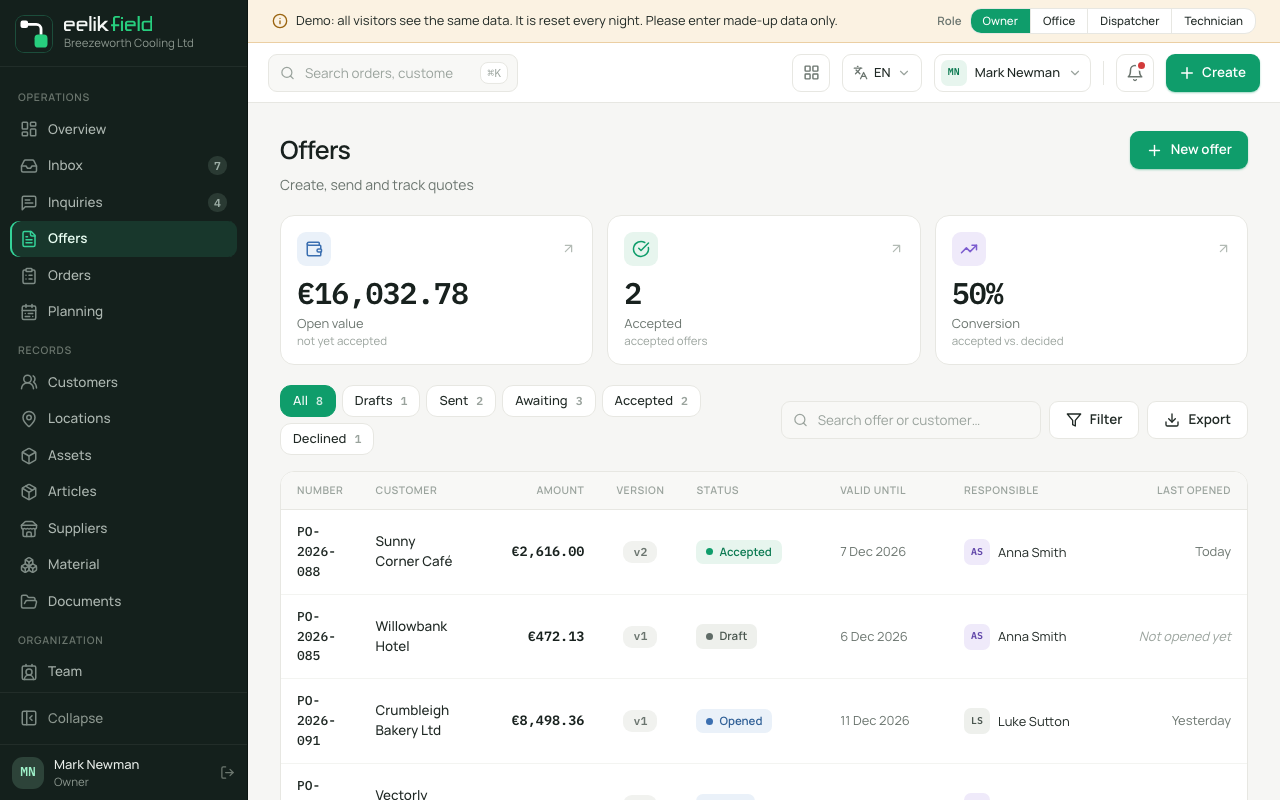
Three key figures are at the top:
| Key figure | Meaning |
|---|---|
| “Open value” | The total of the offers that are “not yet accepted”. |
| “Accepted” | The “accepted offers”. |
| “Conversion” | “accepted vs. decided”: how many of the decided offers the customer accepted. |
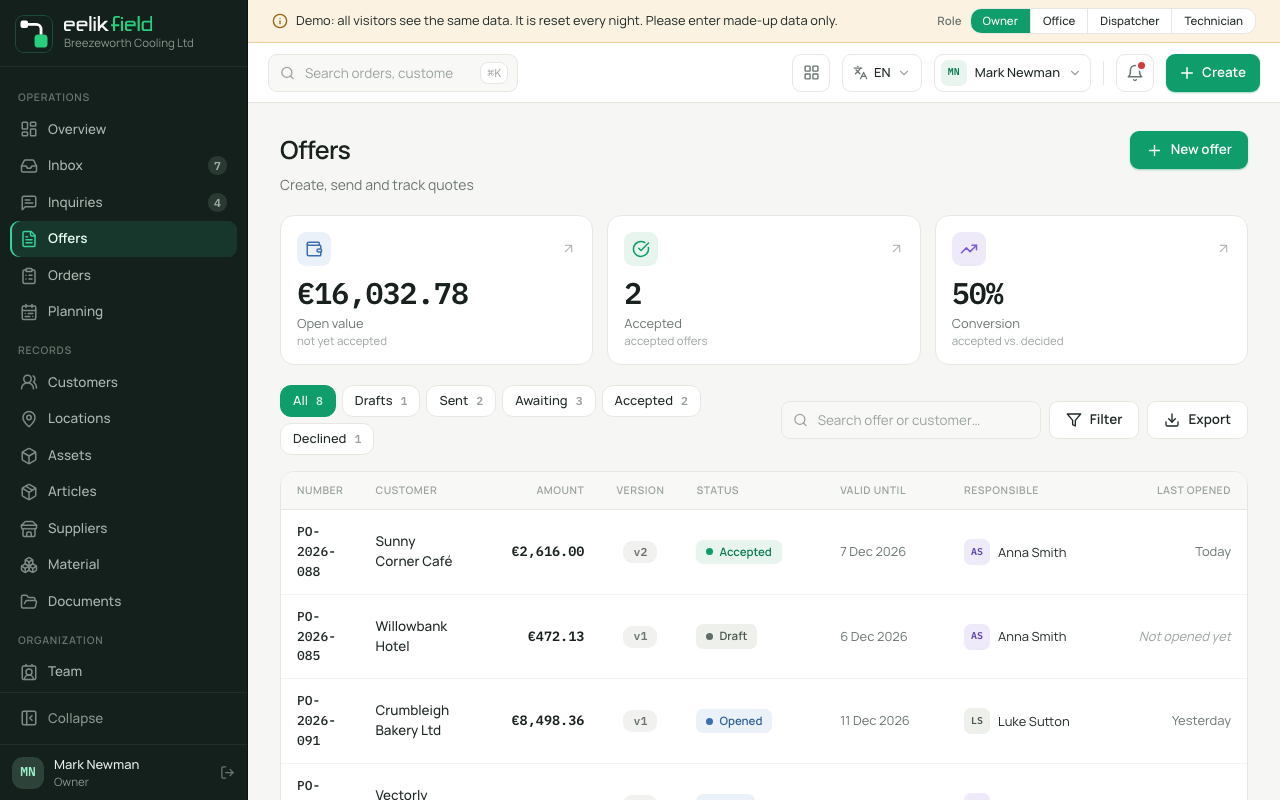
Below that, you choose a view: “All”, “Drafts”, “Sent”, “Awaiting”, “Accepted” or “Declined”. With “Filter by status” (“All statuses”) you pick a single status. The search “Search offer or customer…” finds offers by number and customer. The table shows, among other things, “Version”, “Responsible”, “Valid until” and “Last opened” (or “Not opened yet”). “Export” downloads the list as a file.
Click “New offer” to write an offer. Opening a row opens the editor.
The statuses of an offer
Section titled “The statuses of an offer”| Status | Meaning |
|---|---|
| “Draft” | The offer has been created but not sent yet. |
| “Reviewed” | The offer has been checked. |
| “Sent” | The offer went to the customer. |
| “Query” | There is an open question about the offer. The office sets this status itself in the editor under “Set status”. |
| “Accepted” | The customer agreed. |
| “Declined” | The customer said no. |
An accepted offer, and an offer from which an order has already been created, can no longer be changed or sent again. This keeps the content that the order is based on unchanged.
Writing an offer
Section titled “Writing an offer”- Click “New offer”. From an inquiry, click “Create offer” there. From the customer, click “New offer”. The customer is then already filled in.
- The offer editor opens. First fill in the “Offer header”.
- Add the items.
- Check the “Summary” on the right.
- Click “Save draft”, or go straight to “Send”.
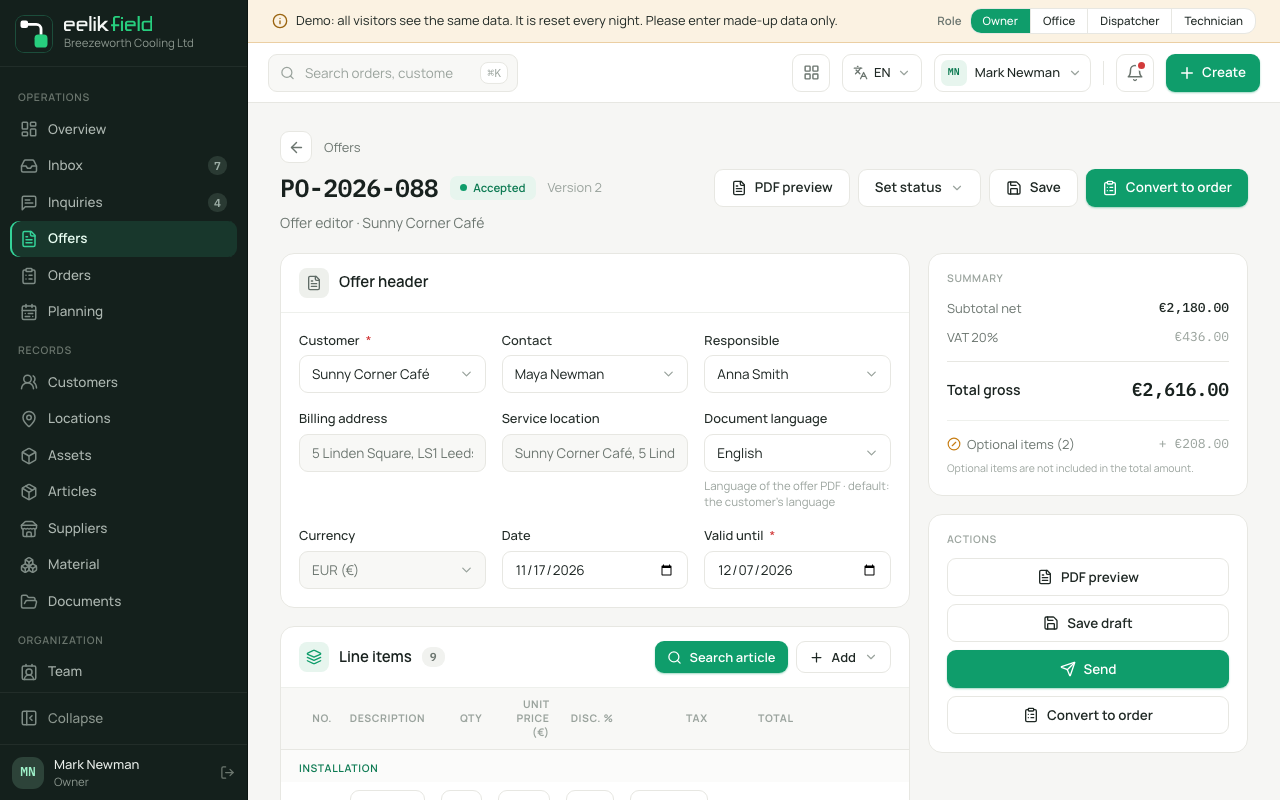
The offer header
Section titled “The offer header”| Field | Meaning | Required |
|---|---|---|
| “Customer” | Who the offer is for. | yes |
| “Contact” | The contact person at the customer. | no |
| “Responsible” | Who is in charge on your side. | no |
| “Billing address” | The address for the invoice. | no |
| “Service location” | The place where the work takes place. | no |
| “Document language” | The language of the PDF. The default is the customer’s language (“Customer language”). Use “Adopt the customer’s language for the document” to set it. | no |
| “Currency” | The currency of your business. It stays fixed on the offer once it is sent. | no |
| “Date” | The date of the offer. | no |
| “Valid until” | Until when the offer is valid. | no |
The items
Section titled “The items”Under “Line items” you add lines:
- “Search article”: Type “Article or number…” and choose an article from your catalogue. The name, unit and price come from there.
- “Free item”: A line whose description you write yourself (“Free item: enter description”).
- “Text block”: A note for the customer without a price (“Note for the customer…”).
Each line has the columns “No.”, “Description”, “Qty”, “Unit price”, “Disc. %”, “Tax” and “Total”. At the line you find “Reorder” (drag to change the order), “Duplicate”, “Delete line” and the “Optional” switch.
An optional item is a suggestion that the customer can add. It does not count towards the total: “Optional items are not included in the total amount.” The customer ticks it in the portal.
The summary
Section titled “The summary”On the right, eelikField does the sums: “Subtotal net”, “Discount”, “Net amount”, “VAT” and “Total gross”, plus the “Optional items”. With “PDF preview” you see what the PDF looks like for the customer (“Layout preview · matches the customer PDF”).
Sending an offer
Section titled “Sending an offer”- In the editor, click “Send”. The window “Send quotation” opens.
- Check the fields:
| Field | Meaning |
|---|---|
| “Recipient” | The customer’s email address. |
| “Language” | The language of the subject and message. |
| “Subject” and “Message” | The text of the email. |
| “PDF attachment” | The offer as a PDF attachment. |
| “Include portal link” | The customer can view and accept the offer online. |
| “Expiry date” | How long the link and the offer are valid. |
| “Automatic reminder” | “Send a reminder 3 days before expiry.” |
- With “Preview” you see the email beforehand. Click “Send”.
- After that you see “The email was sent to ….” The offer has the status “Sent” and is ready in the customer portal: “The quotation was sent by email and published in the customer portal.”
If email sending is not set up or fails, you see “Email sending is not set up: please share the link manually.” or “The email could not be sent: please share the link manually.” The window then shows the “Portal link” with “Copy”. Send it to the customer another way.
What the customer does
Section titled “What the customer does”The customer opens the link and sees the offer with all its items. They can “Ask a question”, “Decline” or “Accept” (see Customer portal). If they accept, the following happens without you doing anything:
- The offer becomes “Accepted”.
- An order is created with the status “Unplanned” and the gross amount of the offer as the order value.
- The customer receives the order confirmation as a PDF.
- A linked inquiry becomes “Accepted” (“Inquiry automation”).
You then schedule the order on the planning board.
Accepting by hand and converting to an order
Section titled “Accepting by hand and converting to an order”If the customer agreed by phone or email, you set the offer yourself:
- Open the sent offer in the editor.
- Under “Set status”, click “Mark as accepted”. “Offer status updated.” appears.
- Click “Convert to order”.
The order takes over the customer and the gross amount of the offer. The subject is usually “Customer · Offer number”. You can also start an order on the page “New order” under “From offer” (see Orders).
Setting the payment terms in the offer
Section titled “Setting the payment terms in the offer”The PDF shows a text about the payment terms below the total. You change it for your whole business. Owners and Administrators can do this.
- Open “Settings” in the menu and go to the area “Company profile”.
- Find the card “Payment terms in offers”.
- Write your text in the field. The field first shows the text that appears in offers today. At most 2000 characters.
- Save.
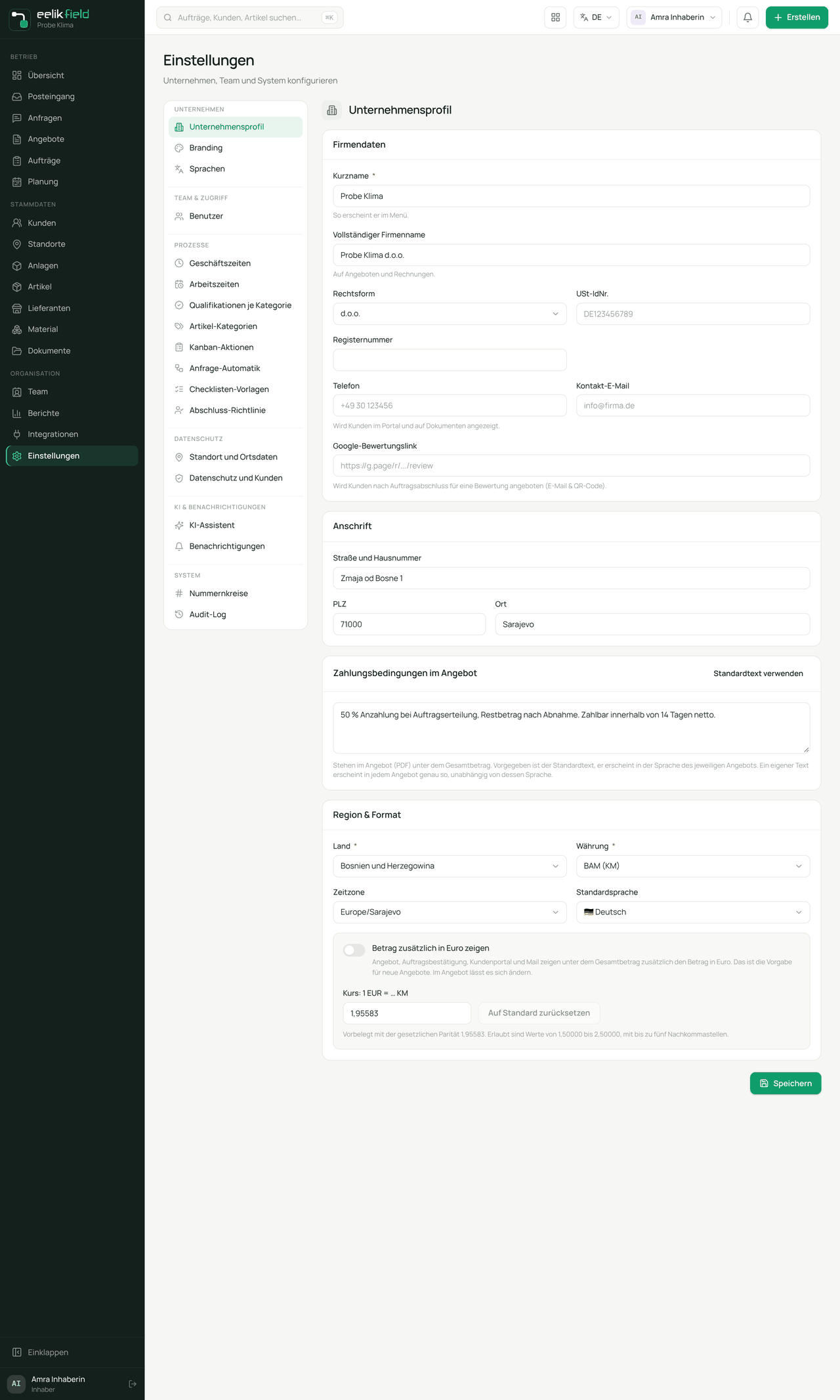
The note in the card explains: The text appears in the offer (PDF) below the total. The default is the standard text, which appears in the language of each offer. Your own text appears exactly as written in every offer, whatever its language. It also applies to the preview in the offer editor.
The standard text reads in English: “50% deposit on order, balance after handover. Payable within 14 days net.”
With the button “Use standard text” you put the standard text back into the field. After “Save”, the text then follows the language of the offer again. An empty field has the same effect.
Good to know
Section titled “Good to know”- The currency of an offer stays fixed when it is sent, even if you later change the currency of your business.
- Offers cannot be deleted. Set an outdated offer to “Declined” or create a new one.
- You set the payment terms in the PDF yourself (see the previous section). Without your own text, the PDF shows the standard text.
Frequently asked questions
Section titled “Frequently asked questions”The customer says they did not get the email. Look for the portal link in the window “Send quotation” and send it another way.
I entered a wrong price, after sending. You can change a sent offer that has not been accepted yet in the editor and send it again. An accepted offer can no longer be changed. Create a new one then.
Where can I see whether the customer has read the offer? There is no status for that. Ask the customer if you need an answer.