

The visit step by step
A visit has fixed stages: planned, travel, on site, work, completion. You can pause in between. In every stage the app shows exactly the button that is due next. That way you do not have to think about what to do, and the office sees where you are without asking.
The buttons appear in two places with the same flow: in the main card under “Today” (Today) and in the button bar at the bottom of the job (Jobs).
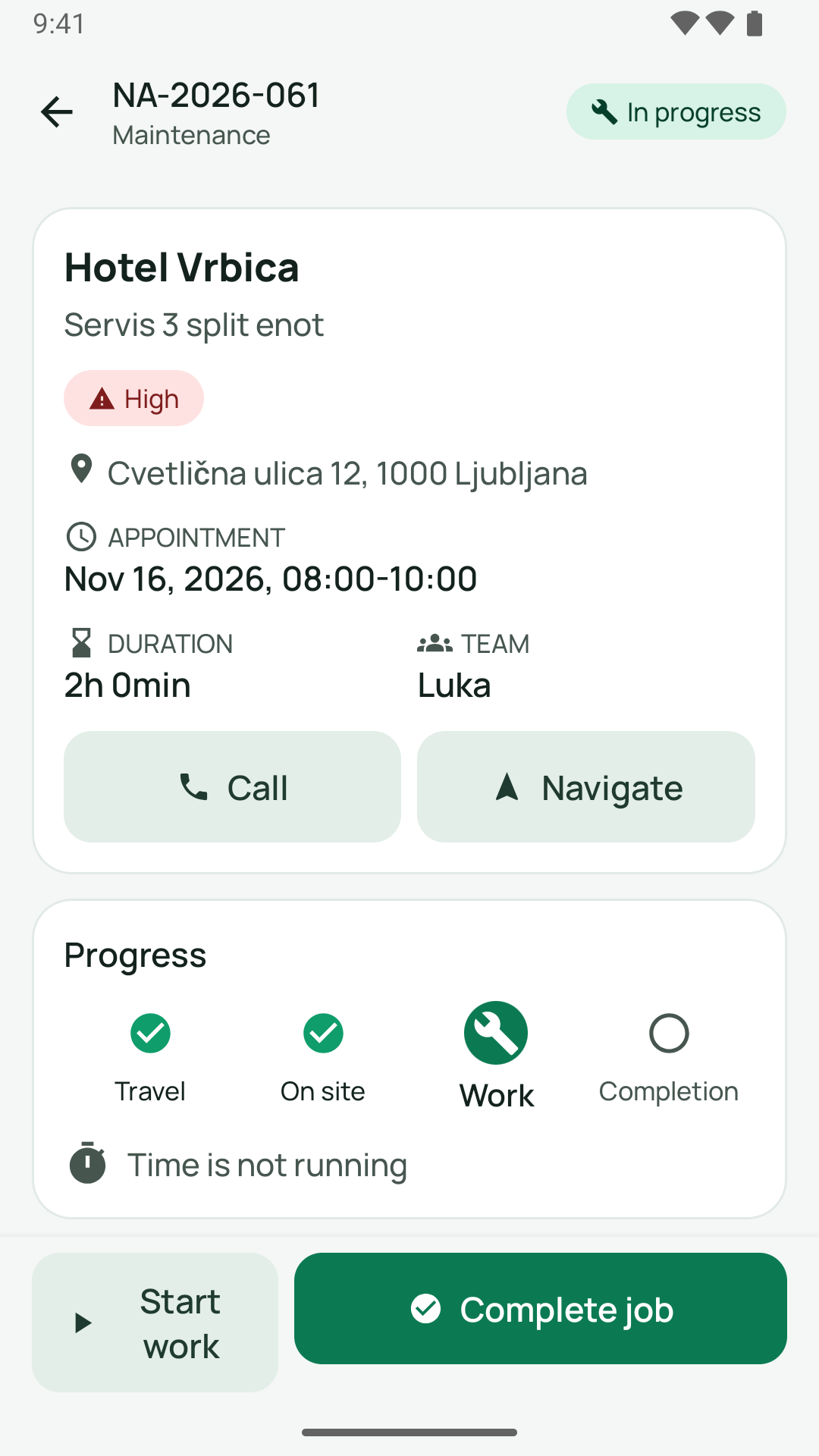
The stages at a glance
Section titled “The stages at a glance”| Stage | When | Big button |
|---|---|---|
| Planned | You have an appointment, nothing has started yet | “Start travel” |
| Travel | You are on your way | “Arrived” |
| On site | You are at the customer’s | “Start work” |
| Work | You are working | “Complete job” and next to it “Pause” |
| Paused | You are taking a break | “Resume” |
| Completed | The job is finished | none |
Without your own appointment on the job (for example if you are only entered as “Responsible”), there is no journey that could be reported. The first button is then “Start work” straight away.
The buttons in order
Section titled “The buttons in order”1. “Start travel”
Section titled “1. “Start travel””When: Stage “Planned”, if you have your own appointment on the job.
What happens: The app sets the appointment to the status “En route” and starts the “Travel” clock on your phone. If setting the status fails (for example without a network), nothing happens: the clock does not start and it says “Status change failed.” On success the app shows “Travel started”.
The office sees: On the planning board, the appointment is “En route”.
2. “Arrived”
Section titled “2. “Arrived””When: Stage “Travel”.
What happens: The appointment changes to “On site”. The travel clock is stopped, and the travel time is sent to the server as a “Travel” booking. The app reports “Reported on site”, later “Travel 25min saved ✓” (with your duration). If only the booking fails, the stage is still “On site”, and the booking waits under “Not saved yet” (see Time and breaks).
The office sees: Appointment “On site”, and in the job under “Logged time” the “Travel” booking with your name and the minutes.
iPhone only: location hint. If the app already has access to the location, it compares it with the job’s address when you tap “Arrived” and “Start work”. If you are more than 1 km away, it asks “You are not at the job location (about 1.4 km away).” with the addition “You can also add the time later.” With “Continue anyway” you go on. The app never asks for the location by itself for this. If there is no current and accurate location or no permission, no hint appears (better none than a wrong one). To determine the job location, the app uses Apple’s map service, to which the job’s address is passed. On Android there is no such hint.
3. “Start work”
Section titled “3. “Start work””When: Stage “On site”. Also in the stage “Work” if the clock is not running (line “Time is not running”, for example after “Stop”).
What happens:
- The job is set to “In progress” (if it is not already).
- The appointment is set to “In progress”.
- On the phone the “Work” clock starts.
If one of the two status changes fails, nothing is started. If the job status is set and only the appointment status fails, the work counts as started: the clock runs, no error message appears, and the appointment status is caught up at the next step. On success the app shows “Work started”.
The office sees: The job is “In progress”, and the status change appears in the job’s history.
4. “Pause”
Section titled “4. “Pause””When: Stage “Work”, if the work clock is running.
What happens: The appointment is set to “Paused” (if the job has no appointment, the app only remembers the pause on the phone). The work time so far is sent as a “Work” booking, and the “Pause” clock starts. The app reports “Paused”. If the booking cannot be delivered, it stays under “Not saved yet”, and the pause runs anyway.
The office sees: Appointment “Paused” and the “Work” booking.
5. “Resume”
Section titled “5. “Resume””When: Stage “Paused”.
What happens: The appointment goes back to “In progress”. The break time is sent as a “Pause” booking (a break under one minute is discarded and not booked). Then a new work clock starts.
The break does not count towards working time: in the summary of the time window, “Total” is the sum of travel and work.
6. “Stop”
Section titled “6. “Stop””When: In the progress card, as long as a work clock is running. It also says “Stop” when a travel clock is running but the stage is no longer “Travel”.
What happens: The running time is ended and sent as a booking. The status does not change, the stage stays “Work”. After that the line shows “Time is not running”, and at the bottom left “Start work” appears again. Use “Stop” when the working time should end without a break beginning.
7. “Complete job”
Section titled “7. “Complete job””When: Stage “Work”.
What happens: The “Completion” page opens with the requirements (time, material, photo, signature, checklist). Only there is the job closed. Everything about it is on the page Completion and signature.
If there is still no working time on the job, the app asks beforehand: “No working time recorded”, “Complete anyway?” with “Complete job” and “Cancel”. In addition, “Start work” is then highlighted as a button, and “Complete job” is next to it. The question sends nothing and demands nothing, it only reminds you.
Only one clock runs at a time
Section titled “Only one clock runs at a time”If you start time on one job while time is still running on another, the app asks:
- Title: “Time is still running on
” (or “Time is still running on another job” if the number is not known), - Text: “Stop it there and start here?”
- Buttons: “Stop and start” or “Cancel”.
With “Stop and start”, the app stops all running clocks of the other jobs and books them as with “Stop”. Then it starts the new step. Afterwards it shows “Time on <no.> stopped and saved.” The status of the other job does not change. The question comes with “Start travel”, “Start work”, “Resume” and with “Start” in the time window. With “Pause” on the same job it does not come.
This rules out the same hour appearing on two jobs.
Double taps and errors
Section titled “Double taps and errors”- While a step is running, the buttons are locked, and a second tap is ignored. An accidental double tap therefore does not trigger a second step.
- Without a network the steps fail immediately. It says “No connection to the server.” and nothing changes. You tap again later.
- If it is unclear whether a step arrived, the app (Android) asks you to reload the job: “Unclear whether the step went through. Please reload the job.”
- If the job now belongs to a colleague, it says “This job is assigned to a colleague.”
What can be undone?
Section titled “What can be undone?”There is no “Undo” button. That is deliberate, because a status tells the office where you are.
- A wrong step: Just tap the next correct one. The server accepts the running statuses in any order, but the app only offers the next step of the stage. If you tapped “Arrived” too early, for example, carry on with “Start work” anyway. The office sees and edits the appointments on the Planning board.
- Too much time booked: A booked time cannot be deleted or changed in the app. Write to the office via “Office” (see Messages).
- Too little time booked: Add the time in the time window (“Quick choose” or “Add time manually”).
- Completed: A completed job cannot be reopened from the app. Only the office can do that on the web.
- Cancelled: If the office has cancelled the job, its open appointments are cancelled, and you receive the notification “Appointment changed”. The job drops out of “Today”, “Planned” and “Open” (see Jobs in the app). If you still have the appointment open, “Start travel” can reopen the appointment and “Start work” can reopen the job. In that case do not just set off, but call the office briefly. “Complete job” does not work for a cancelled job.
What to note as an owner
Section titled “What to note as an owner”You also carry out the visit with the same buttons. In the app the steps act on your appointment. The planning board and the job on the web show you the same statuses that your technicians would set. More on your role in the app: For owners who work alone.
Common questions
Section titled “Common questions”Why is “Start travel” missing? You probably have no appointment of your own on the job. The flow then begins with “Start work”. Schedule yourself on the planning board if you also want to report the journey.
I tapped “Pause” and restarted the phone. Is the time gone? No. Running clocks and bookings not yet sent stay on the phone, even after a restart. They are stored separately for each person.
The clock ran overnight. A single booking is capped at 24 hours and not sent automatically. It appears under “Not saved yet” with the note “Time capped at 24 h. Please check.” See Time and breaks.
My job has suddenly gone or carries “Cancelled”. The office has cancelled it. The office sees the reason on the job on the web. Ask there before you carry on working.
Can the office see that I am working right now? The office sees the status (En route, On site, In progress, Paused), but not the running clock. The time appears after “Arrived”, “Pause”, “Stop” or at completion.