

Company and settings
Under “Settings”, you decide how eelikField works for your business. Owners and admins see and change the settings. All other roles do not have the menu item; if they open the page anyway, eelikField redirects them to the “Overview”.
You find “Settings” in the left menu in the “Organization” group, right at the bottom. On the left in the settings is a list of the sections, and on the phone a “Section” selection at the top.
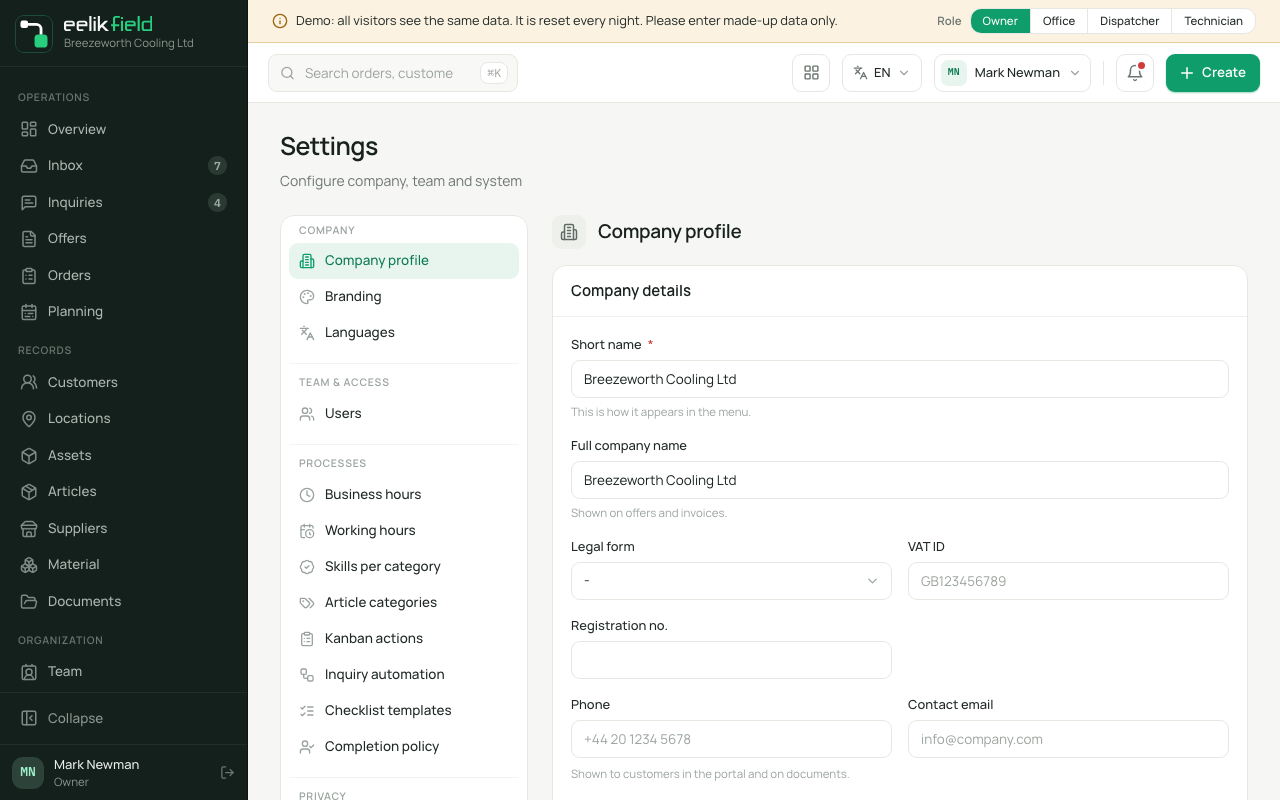
All sections at a glance
Section titled “All sections at a glance”| Group | Section | What for | Described on |
|---|---|---|---|
| Company | Company profile | Name, company details, address, payment terms in offers, country, currency, time zone, default language | this page |
| Company | Branding | Logo and primary colour | this page |
| Company | Languages | The business’s default language | Language |
| Team & access | Users | Edit members, role, skills, deactivating | Team |
| Processes | Business hours | Free text for customers | this page |
| Processes | Working hours | The business’s working hours for each weekday | Working hours |
| Processes | Skills per category | Which skill an order usually needs | Skills |
| Processes | Article categories | Groups for the article master data | Articles |
| Processes | Kanban actions | Which button appears on the cards of the “Inquiries” and “Material” boards | Inquiries |
| Processes | Inquiry automation | Converted inquiries leave the open list by themselves | Inquiries |
| Processes | Checklist templates | Reusable task lists | Checklists |
| Processes | Completion policy | Who completes an order with several technicians | Team completion in the app |
| Privacy | Location and place data | Switches for location and photo data | Privacy |
| Privacy | Privacy and customers | Privacy address, work report by email | Privacy |
| AI & notifications | AI assistant | Your own AI provider for planning | AI planning |
| AI & notifications | Notifications | Push notifications in the browser on this device | see below |
| System | Number ranges | Document numbers | this page |
| System | Audit log | Log of the latest changes | this page |
Most sections you save with “Save” at the bottom right. After saving, the button briefly changes to “Saved” with a tick. The switches under “Privacy” save immediately.
Company profile
Section titled “Company profile”The section has four cards from top to bottom: “Company details”, “Address”, “Payment terms in offers” and “Region & format”. You will find all the fields that the setup assistant asks for here again, and you change them later with the same checks (Initial setup). You save all cards together with “Save” at the bottom right. An empty field deletes the stored value.
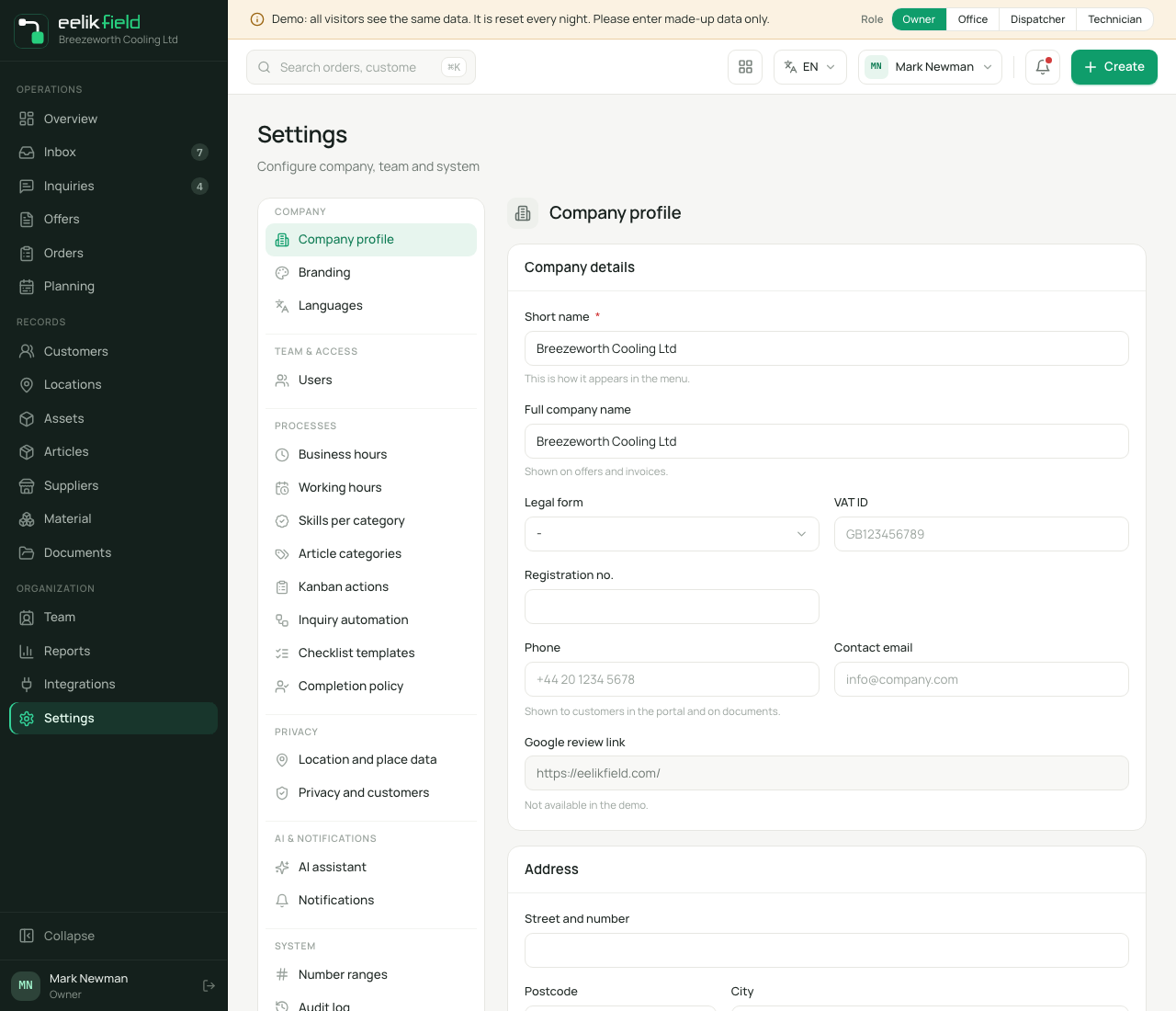
Company details
Section titled “Company details”| Field | Meaning | Required |
|---|---|---|
| Short name | This is how your business appears in the menu. | Yes |
| Full company name | The name as it should appear on offers and invoices, for example with “d.o.o.” or “GmbH”. | No |
| Legal form | A choice: “-” (not specified), d.o.o., s.p., d.d., GmbH, e.U., d.n.o. or “Other”. A value saved earlier that is not in the list stays selectable. | No |
| VAT ID | Your VAT identification number. | No |
| Registration no. | Your commercial register or company register number. | No |
| Phone | Your business’s phone number. | No |
| Contact email | Shown to customers in the portal and on documents. | No |
| Google review link | Offered to customers after order completion for a review, by email and QR code. Only valid addresses are allowed. | No |
Address
Section titled “Address”| Field | Meaning | Required |
|---|---|---|
| Street and number | Your business’s address. | No |
| Postcode | The postcode. | No |
| City | The town or city. | No |
Payment terms in offers
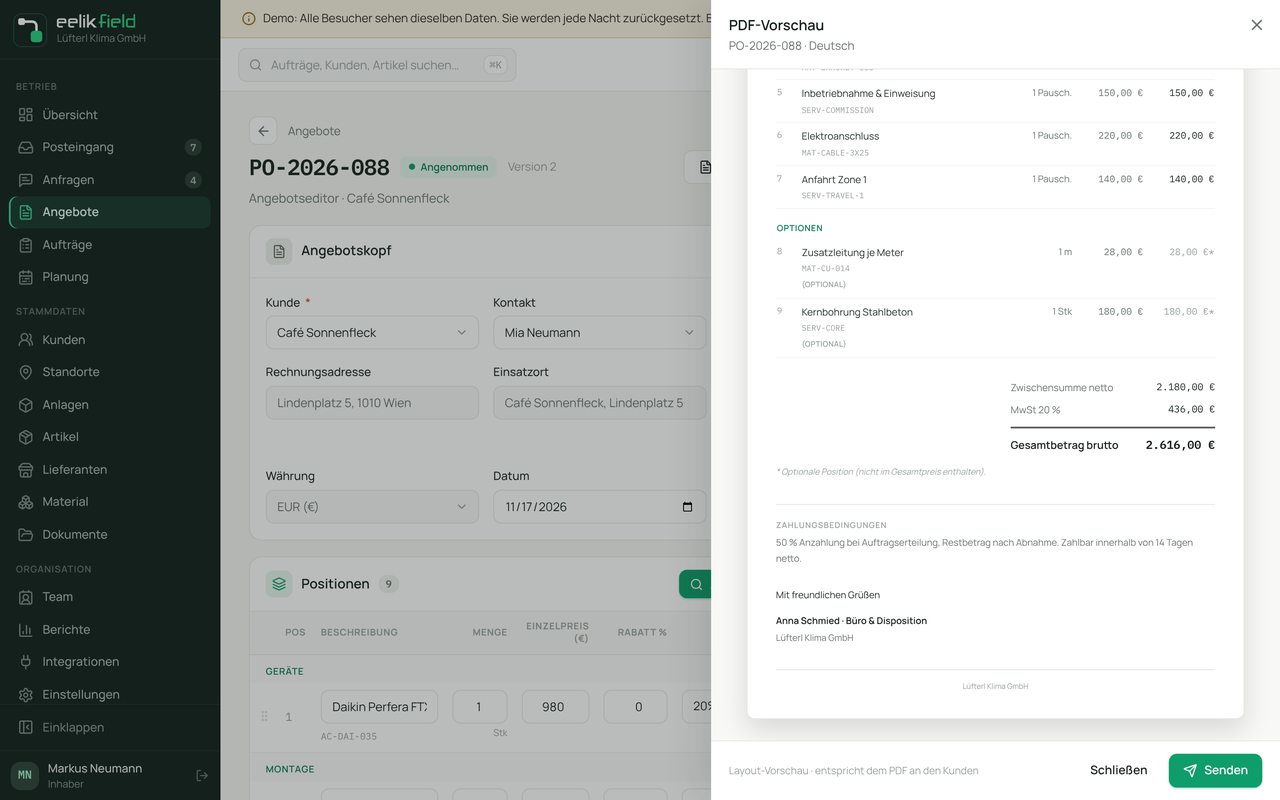
Section titled “Payment terms in offers”Here you decide which text appears in the offer as the payment terms. It appears in the offer PDF and in the preview in the offer editor below the total. Owners and admins may change it.
- Open “Settings”, “Company profile” and find the “Payment terms in offers” card.
- The field is filled with the standard text. In English, it reads: “50% deposit on order, balance after handover. Payable within 14 days net.”
- Write your own text into it, at most 2000 characters.
- Click “Save” at the bottom right.
With the “Use standard text” button at the top right of the card, you put the standard text back into the field. After saving, it again follows the language of the respective offer.
In the offer editor, the PDF preview shows the text below the total, here with the standard text:
| State | What appears in the offer |
|---|---|
| Standard text (default, or empty field saved) | The standard text in the language of the offer. |
| Your own text | Exactly your text, in every offer, whatever language the offer is in. |
Region & format
Section titled “Region & format”| Field | Meaning | Required |
|---|---|---|
| Country | A choice from eleven countries: Bosnia and Herzegovina, Slovenia, Croatia, Serbia, Montenegro, Austria, Germany, Switzerland, Liechtenstein, Luxembourg and the United Kingdom. The names appear in the language of the interface. The suggested tax rate follows from it (see below). A value saved earlier that is not in the list stays selectable. | Yes |
| Currency | EUR, BAM (KM) or CHF. As soon as there are offers or orders with amounts, the selection is locked. This way two currencies never end up in one total. | Yes |
| Time zone | A choice: Europe/Sarajevo, Europe/Ljubljana, Europe/Zagreb, Europe/Belgrade, Europe/Podgorica, Europe/Vienna, Europe/Berlin, Europe/Zurich, Europe/Vaduz, Europe/Luxembourg, Europe/London. Days and times in the planning follow it. | No |
| Default language | The language that is preselected for new customers and documents. | No |
If your business has the currency BAM, the switch “Also show the amount in euros” also appears. Then the offer, order confirmation, customer portal and email also show the amount in euros below the total. This is the default for new offers, and it can be changed in the offer itself. The “Rate: 1 EUR = … KM” is prefilled with the statutory parity 1.95583. With “Reset to default”, you return to it.
The tax rate is a suggestion for new articles and new offer items. Rates that are already saved do not change.
| Country | Standard rate | Reduced rate |
|---|---|---|
| Slovenia (and any country that is not named separately) | 22% | 9.5% |
| Bosnia and Herzegovina | 17% | none |
| Croatia | 25% | 13% |
| Serbia | 20% | 10% |
| Montenegro | 21% | 7% |
| Austria | 20% | 10% |
| Germany | 19% | 7% |
| Switzerland and Liechtenstein | 8.1% | 2.6% |
| Luxembourg | 17% | 8% |
| United Kingdom | 20% | 5% |
Branding
Section titled “Branding”- Logo: click “Upload logo” and choose a file. PNG, JPEG or WebP are allowed, at least 240 by 240 pixels, up to 4 MB. eelikField does not accept SVG files: “SVG files are not accepted as a logo. Please upload the logo as PNG, JPEG or WebP.” The logo appears in the customer portal, in offers and in emails. As long as none is uploaded, you see the first two letters of your name.
- Primary color: choose one of the eight colour swatches or enter a colour code, for example
#0f9d6b. The colour is used for buttons, links and highlights. Under “Preview”, you see how it looks.
Afterwards, click “Save”. The logo, in contrast, is applied immediately on upload.
Languages
Section titled “Languages”Shows Deutsch, Slovenščina, Bosanski and English. The language that currently applies is marked “Default”. A click on “Set default” on another language makes it the default language. More on this on the page Language.
Business hours
Section titled “Business hours”A free text under “Opening hours / availability”, for example “Mon-Fri 07:00-16:00, Sat by arrangement”. It is meant for your customers and changes nothing about the planning. You set the working hours that the planning board follows in the “Working hours” section (Working hours).
Number ranges
Section titled “Number ranges”Here you decide how eelikField numbers documents. Each row belongs to one object:
| Object | Default prefix | What the number looks like |
|---|---|---|
| Inquiry | UP | UP-2026-001 |
| Offer | PO | PO-2026-001 |
| Order | NA | NA-2026-001 |
| Appointment | TER | TER-2026-0001 |
| Asset | AST | AST-2026-001 |
| Material request | MAT | MAT-2026-001 |
| Customer | KU | KU-2026-001 |
The number consists of the prefix, the year and a running number, which is shown under “Next no.”. Next to each entry, in the “Example” column, you see what the next number looks like.
This is how you change a number range:
- Adjust “Prefix” (1 to 8 characters), “Year” (from 2000) or “Next no.” in the row.
- At the end of the row, click the save icon. On the phone, there is a “Save” button there. A tick shows that it is saved.
Notifications
Section titled “Notifications”Here you switch on push notifications for the device on which you are currently using the browser: about new orders, appointment changes and messages. The status under “This device” is “Off”, “On”, “Blocked” or “Unsupported”.
- “Enable” switches the notifications on, “Disable” switches them off again. The browser asks you once for permission when you do so.
- With “Blocked”, the browser has blocked the notifications for this site. Allow them in the browser’s settings.
- With “Unsupported”, the browser cannot do notifications. Then add the page to the home screen (see Installing).
You switch on notifications of the app on the phone in the app’s settings (App settings).
Audit log
Section titled “Audit log”The “Audit log” section shows the latest 100 events in the workspace: records, status changes, messages and settings. For each event, you see “Time”, “User” and “Event”. Actions by the system appear as “System”. Every change to the privacy switches is also recorded here with time and user. You can only read the log.
Frequently asked questions
Section titled “Frequently asked questions”I chose the wrong currency. What now? As long as there is no offer and no order with amounts, you change it in the company profile. After that, no longer. In that case, write to hello@eelik.ba.
Why does the offer not show my address? Then it has not been entered yet. Add the street, postcode and city in the “Address” card and click “Save”.
Can I change the payment terms in offers? Yes, in the “Payment terms in offers” card. The text applies to all new offers of your business.
Who sees my phone number and contact email? Your customers: in the customer portal and on documents.
Can an office employee change anything in the settings? No. The settings stay reserved for owners and admins (Users and roles).