

Messages and "Office"
In the “Messages” tab you read and write messages with the office and with colleagues. In addition, the job has the tile “Office”, with which you write to the office directly about a job. The counterpart on the web is the inbox, described on the page Messages in the office.
The list of conversations
Section titled “The list of conversations”The tab shows your conversations. A conversation gathers all messages on one topic, for example about a job or with one person. Each row shows a title, a preview and a label (for example the job number). Markers:
| Marker | Meaning |
|---|---|
| “Customer” | A conversation with a customer from the customer portal |
| “Internal” | Among colleagues only |
| “System” | An automatic notification |
| “You are mentioned” | Someone mentioned you with @ |
At the top there are:
- the search field “Search messages…”. It searches in the title, preview and label. As in the job search, upper and lower case and accents do not count, and all the words you type must appear.
- the choice “All” and “Unread (n)”.
The badge on the tab shows how many conversations (not messages) are unread. On the iPhone, the list reloads itself every 30 seconds in the foreground. You can also pull it down. If reloading fails, the last state stays in place, and it says “Refresh failed. Showing the last loaded state. Tap to try again.”
Empty states: “No messages yet.”, “No results for …”, “All read. No unread conversations.” If the list does not load at all: “Could not load messages.”
An unread conversation also appears under “Today” as a strip “Urgent message” (Today). A tap opens the conversation. When you open it, it counts as read.
Read a conversation and reply
Section titled “Read a conversation and reply”- Tap a conversation.
- At the top is the name or title. If it belongs to a job, “Open job” takes you straight there.
- Write in the field “Message…” at the bottom and tap the send icon.
- If sending fails, it says “Sending failed, please try again.” Your text stays in the field.
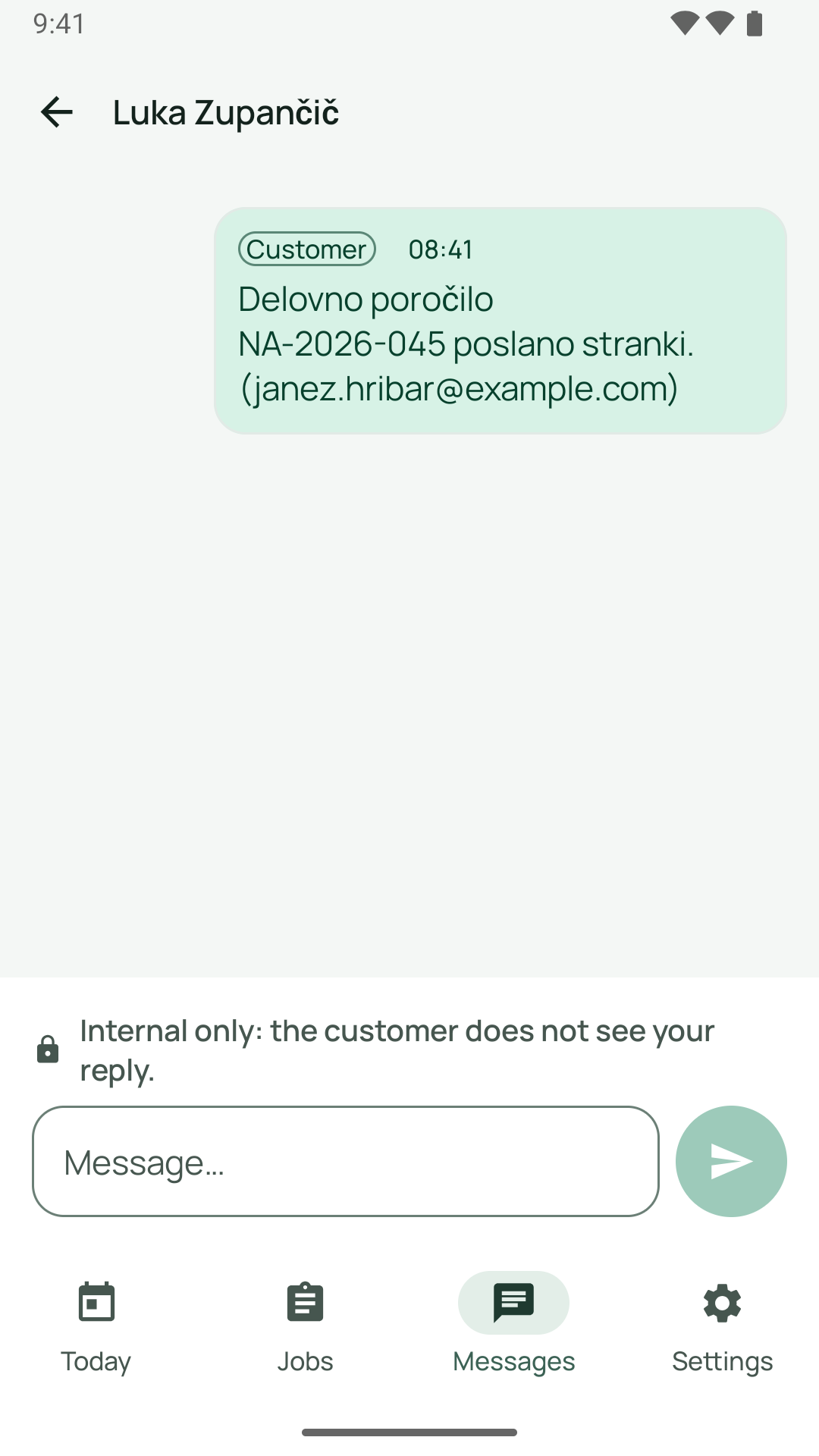
On the iPhone, your text is kept on the phone as a draft, separately for each conversation and each person. If you leave the conversation before sending, you will find the text again later. Drafts that stay for a long time (seven days) are quietly deleted.
Conversations with customers
Section titled “Conversations with customers”If the conversation is a customer conversation (marker “Customer”), the following applies:
- For the role “Technician” and all roles except the office, there is no paperclip. Under the input field it says “Internal only: the customer does not see your reply.” Your reply stays in the company.
- For office roles (owner, admin, office, dispatcher) there is the paperclip. If you send with an attachment, the app first asks “Send to customer
?” with “The customer will then see these files in the customer portal. This cannot be undone.” Only “Send to customer” sends it off.
Attachments
Section titled “Attachments”With the paperclip “Attach” you add: “Camera”, “Photos” or “File (PDF)”.
| Rule | Value |
|---|---|
| Number | at most 5 attachments per message (“At most 5 attachments per message.”) |
| Size | at most 15 MB per file (“The file is too large (max. 15 MB).”) |
| Type | only photos and PDF (“Only photos and PDF files are possible.”) |
Photos are reduced in size before sending and are sent without location data. An attachment can be taken out again with “Remove attachment”. During upload it says “Uploading …”.
Further messages:
- “Attachment not sent. The draft is kept.” Try again.
- “Attachments are not possible in this conversation.” This applies to conversations in which the server does not allow attachments.
- “The company’s daily quota for attachments has been reached.” There is a daily limit per company. Try again tomorrow or send text only.
- “Too many attachments in a short time. Please try again in
minutes.” - “The server is busy right now. Please try again shortly.”
You open received photos and PDFs with a tap. A photo from the customer carries the note “Uploaded by the customer”. With “Add to job” you attach a received photo to the job as an internal photo (“Photo added to the job (internal).”), but only for jobs you are working on (“Only for jobs you are working on.”). After that, “In job” appears next to it.
Write a new message
Section titled “Write a new message”- In the list, tap “New message”.
- Choose the person. The list is divided into “Office” and “Colleagues”. With “Search people…” you narrow it down. If the app finds nobody, it says “No contacts found.”
- Write the message and send it.
This creates a direct conversation only between you and this person. Direct conversations are always internal.
“Office” in the job
Section titled ““Office” in the job”If you want to tell the office something about a specific job without reporting a problem, use the tile “Office”.
- In the job, tap “Office”. The window “Message to the office” opens.
- Write under “Your message…”.
- Tap send.
If it works, you see “Message sent ✓”. The message lands in the conversation of this job and carries the job number. The tile is always active, even for colleagues’ jobs and for completed jobs. This way you can still add something after completion.
Notifications on the phone
Section titled “Notifications on the phone”If the office writes to you or someone mentions you, you receive a notification if you have allowed it for the app. Title, for example, “New message” with “
Good to know
Section titled “Good to know”- Sending needs a network. On the iPhone, drafts (text and attachments) stay on the phone until sending has worked.
- The messages in the app are a work tool and not a chat with customers.
- On Android there are the same functions. The camera for attachments asks for permission the first time.
Frequently asked questions
Section titled “Frequently asked questions”The customer did not receive my reply. As a technician, your replies in customer conversations are internal, see “Internal only: the customer does not see your reply.” The office replies to the customer.
I do not see a paperclip. In a conversation with a customer it exists only for office roles. In conversations about inquiries and other special cases, attachments are not possible.
Where do I find a message that I sent from the job? In the “Messages” tab, in the conversation for the job, with the job number as the label.