Working with the app
The app has four tabs: "Today", "Jobs", "Messages" and "Settings". The texts below apply to the iPhone. Where Android differs, it says so.
Today
"Today" shows all appointments of the day with time, customer and address. At the top is the "Current job", otherwise the "Next job", below it the "Appointments" and the progress "x of y done". With "Refresh" you reload the day. From the job you can call the customer with "Call" and start navigation with "Navigate".
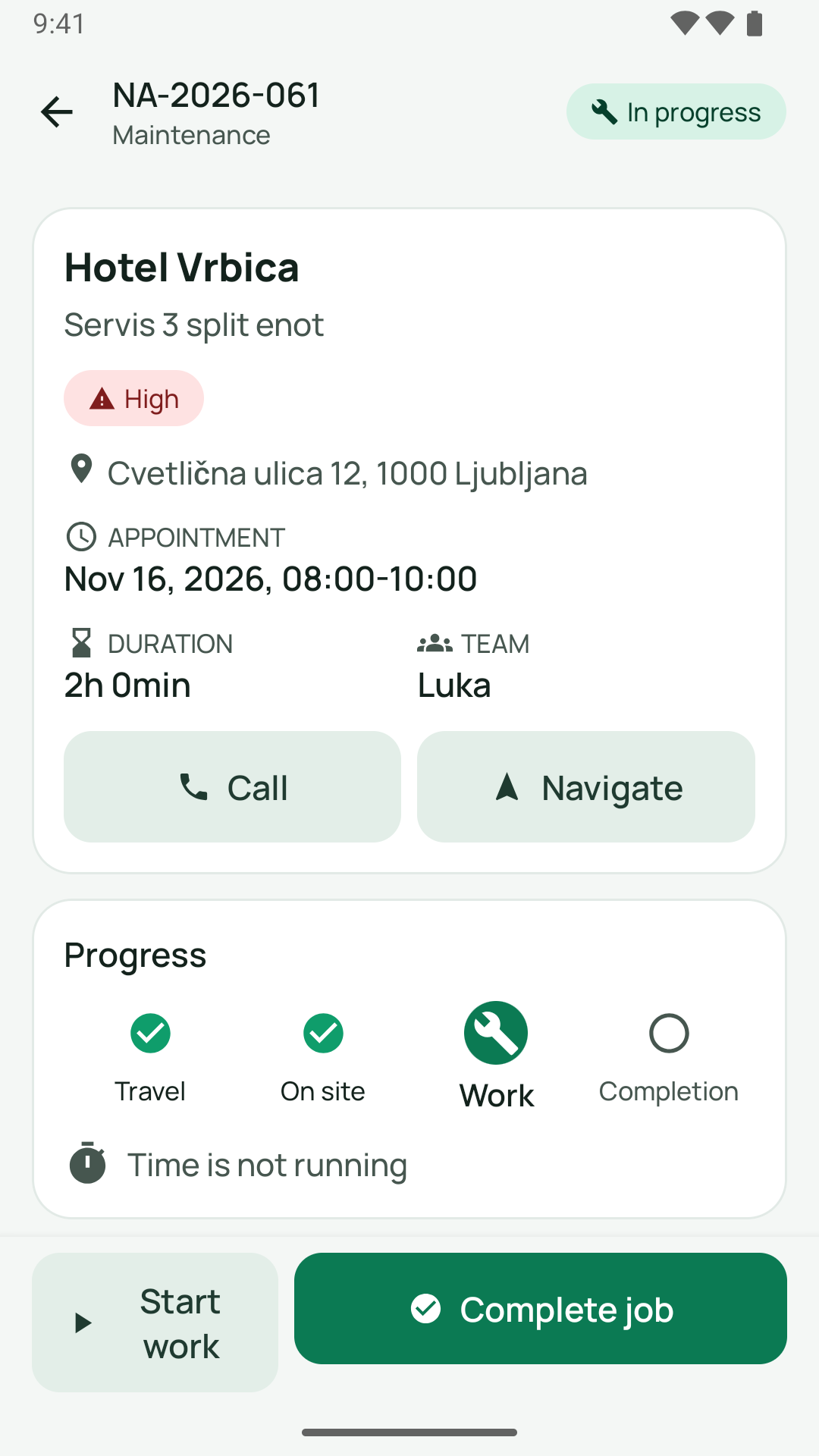
Here you see only appointments that are assigned to you.
Jobs
Under "Jobs" there are four lists: "Today", "Planned", "Open" and "Done". The search ("Search jobs…") applies only to the selected list. A job appears if you have an appointment for it or are entered as responsible.

How a job works
In the job, one button leads you through the next step:
- "Start travel": The travel time runs. The office sees the status.
- "Arrived" (status "On site"): You are at the customer's.
- "Start work": The working time runs.
- "Pause" and "Resume": for interruptions.
- "Done": The work is done. Completion follows (see below).
The steps work only with a network. If time is still running on another job, the app asks "Time is still running on …". With "Stop and start" you switch.
If the company has switched on the location comparison, the notice "You are not at the job location" may appear on arrival. With "Continue anyway" you carry on. The time can also be added later.
In the job you also see "Contact & address", "Contact person", "Access & parking" and the "History".
Times and breaks
Tap "Time" (tile "Time tracking"). In the "Record time" sheet you choose "Travel", "Work" or "Break" and start and stop with "Start" and "Stop". The "Summary" shows the "Total" time. With several technicians you can book time for "Team members".
Started too late? Under "Quick choose" and "Add time manually" you add the time in minutes.

A time is limited to 24 hours at most. The app then shows "Time capped at 24 h. Please check."
Material
- "Material usage": Enter what you used and tap "Save usage". If no material was needed, choose "No material needed".
- "Request material": Enter "Item/part", "Quantity" and "Unit", plus "Urgency" and "Needed by". The office sees the request.
Photos
Tap "Photo". You can take one with "Open camera" or use an existing picture with "Choose file". Choose a category: "Before", "During", "After", "Nameplate", "Damage", "Material" or "Document". With "Visible to customer" or "Internal only" you decide who sees the photo. The company can set that place data is removed from photos.
Checklist
Under "Checklist" you tick off the items. Required items are marked. As long as required items are open, the app says "Can't complete: the required checklist is still open."
Report a problem
Tap "Problem", choose the "Type of issue" ("No access", "Customer absent", "Material missing", "Technical problem" or "Other") and describe it. After that it says "Problem reported, the office has been notified."
Message to the office
In the job, tap "Office" and write your message. On Android the tile is called "Office".
Completion
Tap "Complete job". Under "Completion requirements" the app shows what is still missing, for example "Time recorded", "Material recorded", "At least 1 photo", "Signature captured" and "Required checklist complete". Tap an open item to deal with it.
With a signature.
- The customer signs on the device ("Customer signature", "Sign here").
- Enter "Name" and "Role" and tick the box "I confirm the work was carried out completely and professionally."
- Tap "Confirm signature". With "Reset" you start again.
- Optionally write a "Work note" and then tap "Complete".
If the customer does not sign. Tap "Customer refuses to sign", enter the "Reason for refusal" (required) and confirm with "Confirm refusal". After that it says "Refusal recorded". "Continue without signature" also requires a reason.
Work report. With "View report" you see the "Work report" as a PDF preview. If a Google review link is stored for the company, the app shows a QR code "Happy with our service?" to scan with "Show Google review".
Several technicians. Each person releases their own part ("Complete my part"). Depending on the company's setting, the team lead or the office completes the job. As an owner you complete as the office: The job is closed for everyone immediately, even if colleagues have not yet confirmed their part. Without the team's release it works only through "Force completion" with a reason.
Assets by QR
On "Today" you find the icon "Scan QR code". Scan the QR sticker on the asset or search for the asset ("Search assets…") by customer, model, serial number or "Asset no.". The asset shows "Device data", "Service history" and "Open jobs". With "Log service" you enter, for example, a "Fault" or a replaced "Part".
On the iPhone you can also capture a new asset in the job ("Capture asset"). On Android this is not available yet.
Messages
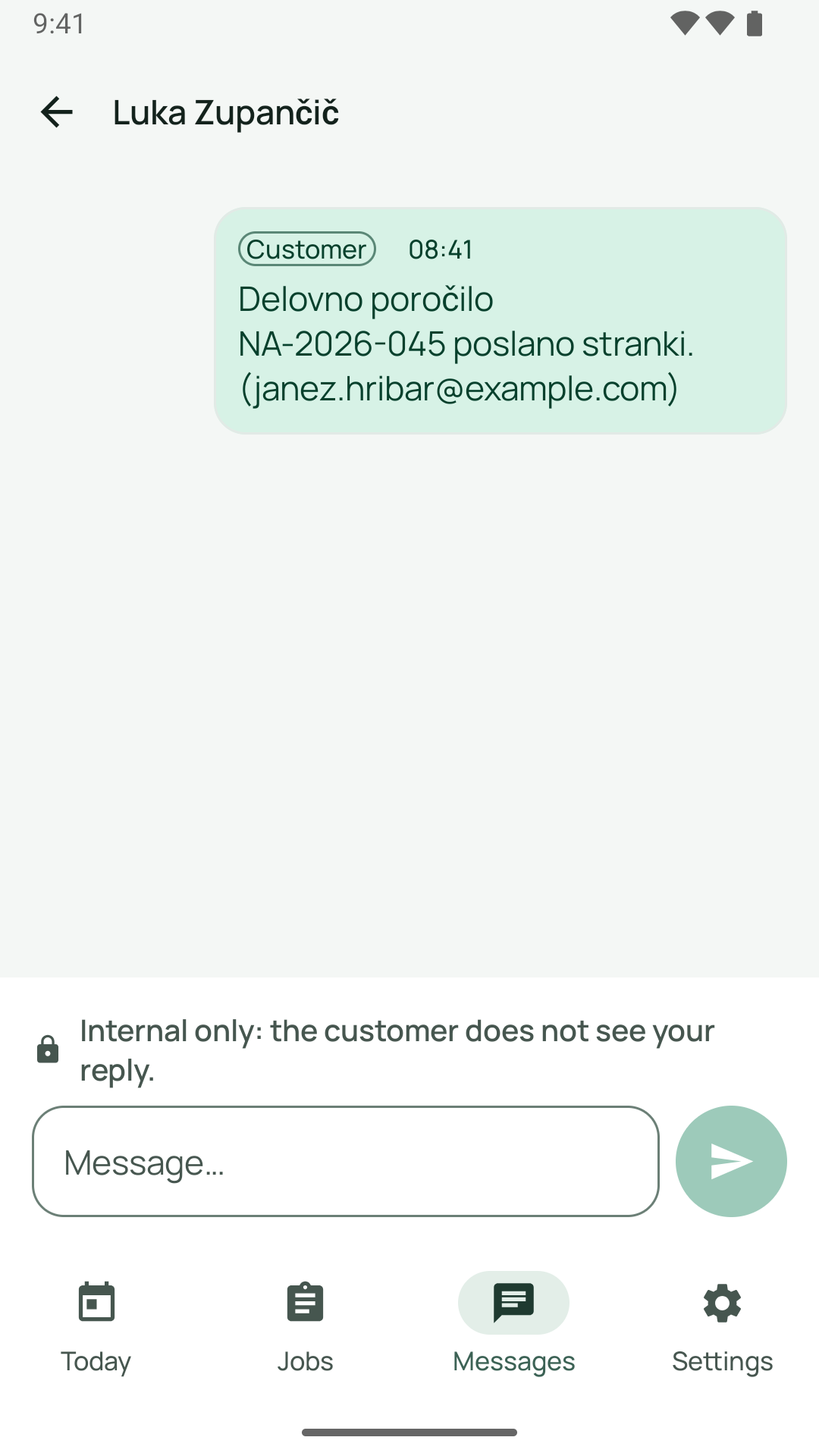
Under "Messages" you read and answer messages from the office. You can filter by "All" and "Unread" and search with "Search messages…". With "New message" you write to the office or to colleagues. To a message you attach something via "Attach": "Camera", "Photos" or "File (PDF)". Attachments are 15 MB at most, and only photos and PDF are possible.
Without a network
If there is no network, the app shows "No network".
- On the iPhone, your entries stay on the device, for example message drafts, photos and notes. Time entries that could not be sent are under "My open time entries" in the section "Not saved yet". There you send them with "Send again". Use "Discard" only if the time is already saved or wrong. If in doubt, ask the office.
- On Android, running times and unsent time entries stay on the device. For everything else you need a network. Today and Jobs show the last loaded state.
- Steps in the job ("Start travel", "Arrived" and so on) work only with a network on both devices.
Settings
Under "Settings" you set the "Language" (German, Slovenian, Bosnian, English or "System language") and the "Appearance" ("Light", "Dark", "System"). There you also find the status of notifications, "Help", "Privacy", the "Version" and "Sign out".