In the office
This page describes what you do in the web application in the browser. Among other things, the menu shows "Overview", "Inbox", "Inquiries", "Offers", "Orders", "Planning", "Customers", "Locations", "Assets", "Articles", "Suppliers", "Material", "Documents", "Team", "Reports", "Integrations" and "Settings".
Orders
Under "Orders" you see all orders. You create a new order with "Create order" on the "New order" page (steps in Getting started). It can arise from an offer or from an inquiry. It then takes over the customer and other details.
In the order you see what the technicians recorded in the app: times, material, photos, signature. In the order you also set which skills it needs ("Required skills"). This is only a hint for the planning board and does not hold up scheduling.
Planning board
Under "Planning" you see the appointments of all people. With "Day", "Week" and "Month" you switch the view. There you plan, move, unschedule and cancel appointments. Unplanned orders are in the sidebar. On a tablet, press and hold an appointment and then drag.
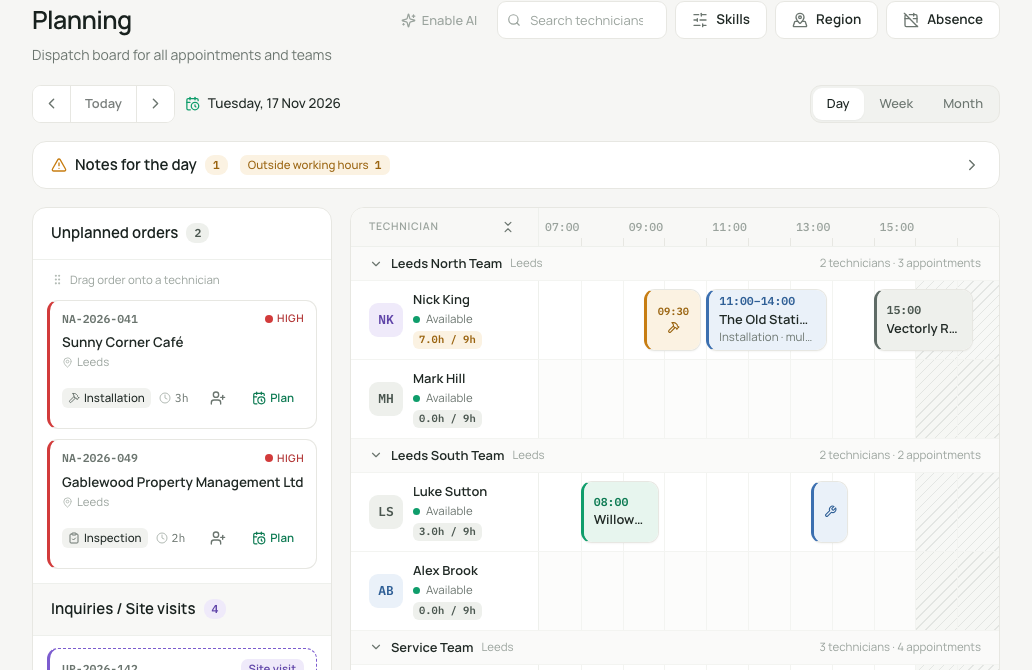
Working hours. The timeline follows the company's working time (Settings, "Working hours") and, where set, the person's own time (Team). Days without working time show "Not a working day". Utilisation compares the planned hours with the target according to working time.
Notes for the day. The bar "Notes for the day" reports:
- "Overlaps"
- "Appointments despite absence"
- "Outside working hours"
- "Missing skill"
- "Orders without duration"
- "Above target"
With "Go to the appointment" you jump straight to the appointment. "Hide notes" hides the bar. The notes do not hold up planning. If there is a conflict or an absence, the planning board asks again when you plan.
Missing skill. If a scheduled person lacks a skill that the order needs, the appointment shows "Missing skill: …". You set the default for each order type in the settings under "Skills per category". You enter the people's skills on the Team page.
Simultaneous changes. If two people work on the same appointment, neither silently overwrites the other. If an appointment has changed in the meantime, it says "This appointment has been changed in the meantime. The board now shows the current state." Your action is then not carried out. Check the current state and repeat it. If the board has been open for a long time, it says "The board is no longer up to date." with "Reload".
Who can be scheduled. Technicians can always be scheduled. Owners, administrators, office and dispatch only with the switch "Also works in the field" on the Team page.
Notification to the technician. If an appointment takes something away from a technician, they receive "Appointment changed". The new technician receives "New appointment", provided notifications are set up on their device.
Absences. You enter holidays, sick leave and other absences on the Team page or on the planning board ("Absence"). If someone drops out, "Resolve appointments" helps.
AI planning (optional)
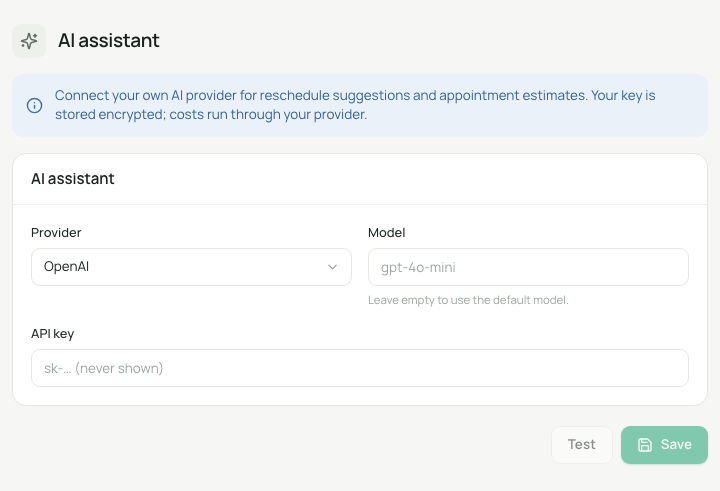
AI planning is switched off until you set it up. You need your own account with an AI provider for it. Costs run through your provider.
- Open "Settings", section "AI assistant". Only owners and administrators can do this.
- Choose the "Provider" (OpenAI, Mistral or Anthropic), enter the "API key" and leave the "Model" empty to use the default model.
- Before the first key, the "Notice about AI planning" appears. You confirm it with "Understood, save". Without this confirmation the server does not save the key. After that it says "AI active". With "Test" you check the connection, with "Remove" you delete the key. The key is stored encrypted.
What is transmitted. To your AI provider go: for each order or inquiry the postcode and city, type, priority and duration, and for each order also the required skills. For each employee go the skills, the area of work, the working time on the day in question, booked time slots with postcode and city, and whether the person is unavailable that day. Also included are the day and, for the next working days, working time and free capacity. Names, streets, order titles and order numbers are not transmitted. Make sure that you have informed your employees.
What the AI does. On the planning board there is "AI reschedule": You choose the technician who dropped out, and the AI suggests how their open appointments that day can be distributed among available colleagues. With "AI day planning" it suggests a day plan for unplanned items. You check the suggestions and accept them with "Apply". At most 40 items at a time go to the AI, the most urgent first. The AI follows the working hours. On a day without working time it makes no suggestion.
Reports and PDF
- Work report. After completion, the work report is created as a PDF. Whether it is sent to the customer by email automatically is set in the settings ("Email the work report to the customer automatically after completion"). It stays available in the office and in the customer portal. On the order you can create it again with "Regenerate and send work report". If a completed order is reopened, the system asks whether the corrected report should go to the customer.
- Reports. Under "Reports" you find key figures: "Orders by status", "Offer revenue", "Team utilization", "Offer conversion", "Open order value" and "Maintenance due". You choose the period with "Week", "Month" or "Quarter". With "Export" you export the analysis.
- Offers. Under "Offers" you create offers, send them as a PDF and see the status ("Sent", "Opened", "Accepted" and so on).
Messages
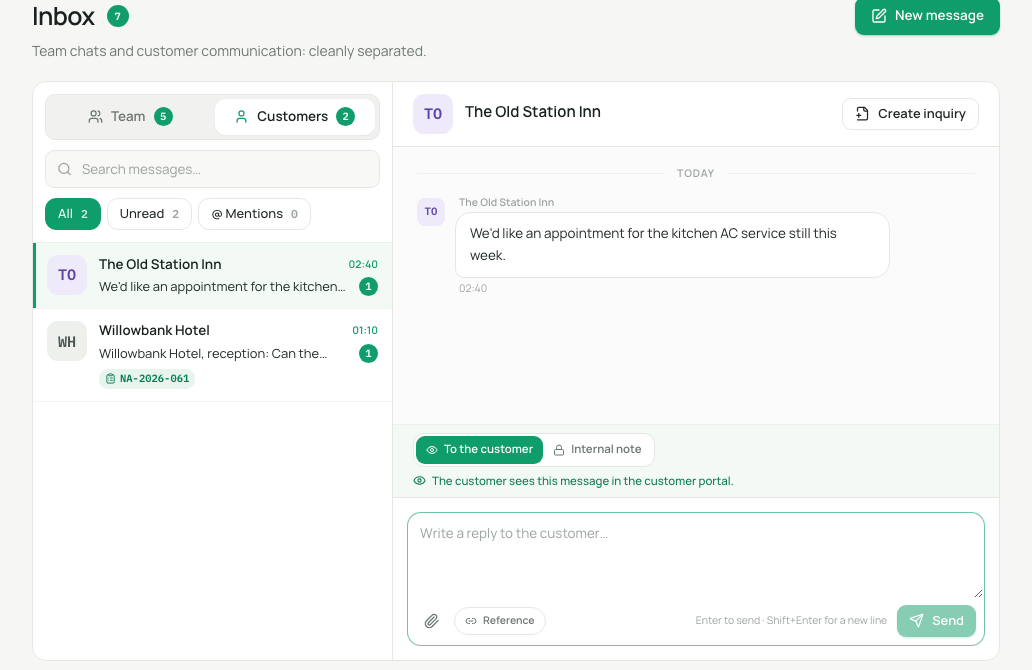
The "Inbox" separates "Team" and "Customers". On the "Team" tab you write direct messages and messages about orders. With @ you mention colleagues. On the "Customers" tab you find customer inquiries and replies from the portal. With "New message" you start a conversation. Messages from the technicians in the app ("Office") arrive here.
What else there is
- Inquiries. Record customer inquiries and turn them into an offer or an order. The "Inquiry automation" in the settings moves converted inquiries by itself.
- Customer portal. In the customer record you enable the portal with "Enable portal access" and copy the "Portal link". Through the personal link the customer sees their orders and released documents. Under "PIN for QR stickers" you set the PIN with which the customer sees the maintenance reports at the QR sticker of their devices.
- Assets. Installed devices with maintenance plan and service history. Each asset has a QR code for the sticker, which technicians scan in the app.
- Documents. Offers, reports, records and warranties stored centrally. You upload files (up to 15 MB) with "Upload" and release them for the portal with "Make customer-visible".
- Articles, suppliers and material. Master data and material requests from the technicians.
- Integrations. "Import wizard" (take over customers and articles from CSV) and "Export center" for accounting.
- Settings. "Checklist templates", "Completion policy" for orders with several technicians, "Number ranges" and the "Audit log" with the last 100 events.
- Notifications. In the "Notifications" section you activate push messages for the device on which you use the web.